For some types of selections, you can let the image itself - as well as Photoshop help you out.
One way to do this - is to use the Selection Tool that can detect edges - and differences in color and brightness.
If you have an area in a photo - that's a different color from the rest of the scene, you can take advantage of that difference with the right Selection Tool to quickly select that area.
Hi, I'm Seán Duggan, a photographer, Photoshop author - and an instructor.
Let's check out how to do this - with the Quick Selection Tool.
In this photo,
Choosing the quick selection tool for color-based selections
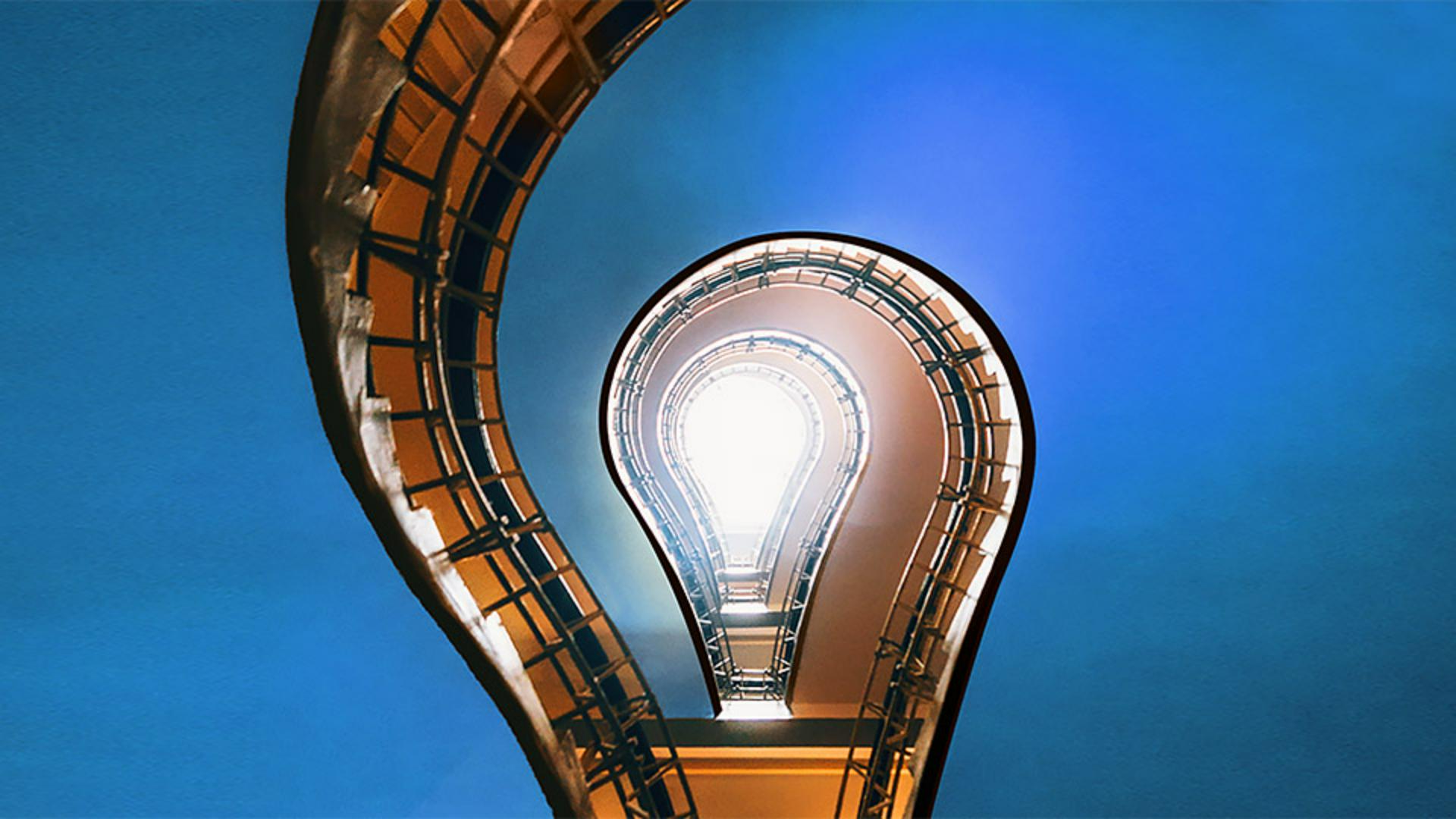
which is a view looking up - through a stairwell at a skylight several floors above, I want to select - most of the orange ceiling area on the left and the right side - of the image and then apply an adjustment to that area.
Since this area is different - in both color and brightness from the structure of the staircase, the Quick Selection Tool is a good choice - for this selection.
I'll go to the Toolbar - and I'll click and hold on the icon for the Object Selection Tool - to open up that tool menu and I'll choose the Quick Selection Tool.
This tool uses a brush interface - and you can see that in the circular shape of the cursor.
Adjusting brush size and building a selection
You can change the size - of the Selection Brush in the Brush Options dropdown menu - on the left side of the Options bar.
You can also use - a very useful keyboard shortcut to change the size of the brush by tapping on the right bracket key - to make the brush cursor larger or tapping on the left bracket key - to make it smaller.
I'm going to set my brush cursor - to 100 pixels and I can see that size indicated up here on the left side of the Options bar.
Next to the Brush Options menu - are icons for a New Selection, Add and Subtract.
Right now the tool is set - to make a New Selection.
The Quick Selection Tool works by dragging - over the area you want to select.
And I'll do that here in the upper left.
Start dragging there and you can see how the selection - is getting bigger as I drag.
And it's jumped ahead - and selected a big chunk there.
Now, one really useful feature - of the Quick Selection Tool is that once you begin a selection, it automatically switches - to the Add to Selection mode.
And you can see that the Add icon is selected there in the left side - of the Options bar.
So I can continue to drag over this part of the ceiling - to add that into the selection.
Now I'll work on adding the right side - of the ceiling to the selection.
I'm going to start - near the skylight area here between these two railings.
I'll tap the left bracket key - a couple of times to make my brush cursor a bit smaller, and I'm just going - to start dragging slowly here in short little movements - to add that area into the selection.
Fixing selection mistakes by subtracting areas
And so far, it's doing a pretty good job, except it did make a mistake up here.
But let me explain what has happened, because it's always good to understand - why a tool behaves in a certain way.
The reason that this happened is that there's not much difference - in brightness between this part of the ceiling and then this part of the wall - on the upper floor.
The contrast of that edge - is just not strong enough for the Quick Selection Tool - to recognize it as an edge.
Fortunately, this is very easy to fix.
In the Options bar, - I will click on the Subtract icon and now I can just drag - over the area that I want to subtract - from the selection.
The keyboard shortcut - to subtract from selection is to hold down Option or Alt.
So this is looking pretty good.
And now that we have a selection - of the area that I want to change,
Applying targeted color adjustments with a selection mask
I'll go over to the Layers panel and I'll click - on the Add Adjustment Layer icon at the bottom of the panel and I'll choose Hue/Saturation...
The selection is turned into a layer mask.
The area that was selected is white - on the layer mask and the area - that was not selected is black.
Black will hide - the hue/saturation adjustment that I'm about to make so that it only affects - the orange sealing areas which are white on the layer mask.
In the Properties panel, I'll move the Hue slider - to shift the hue of the orange into different colors.
Now some of these colors look pretty cool, but I think what's going to work well - with the yellow orange areas in the rest of the image - is to choose a blue color.
So I'm going to move that Hue slider - all the way over to the right to +180, and that's looking pretty good.
The Quick Selection Tool - is an excellent choice when you can take advantage of differences - in color and brightness that are already in the image - to help you make a selection. -
This sample file contains assets provided by Adobe Stock for your tutorial practice purposes only. Check out the ReadMe file in the folder for the terms of use for this file. Adobe Stock has millions of royalty-free images and videos for your commercial use. You can get 10 images with a free month trial.
What you learned
When to use the Quick Selection tool
Use the Quick Selection tool to select part of an image that is different from the rest of the scene in terms of color or brightness.
Drag over an area to begin the selection
Start dragging over an area you want to select. The tool automatically expands the selection to include similar colors and tones and stops when it finds edges that are different from the area you are selecting.
How to add to a quick selection
After you begin the selection, the Quick Selection tool automatically changes to the Add to selection option. To add to the initial selection, just drag over another area.
How to subtract from a quick selection
To subtract from the selection, press the Option key (MacOS) or Alt key (Windows) as you drag over an area you want to remove from the selection.
You can control how Adobe websites use cookies and similar technologies by making choices below. But note that if you disable cookies and similar technologies entirely, Adobe websites may not function properly.
Cookies are small text files stored by your web browser when you use websites. There are also other technologies that can be used for similar purposes like HTML5 Local Storage and local shared objects, web beacons, and embedded scripts. These technologies help us do things like remembering you and your preferences when you return to our sites, measure how you use the website, conduct market research, and gather information about the ads you see and interact with.
You can make choices in the menu below about what cookies and other technologies you want us to use on Adobe sites when you visit them from this browser. You can always change those choices later by clicking on the Cookie Preferences link at the bottom of the page.
If enabled:
We can improve your experience by tailoring the site and the content to things we think might be of interest
We can better keep track of your preferences — like what language you prefer to use
We will better understand your likely interests so we can provide you more relevant Adobe ads and content on non-Adobe websites and in non-Adobe apps
It will help us improve the performance of our website and those of our partners who use the Adobe Experience Cloud
If disabled:
We won’t be able to remember you from session to session so the experience may not be tailored to your interests
You’ll still have access to the content of the site but certain features that depend on cookies may not function
You’ll still see ads, they just may not be as relevant to you
General information
You can control how Adobe websites use cookies and similar technologies by making choices below. But note that if you disable cookies and similar technologies entirely, Adobe websites may not function properly.
Cookies are small text files stored by your web browser when you use websites. There are also other technologies that can be used for similar purposes like HTML5 Local Storage, web beacons, and embedded scripts. These technologies help us do things like remembering you and your preferences when you return to our sites, measure how you use the website, conduct market research, and gather information about the ads you see and interact with.
You can make choices in the menu below about what cookies and other technologies you want us to use on Adobe sites when you visit them from this browser. You can always change those choices later by clicking on the Cookie Preferences link at the bottom of the page.
If enabled:
We can improve your experience by tailoring the site and the content to things we think might be of interest
We can better keep track of your preferences — like what language you prefer to use
We will better understand your likely interests so we can provide you more relevant Adobe ads and content on non-Adobe websites and in non-Adobe apps
It will help us improve the performance of our website and those of our partners who use the Adobe Experience Cloud
If disabled:
We won’t be able to remember you from session to session so the experience may not be tailored to your interests
We’ll still count your use of our site and services
You’ll still have access to the content of the site but certain features that depend on cookies may not function
You’ll still see ads, they just may not be as relevant to you
Operate the site and core servicesOperate site and measure engagement
Always active
These cookies are required, and they are used to enable the site and related services core functionality. Without them the site could not operate, so they cannot be disabled.
These cookies enable the site and related services’ core functionality and collect statistics about user engagement, such as counting active use to help us understand trends. These cookies cannot be disabled.
Measure performance
These cookies are used to analyze site usage to measure and improve performance. Without them Adobe cannot know what content is most valued and how often unique visitors return to the site, making it hard to improve information we offer to you.
These cookies are used to analyze site usage to measure and improve performance. Without them Adobe cannot know what content is most valued, making it hard to improve information we offer to you.
Extend functionality
These cookies are used to enhance the functionality of Adobe sites such as remembering your settings and preferences to deliver a personalized experience; for example, your username, your repeated visits, preferred language, your country, or any other saved preference.
Personalize advertising
These cookies are used to enable Adobe and our partners to serve ads more relevant to your interests. Without them you will still see ads, but they might not be as relevant to you.
Personalize advertising
These cookies are used to enable Adobe and our partners to serve ads more relevant to your interests. Without them you will still see ads, but they might not be as relevant to you.