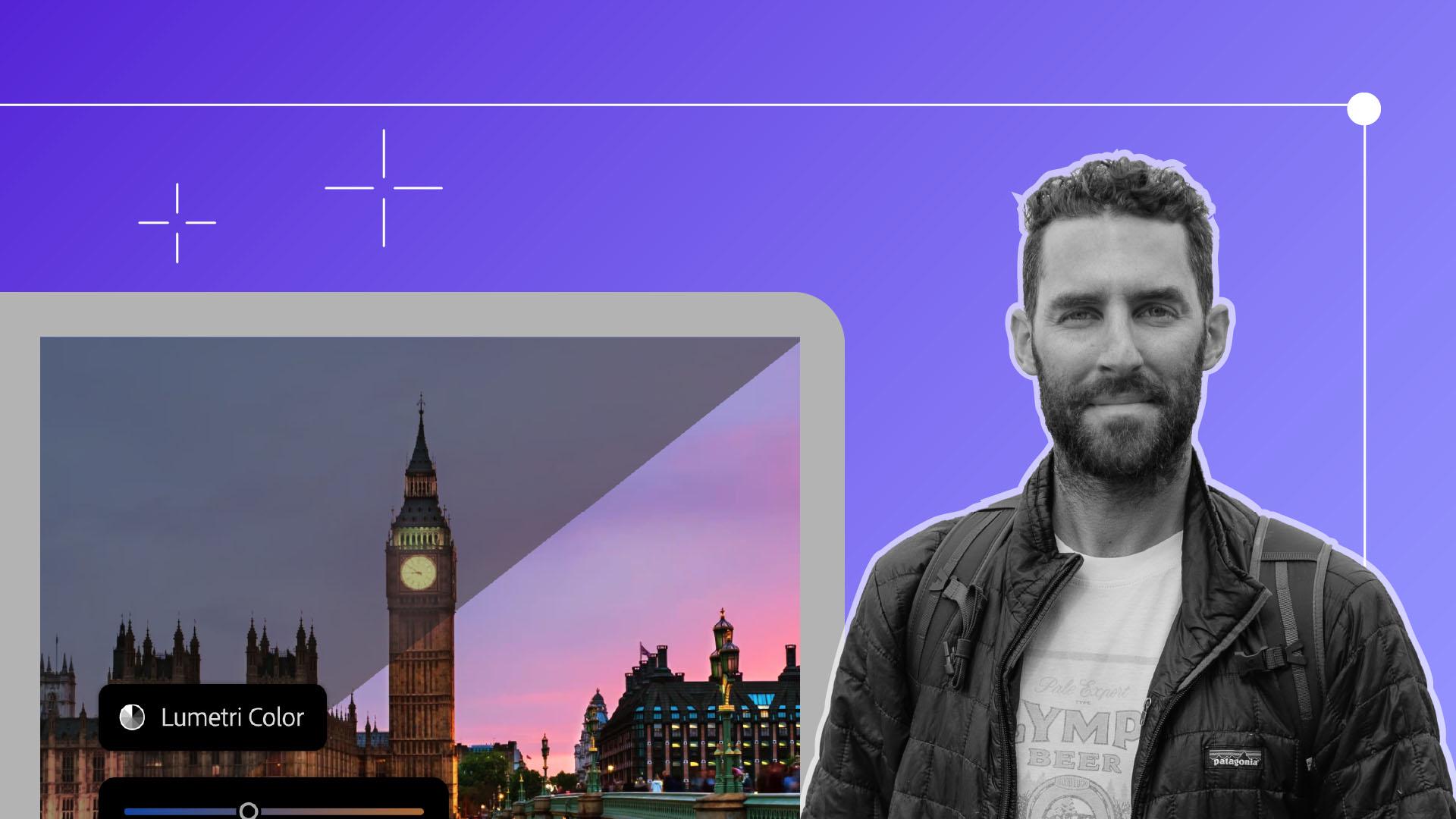
To really make our film pop, it's essential to bring out the colors of those cinematic clips that we've already assembled in our rough cut.
The first thing to keep in mind when getting the most out of your color is to always remember to shoot in a log or a flat color profile.
There is a distinction between Color Correction and Color Grading.
Color Correction is the part of the process that's essential to fixing any issues pertaining to the highlights, the shadows, the exposure, essentially correcting the clip's exposure before we get into the grading process.
The first thing we'll do is navigate to the Color essentials window tab.
Here is where we can view our Lumetri Scopes to ensure that we're looking at an accurate representation of the scopes of each clip.
Here is where I go now clip-by-clip, keeping those scopes up the entire time as my reference, and I start to bring the Blacks down to add a little bit of contrast, I'm adjusting the Highlights, the Whites, and just some subtle Exposure to make sure that my highlights are hovering around 90 on that scope and just below 100.
Using the HSL scope is where I can adjust the color temperature if needed.
If I filmed something a little bit too warm or a little too cool, I can adjust that very easily right here in the Temperature tab.
To ensure that all of our clips look consistent with each other, I click the Button Editor in the Program window.
Drag and drop the Comparison button into that window, and this allows you to compare all of the clips visually clip-by-clip.
I start with one clip that I want to grade as my reference point, and then I toggle this button on and off, and I simply go frame-by-frame to make sure that these clips match with the first clip that I've color corrected.
Once you feel good about all the clips being accurately color corrected, it's time to move on to stylizing them.
And this here is known as the color grade.
Click Next to move on.
Color Grading is where you really get to put your own specific style and your creative flair on your clips.
The easiest way to color grade is to add an adjustment layer and create that inside of your bin.
You're going to right-click and add new Adjustment Layer...
This layer is now where we'll add a custom grade or more commonly referred to as a Lookup Table - a LUT.
Think of this layer as your preset for a photo, but in this case we're using it for our footage.
In the same way that we did with the Color Correction, I'm going to keep those Lumetri Scopes up as my reference point as I go through and create the style that I want.
Here I like to use the Curves tab, as well as some more of the adjustments of the actual color.
I'm adjusting the Midtones, the Shadows, the Highlights, and really pushing the color depending on what I'm looking for.
If you want a quicker way to add that color grade, you can simply toggle down the Creative tab here in the window and search through an existing library of LUTs that Premiere Pro already provides for you.
And once you find one that you like, you can simply tone down the effect to the desired number.
I never really go above 20 to 30 on the Intensity of that creative look, because sometimes it can look too intense and a little bit too saturated and not natural to the look of the actual clip.
If you're happy with the look that you've chosen after going through all these options, you can click Next to learn how to create and save your own LUT.
The beauty of Premiere Pro is you can use the existing LUTs, or you can create and save your own.
To do that, we have our adjustment layer that we've added these effects to, and I like the look of the custom LUT that I've now created, but I want to save this so I can use this LUT in all of my future videos moving forward and just tweak it slightly.
Make sure you're clicked on that adjustment layer and go over to your Lumetri tab and right-click the stackable burger icon and simply toggle to Export .cube...
Now you're going to save your LUT as a .cube.LUT file into the folder where you can easily import it back into Premiere Pro the next time that you want to apply it to all of your clips.
And now you have your own custom LUT to use in all your future videos moving forward.
Let's head to the next chapter.