Managing your workspace
Learn how to adjust the panels, customize, and save your workspace.
Published
Introduction
Hi, I'm Mark, welcome to the Getting Started series with Adobe Animate.
Before we actually begin creating some cool stuff, I'd like to show you how to use the workspace in Animate.
Understanding the Animate workspace
So why don't we start by opening a brand-new project, I'm in the Web section, I'm just going to open up this little preset.
It's 640 x 480, you'll see it's highlighted with blue.
And I press Create.
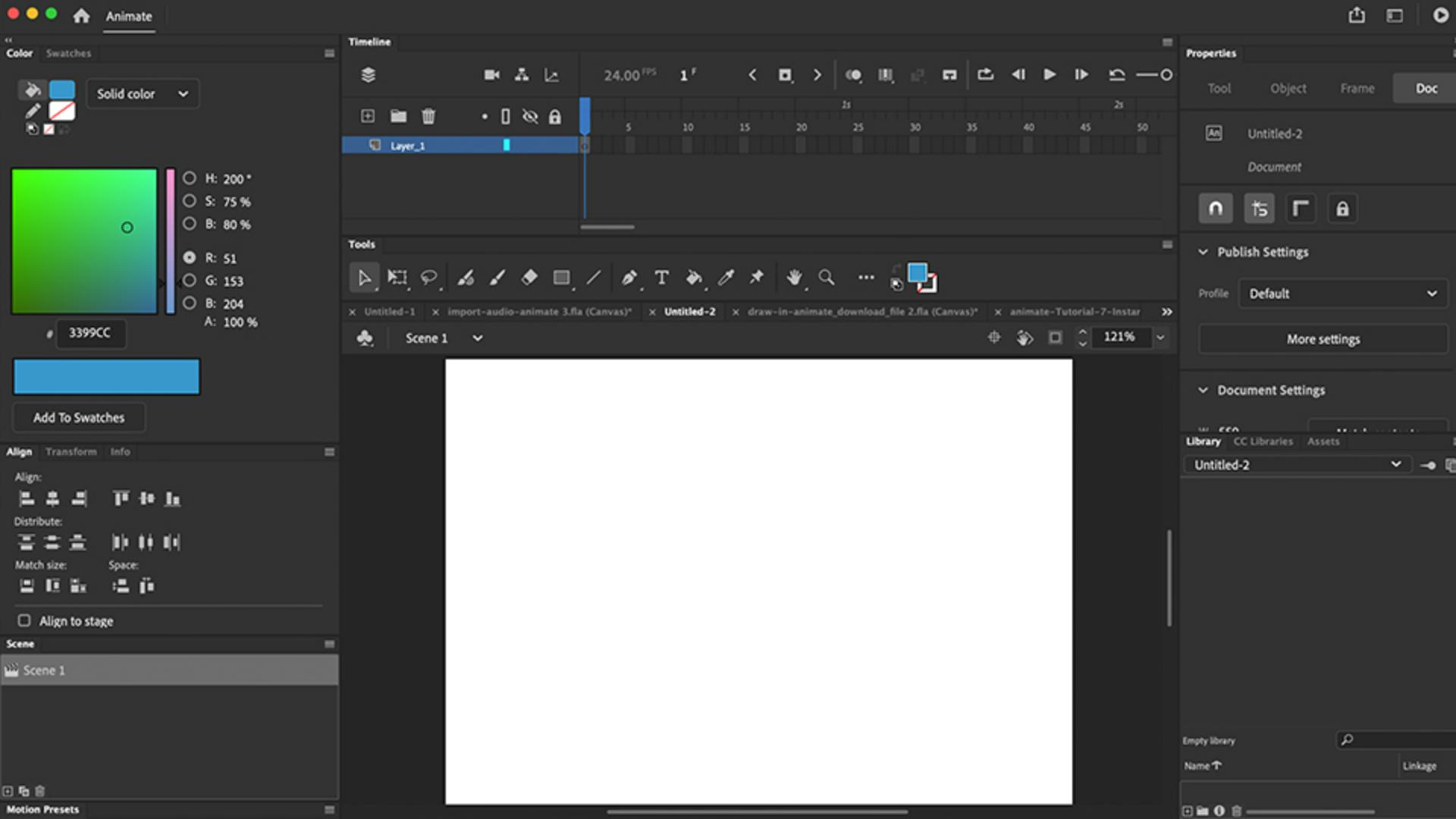
So now I'm inside of Animate and you can see the workspace.
The workspace is basically how the panels, the tools and my Timeline are all laid out on the screen.
And right now, if you're brand new to Animate, and you've just opened the application, your workspace is probably exactly the same as mine.
However, this can be changed.
Customizing and rearranging panels
So for instance, you'll see every single panel has this little teeny, double arrow here to expand the panels.
So if I click, it expands the panels out, if I click again, it collapses them to icons.
I can also click and drag so that the icons now have their names, and that can be my workspace and I can just click as I need the panel, the other panels go away.
Or I can click this little double arrow to collapse it.
So you'll see every panel has this little double arrow to expand or collapse them to icons or expand the panels.
I could also drag out my panels, so I could move them if I wanted to.
I can mix them so I can have the Library be underneath the Properties, you'll see the little blue highlight, I let go it snaps, or I can drag it to the right side of the panel, blue highlight, let go and it snaps.
Or I can bring it inside so that these are sharing the same panel and just tab back and forth from one to the other.
I can even close the panels.
And now, oops it's gone.
I can always get them back underneath Window of all the panels that I'll be using are here on underneath Window.
But the easiest way to get them all back is under Workspaces.
Resetting and managing workspace layouts
You'll see in Workspaces it shows me that I have numerous different workspaces.
Here right now I'm in the Essentials workspace.
But I can always reset the Essentials workspace, I click on this, and it resets it exactly to the previous out-of-the-box layout.
So I noticed when I work with Animate, I think pretty much all of us, we start with the File menu, we open up a new file, or open up a file we've already worked on.
And then we have to drag all the way to the right side of the screen to grab a tool.
So I like to take this whole thing from the top.
Repositioning tools for a faster workflow
Instead of each individual panel, I can grab just the very top dark bar here, right up here, the darkest part, and it grabs all the tools, everything together, and I can drag it until the arrow, my mouse pointer is exactly to the left.
And there again is that blue highlight, I let go and my tools snap onto the left side of the screen.
Now my Tool panel is a little bit big, but I can just drag this side of the panel and scale it in.
And now that looks better.
And now I can go into the File menu and open up a new file or open up a file that I've worked on.
And as soon as it opens my tools are right here, I can select the Pencil and begin to draw on the stage, making it nice and easy, quick and efficient.
Again, I can always go back to Window
Creating and switching between workspaces
Workspaces to change the workspaces or even make a new workspace.
So let's go ahead and do that: New Workspace.
I can call this My New Space.
Or you can put your name in front of it and call it Jim's space or Sally's space.
Call it whatever you like it then press OK so we can save this workspace.
And now I have this space saved, which means that anytime I can go back to Window, to Workspaces, and I can go to Essentials.
And now I'm back to Essentials.
I can still go to my other workspaces, Window Workspaces.
Now I have that new space, My New Space.
And I click back and forth so I could even, you know, depending on what I'm working on, I could even go back and forth between workspaces.
An easier way to change the workspace is actually right at the top of our screen, you'll see it shows me what workspace I'm in, My New Space.
And if I click, I see all the other spaces.
So we can go ahead and see the Classic workspace to see if maybe that's how you like to set your tools up.
Or we can go back to the Essentials workspace if you prefer the out-of-the-box suggested workspace or we can go back to now My New Space with how I like to work and how all of you're working for the rest of this series.
Hope that helped.
See you in the next video.
What you learned:
Managing your workspace
All panels can be moved, and scaled, or grouped together
All Panels can be expanded, collapsed
Panels can be floating, or minimized panel name or just to icons
Your entire workspace can be customized, and saved how you like to work

