Fill and sign PDFs for free online
The free Adobe Acrobat Fill & Sign tool is frictionless and fuss-free. Quickly upload your file, then add your free e-signature to the PDF form fields. You can also add lines, text, checks and more.
To sign a PDF with Adobe Acrobat, just click where you want your signature to be added and fill in the fields. You can then change the placement and adjust the size until you’re happy. Once you’re done, save your signed PDF and share it.
Online document signing is free, easy, fast, and secure with document viewer tools in Adobe Acrobat. The Fill & Sign tool allows you to digitally sign a PDF by typing, drawing or uploading an image of your signature.
To add a signature to a PDF online, just upload your document into the Acrobat online tool using the drag-and-drop box above. You’ll be prompted to sign into your Adobe account, where you’ll be able to use the Fill & Sign tool to sign a PDF for free.
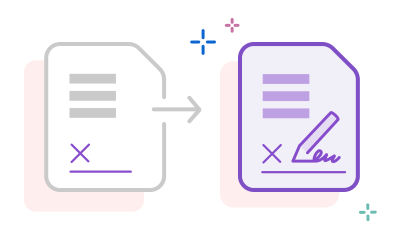
The free Adobe Acrobat Fill & Sign tool is frictionless and fuss-free. Quickly upload your file, then add your free e-signature to the PDF form fields. You can also add lines, text, checks and more.

Create your free personalised e-signature and place it over your initials. Draw, type, or upload your signature and sign PDF documents online in seconds.

Fill & Sign a PDF all in one secure place with Adobe. The free Acrobat PDF signature tool allows you to fill in your form, sign and share it in minutes. Speed up your workflow with Adobe Sign for businesses, wherever you are.

The Acrobat online document signing tool allows you to share signed PDF files quickly and securely for free. In just a few clicks, send a protected email attachment or link. All documents are secured with Adobe Acrobat’s encryption technology and handled in compliance with GDPR standards.

Acrobat PDF Fill & Sign works for free on any online browser. So, there’s no need to install or pay for any extra software. Drag, drop, fill and sign – that’s it!

Adobe invented the PDF back in 1993 and has been working with these documents for over 30 years. This means you can trust the quality and reliability of Acrobat online tools when filling, signing and editing your PDFs.
When you sign a PDF using certified e-signature tools like Acrobat Fill & Sign, it ensures your documents are authentic and legally binding.
To upload a photo of your signature in Adobe Acrobat, you can do the following:
1. Open your PDF and select the Fill & Sign tool.
2. Go to the Sign panel and select Add Signature.
3. In the Signature panel, click Image, then Select image.
4. Upload your signature file, then resize and drag the signature onto the PDF to sign.
You can use Adobe Acrobat to create an electronic signature for free that you can use across Google Docs, PDFs, Word documents and more. All you need to do is:
Sign PDFs on Android using Adobe Acrobat's Fill & Sign tool online or on the Acrobat mobile app. Create your signature by drawing, typing, or uploading an image, then place it on your document. Save to your files and share instantly.
Android devices typically allow you to mark up files using native apps, but this method won’t protect sensitive files with secure encryption like Adobe Acrobat can.
Adobe Acrobat is the industry standard for PDF management, offering superior document security and compliance with global e-signature regulations to protect sensitive files.
As the creator of the PDF, Adobe excels in complex workflows with seamless integration with Microsoft apps, such as Microsoft Word, Outlook and Teams. This sets it apart from other providers that offer basic PDF editing and e-signing features.
Yes, you can use Adobe Acrobat Reader to sign PDFs offline on desktop and mobile. The Fill & Sign tool allows you to draw, type, or place an image of your signature on documents without an internet connection, and save any changes locally.