Converting your Google Doc to PDF is a safe, fast and secure way to save your online documents to your desktop. Whether you want an offline version or you need to share the file with colleagues, clients or potential employers, PDFs are an ideal format for anything from CVs and contracts to work documents.
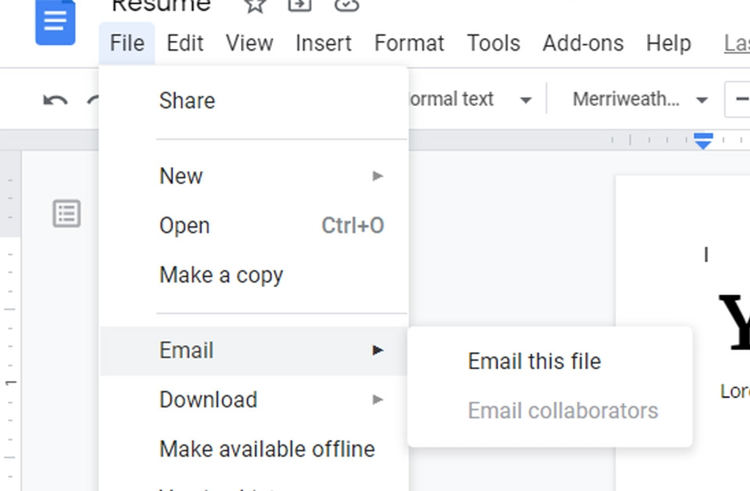
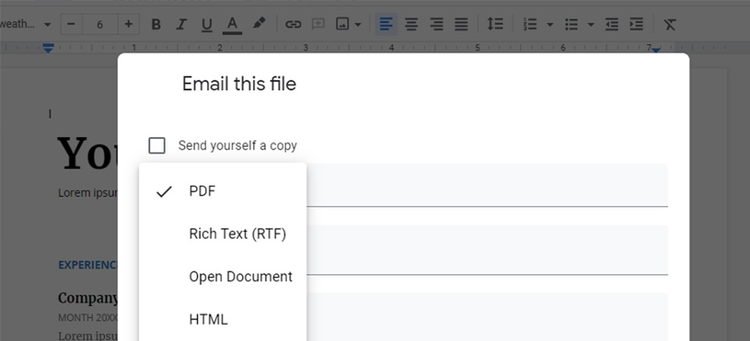
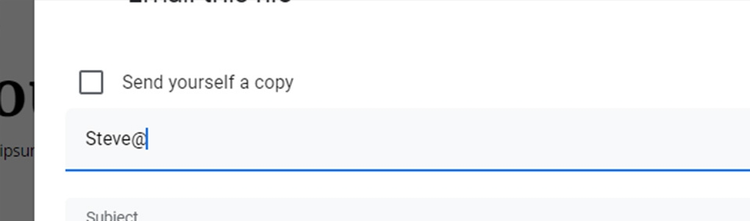
You can convert Google Docs into a PDF by downloading the file or sending it via email.
Discover how to convert a Google Doc to a PDF in just a few steps with our handy guide.
With Acrobat, you can edit PDFs, share documents, convert between formats, and more. Start your free trial today.
How to save a Google Doc as PDF by downloading it.
You can also create an offline version as Google Doc and save it as a PDF by downloading it to your device. Read on for a detailed tutorial on how to save a Google Doc as a PDF.
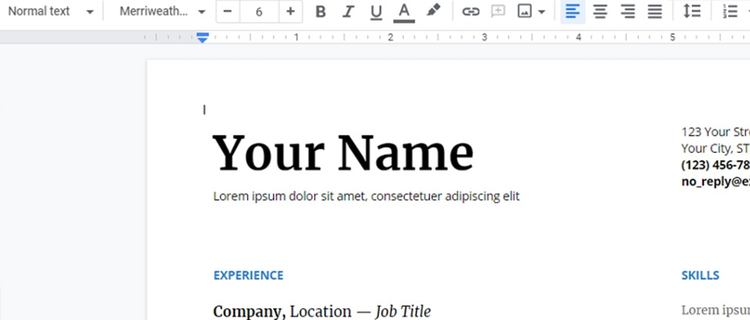
1. Open your Google Docs file or create new one.
2. Ensure the document is finalised.
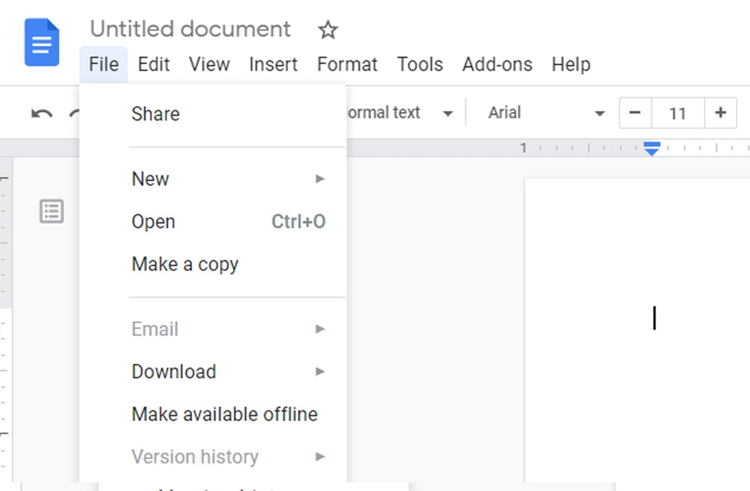
3. Go the File > Download > PDF.
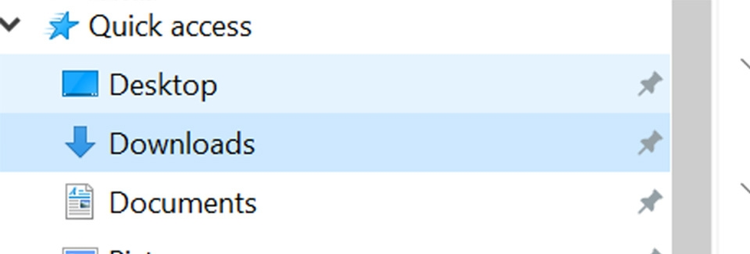
4. Find the PDF file in your desktop Downloads folder.
The tutorials above show you how to save a Google Doc as a PDF - but what if you need to reverse and turn your PDF into a Google Doc? We’ve got you covered.
Check out our guide for an easy to follow breakdown on how to convert a PDF into a Google Doc using Acrobat.
Benefits of turning a Google Doc into a PDF.
There are many benefits of converting Google Docs to PDFs. We’ll briefly cover some key advantages.
Universally recognised and trusted. PDFs are the format of business and have been for years, since they were invented in the early 1990s. Businesses across the globe trust the file format with their contracts, reports and other sensitive documents. Converting your Google Docs to PDFs means you can share your documents in this trusted file format.
Collaboration and organisation. Combine Google Docs and Adobe Acrobat to better collaborate on and organise your documents. Google Docs use master versions that update in real time, which avoids potential issues that can arise when you have multiple versions. Once you’re ready to save your Google Doc as a PDF, you can share it to be signed, edited, or converted in Acrobat.
Accessible anywhere. By working with Adobe Acrobat and Google Docs, you know your PDF will be accessible from pretty much anywhere. Colleagues and clients can read them on their computer, laptop, tablet, or phone from anywhere, either online or offline.
FAQs.
Find answers to the most common questions about turning your Google Doc into a PDF.
It’s quick and easy to print your Google Doc in a PDF format. All you need to do is open your document, select Print, then choose the PDF file format. Simply:
1. Open your Google Doc
2. Select File, then click Print
3. In the Destination field, select Save as PDF
4. Click Save, then choose the desktop file location.
To add a PDF to a Google Doc, simply:
1. Upload the file to Google Drive by clicking New > File Upload
2. Choose the PDF file you want to add
3. Next, you’ll need to find it within Google Drive. Right-click and select Open With > Google Docs.
To download a Google Doc as a PDF on an Apple Mac, you need to download the Chrome browser or the Google Drive app. Then, you can convert any Google Doc to PDF by following the steps below:
You can use the built-in feature in Google Docs to download any of your documents as a PDF. Just head to File, Print, then Save as PDF. There’s no need to use any extra apps or tools – it can all be done from within the Google Doc itself.
Yes. To save a Google Doc as a PDF on your mobile, simply:
1. Open the document you need
2. Tap the three-dot menu, then click Share & Export
3. Click Save as or Send a copy, and choose PDF as your file format.
You can password-protect your PDF documents using the free Acrobat password protect PDF tool. Simply open the online tool, select your file, and then set a password to protect your document. You can then download your protected PDF, sign or share it.
When you save your Google Doc as a PDF, you’re creating a high-quality file that doesn’t compress or flatten any of the details. It also preserves formatting like hyperlinks. When you print to PDF, this acts more like a ‘snapshot’, often flattening document and image quality and downloading as a larger file size.
Yes, you can edit a PDF after converting it from a Google Doc using Adobe Acrobat tools. Depending on the feature, you may be able to edit text, add comments, or fill and sign forms, with additional capabilities available through a subscription.
Yes, you can use the Adobe Acrobat free merge PDF tool to combine multiple documents into one. You just need to download your Google Docs as individual PDFs, then upload them to the online tool. This will then merge your documents into one PDF in a few seconds.
You can use the free Adobe Acrobat compress PDF tool to compress your PDFs after converting them from Google Docs. Simply open up the online tool, upload the documents you want to compress, and the rest is done for you.
More tips on using Acrobat.
Get the best from Acrobat with more tips and guides.
PDFs are a great way for your business to share information – for example menus, price lists, and reports. Displaying these on your Facebook Business page is an effective way of engaging with customers using social media.