PIXEL ART

Pixel art templates: free printable grids and patterns.

Pixel art templates turn a sheet of paper into a pixel grid you can fill in square by square, with or without a design to follow. Download free A4 sheets of blank grids, patterns and colour-by-number pictures, then find out how to print them at the right size and make your own.
Explore Adobe Firefly

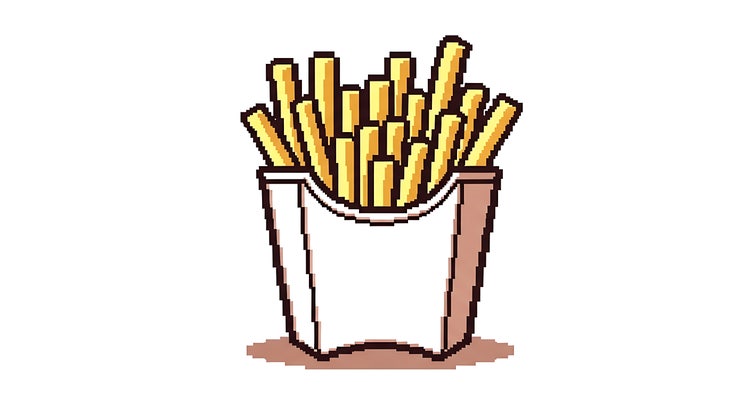
Retro pixel art of French fries in a white paper box.

What is a pixel art template?

Free pixel art templates to download.

File
What’s inside
Grid and square size
Good for
Blank grids
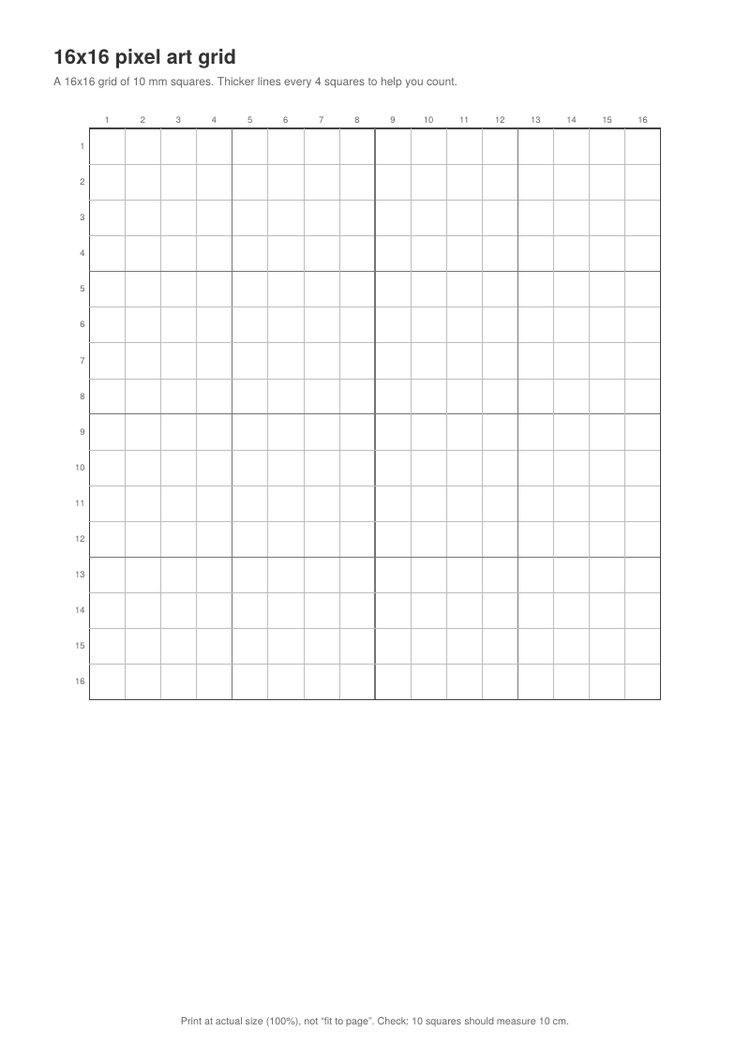
One 16x16, one 32x32 and one 64x64 grid, plus a page of twelve small 8x8 grids
10 mm, 5 mm and 3 mm squares; 5 mm for the 8x8 grids
Your own designs, from a tiny icon to a detailed portrait
Patterns
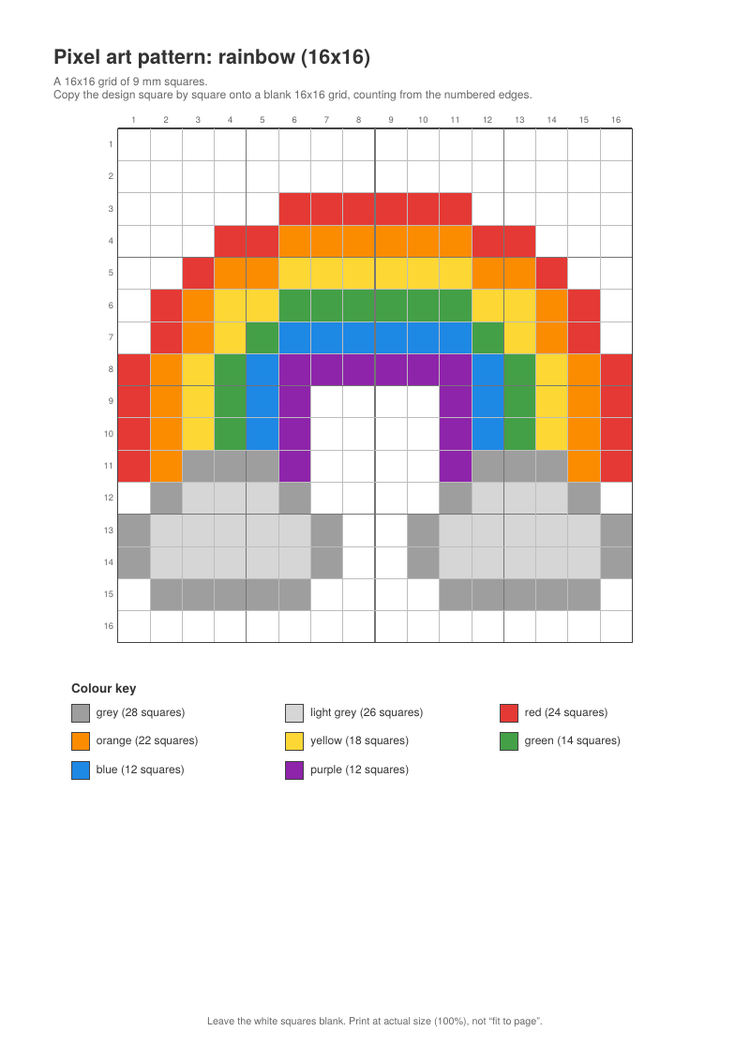
Four designs in colour with a colour key: a rainbow, a whale, a planet with rings and a tortoise
16x16 with 9 mm squares, 32x32 with 5 mm squares
Copying a design onto a blank grid of the same size
Colour by number
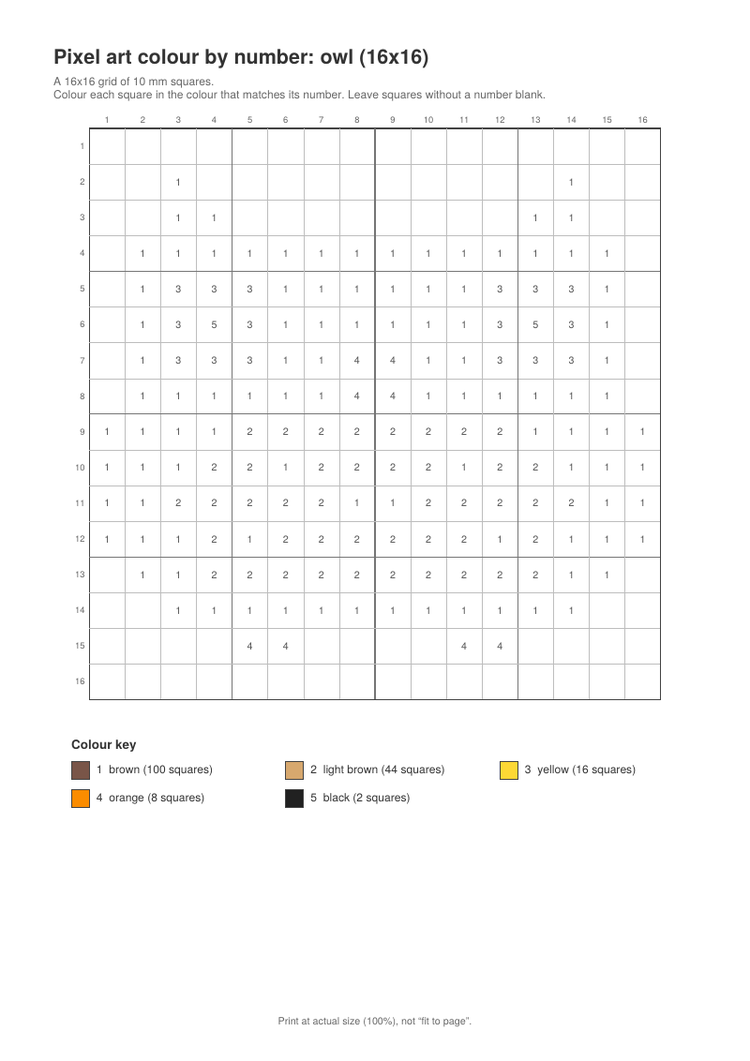
Two numbered pictures, an owl and a tropical fish, each followed by the finished picture
16x16 with 10 mm squares, 32x32 with 5 mm squares
A colouring activity that needs no planning, for children and adults

Blank grid sheets.

Pattern templates with a colour key.

Colour-by-number templates.

How to make your own printable template.

Ways to use a pixel art template.

Five children making a colourful paper mosaic together at a classroom table.

Turning any picture into a template.

You can turn a photo or a drawing into a template by converting it to pixel art first, then charting the result on a grid with a colour key. The conversion itself is covered in our guide to turning an image into pixel art, from choosing the photo to tidying up the result.

Once you’ve got the pixel version, count its colours and give each one a number. Writing those numbers into the squares of a blank grid turns the picture into your own colour-by-number sheet, which makes a lovely personalised present.

Design the image behind your template with Adobe Firefly.

A template is only as clear as the design charted on it. Adobe Firefly can help you create that design, simplify it and prepare the pages, before you start colouring.

Generate a design to copy square by square.

Describe your design in a prompt in the Firefly pixel art generator, then select the Pixel art effect. You can also select Simple alongside it, and pick an option such as Vibrant Colours from the Colour and Tone menu. Pick the version with the boldest shapes, count its colours, then copy it onto a blank grid to turn it into a pattern of your own.

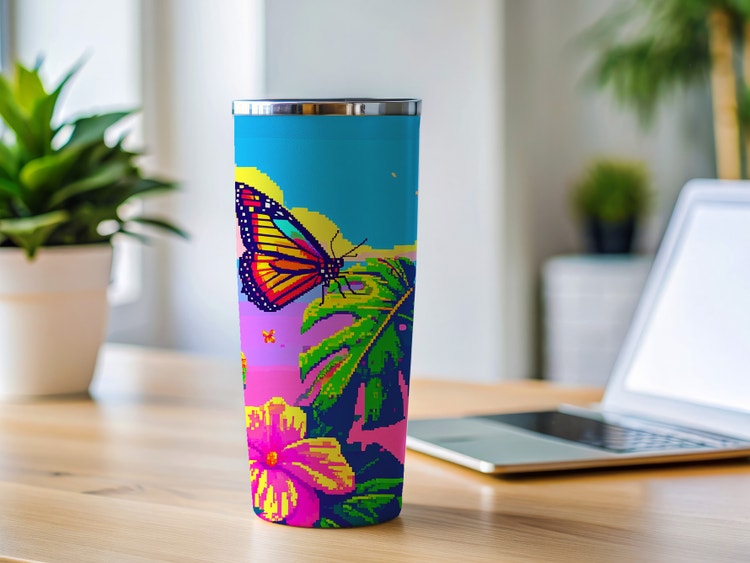
AI-generated pixel art of a reusable coffee cup decorated with a butterfly on a leaf, in an 8-bit-inspired style with a small colour palette
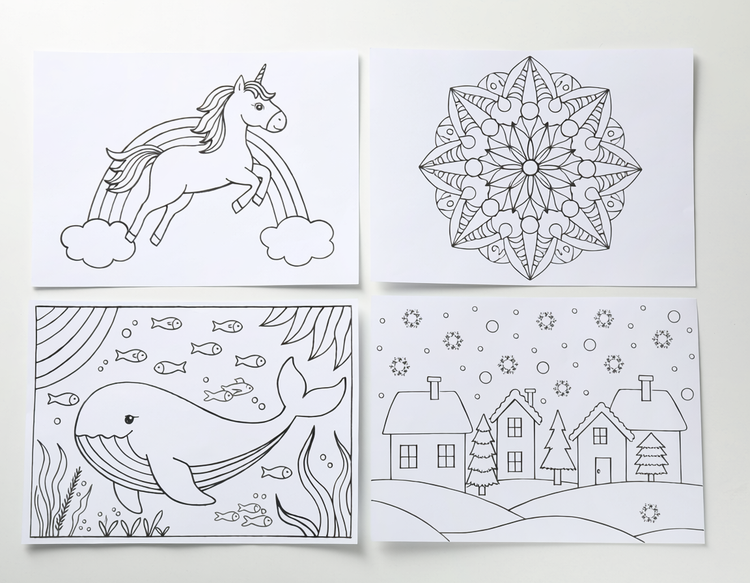
Four black-and-white colouring pages of line art: a unicorn over a rainbow, a mandala, a whale under the sea and a snowy village.

Start from clean line art.

Some templates begin as an outline. The AI colouring page generator in Firefly turns a prompt into black-and-white line art that’s ready to print. You can change the line weight, the complexity of the subject and the composition through your prompt. Print the outline, lay a blank grid over it against a bright window, then fill in the squares along the line, keeping it one square wide, to turn a smooth drawing into a stepped pixel outline.

Simplify your design to a single subject.

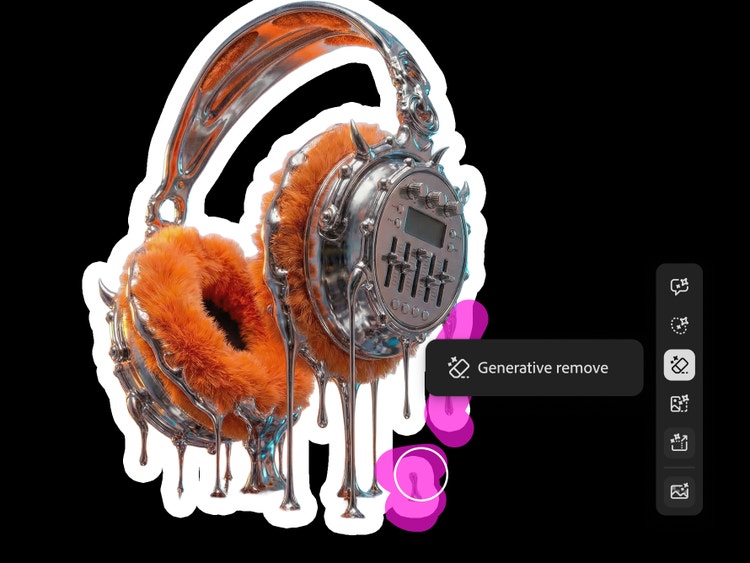
Simple designs with one subject are the easiest to chart, because every extra element adds squares to count. Create a design from a prompt in the sticker generator in Adobe Firefly, then hover over the result, open the Edit menu and use Generative Fill to add, remove or adjust an element with a short prompt. With Generative Remove, erase the details you’d rather not count, until you’re left with one subject you can chart.

A stylised pair of headphones with dripping details brushed out for removal with Generative Remove in the Firefly sticker generator.
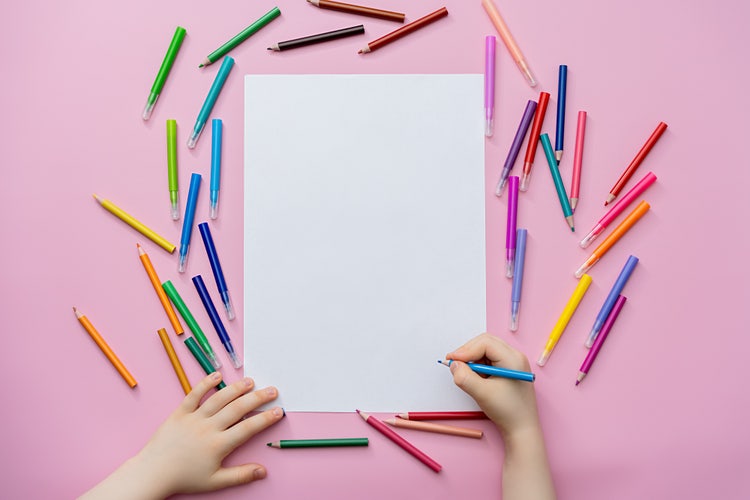
Top view of children's hands holding a blank sheet of paper on a pink background.

Assemble a printable pack.

Line art made in Firefly can go further in Adobe Express. Firefly lets you send a colouring page to Adobe Express, where you can add a title, a border or instructions, then export it as a PDF or combine several pages into one multi-page PDF. A few colouring pages in one document make a small activity pack for a party or a holiday.

You May Also Like

Pixel art grids and sizes

Understand grid sizes and resolution, from 8x8 to 64x64.

Pixel art for kids

Try simple pixel art activities for children, at home or in class.

How to make pixel art

Follow a step-by-step tutorial to draw your first pixel art by hand.

Pixel art ideas and inspiration

Find themes and examples to spark your next pixel art piece.