PIXEL ART

Pixel art for kids: easy activities for home and the classroom.

Pixel art for kids can be a short sticker picture for a four-year-old or a game character designed by a teenager. Find activities for each age, links to maths and computing lessons, screen-free ideas and simple ways to prepare materials at home or at school.

Explore Adobe Firefly

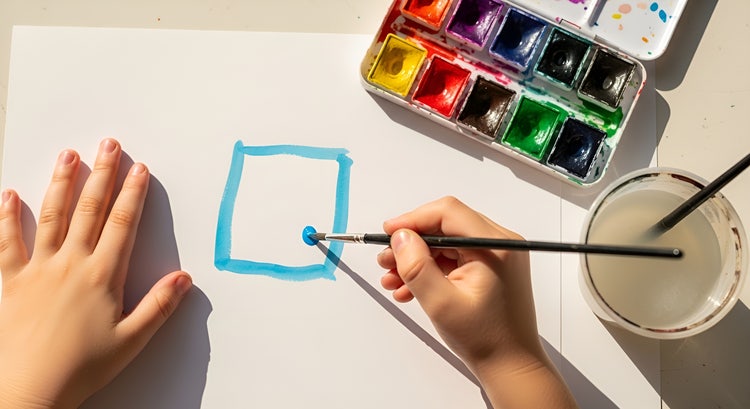
A child's hands painting a blue square on white paper with watercolours.

Why pixel art is great for children.

Pixel art activities by age.

Age range
Square size
Colours
Activity to try
What you need
4 to 6
About 2 cm
Two or three
Copy a 10x10 picture with sticker dots or crayons
A large printed grid, round sticker dots, chunky crayons
7 to 11
About 1 cm
Up to six, set by a key
Colour a picture from coordinates, complete a mirror image
A grid with numbered edges, colouring pencils, a ruler
11 and over
Smaller squares, or on screen
Chosen by the child
Design a sprite, a 1-bit picture or a short animation
Squared paper or a drawing app with a pixel grid

Ages 4 to 6: big squares and a picture to match.

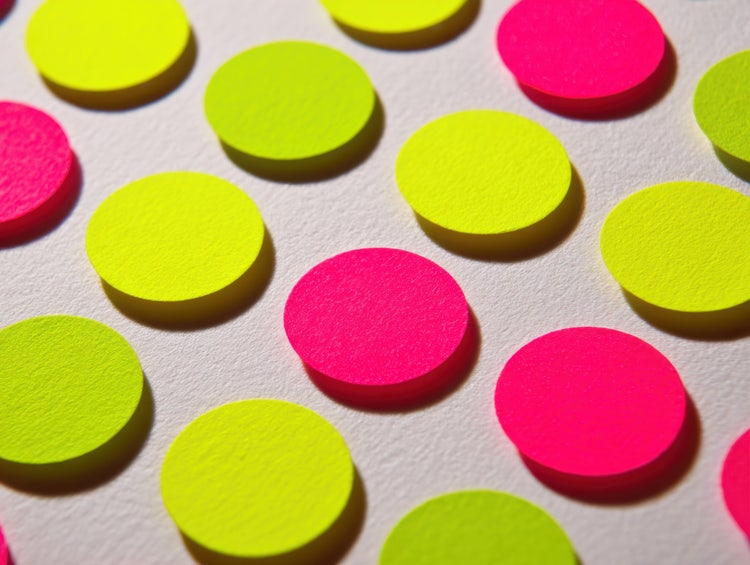
Bright pink, yellow and lime green round sticker dots arranged in rows on white paper.

Ages 7 to 11: coordinates, codes and mirror images.

Ages 11 and over: sprites, 1-bit pictures and animation.

Pixel art in the classroom.

Subject
Curriculum point
Pixel art activity
Maths, Year 2
Line symmetry in a vertical line
Complete the missing half of a picture across a vertical line
Maths, Year 4
Positions on a 2-D grid as coordinates in the first quadrant
Colour a picture from a list of coordinates, then write a list for a partner
Maths, Year 4
Area of rectilinear shapes by counting squares
Count the squares of each colour and compare which area is largest
Computing, Key Stage 1
Programs follow precise and unambiguous instructions
Give a partner step-by-step instructions to fill a grid, then fix the steps that went wrong
Computing, Key Stage 3
Pictures can be represented in binary
Write a two-colour picture as rows of 1s and 0s, then rebuild it from the numbers
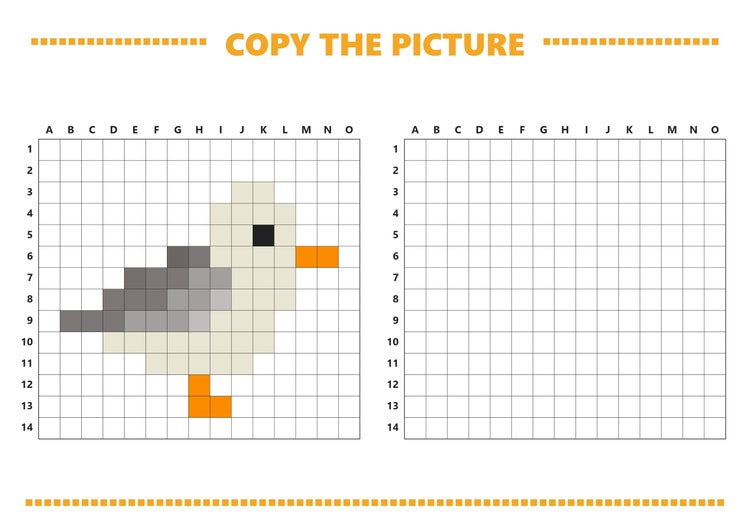
A copy-the-picture worksheet with a pixel art seagull on a lettered and numbered grid, next to an empty grid for children to fill in.

Screen-free pixel art ideas.

Screen-free pixel art uses everyday objects as pixels: anything square, or anything that sits neatly in rows, can become one coloured square of a bigger picture.

Sticky notes are a popular choice. Stuck to a window, a fridge or a classroom door, each note becomes one pixel, and a picture eight notes wide can be seen from across the room. Children can plan the design on paper, then build it together, which makes it an excellent rainy-day project for brothers and sisters or a small group. Most packs come in only a few bright colours, so plan the design around the ones you’ve got.

Building bricks on a flat baseplate works in the same way. Each stud, or each small square tile, equals one pixel. The picture can be taken apart and rebuilt as often as you like, which makes bricks a good way to try a design before colouring it on paper.

Around the house, buttons, bottle tops and squares cut from coloured paper can fill a large grid drawn on card. For younger children, sorting everything by colour before you start is half the activity.

Outside, a grid drawn in chalk on a patio or a playground turns pixel art into a group game. With a class, you could even try human pixels. Each child holds a coloured card, and the group arranges itself in rows to form a big star or the first letter of the school’s name. A teacher can photograph the result from an upstairs window.

Moving from paper to screen.

Moving from paper to screen makes sense once a child wants to undo mistakes, keep several versions of a picture or animate it. With children, the drawing tool you choose matters more for safety than for its features.

Look for an app that works without an account, shows no advertising and has no built-in chat or public gallery. Check what happens when a child presses share or save, because some apps post work to an online feed by default. Sitting beside them for the first few sessions lets you show them where their pictures are saved and agree on who gets to see them.

Paper still keeps its place after the switch. Many children plan on paper and finish on screen, and a sheet of squares never needs charging. When older children are ready to take the craft further, our beginner’s step-by-step method covers each stage of progression, from the first silhouette to a finished file.

Prepare pixel art activities with Adobe Firefly.

Most of the work behind a good activity happens before the children sit down: a model to copy, line art at the right level, a reward for finished pieces and a plan for the weeks ahead. The four Firefly tools below are for the parents and teachers doing that preparation.

Turn a child’s idea into a model to copy.

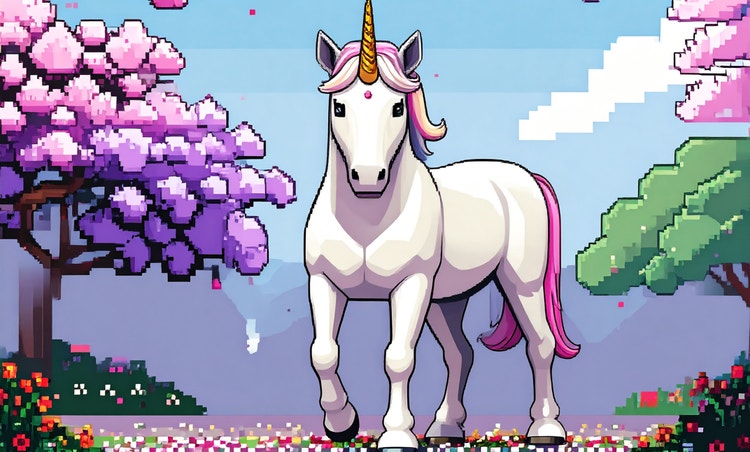
Ask a child what they’d like to make, such as a cat flying a kite or a snail in a raincoat, and write their description as a prompt. Then turn the description into pixel art with Firefly and print the result. The child can copy it onto a grid at their own level, deciding which details to keep and which colours to use, so the finished picture will be completely their own work.

AI-generated 8-bit pixel art of a white unicorn with a golden horn walking towards the viewer, with its prompt shown on the image.
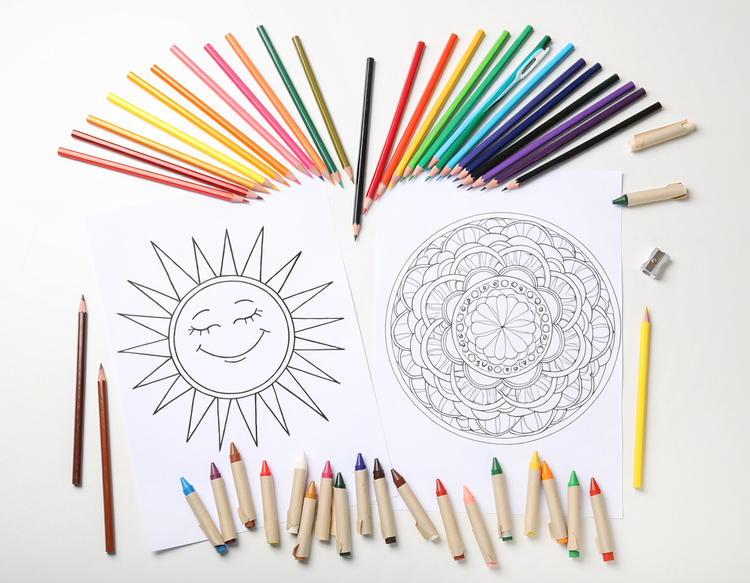
Two colouring pages, a simple smiling sun and a detailed mandala, surrounded by coloured pencils.

Match the line art to each age group.

With Firefly’s colouring page generator, you describe a subject and control how detailed the line art is through your prompt, from bold, simple outlines for young children to finer detail for older ones. A farmyard scene can be generated twice, once with a few large shapes for a four-year-old and once with more detail for an older sibling or another group in a mixed-age class. The pages are ready to print as classroom handouts, and once the colouring’s done, older children can redraw one animal from the scene on a pixel grid.

Design reward stickers for finished pieces.

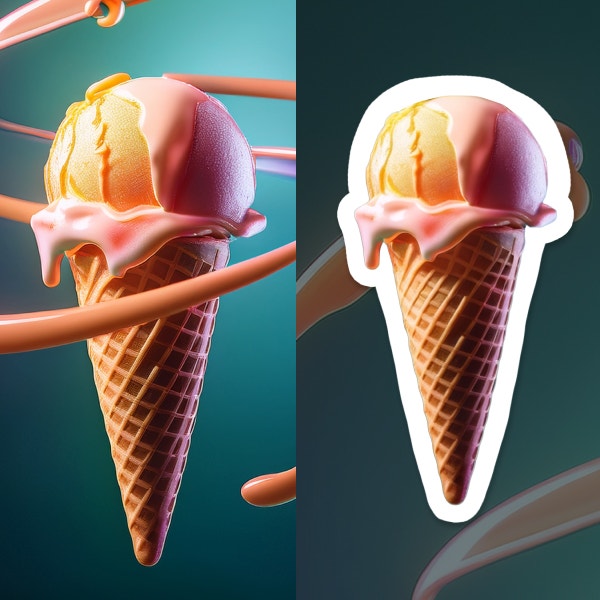
A sticker for each finished picture keeps a series of sessions interesting. Describe one design per milestone in the AI sticker creator in Firefly, such as a gold star for a first picture or a trophy for a tenth. Asking for bright colours makes them stand out on a progress chart. Save each design as a PNG and print a sheet on sticker paper.

An ice cream cone turned into a bright sticker in the Firefly AI sticker generator.
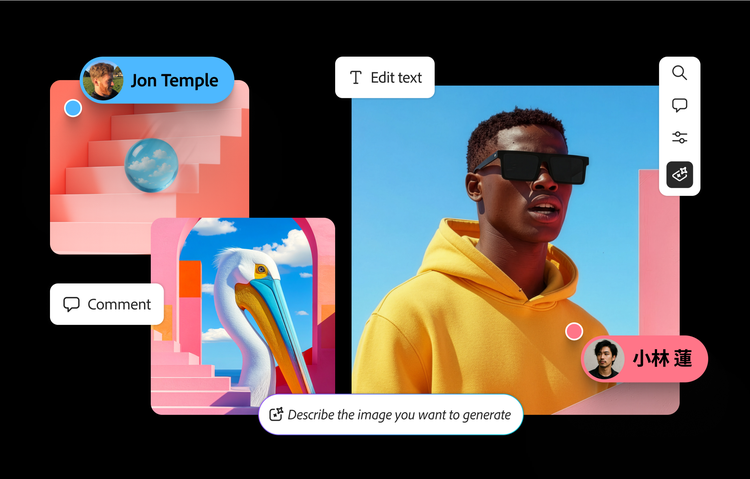
The Firefly Boards interface, with image tiles and editing tools arranged on one canvas.

Map out a term of pixel art on one board.

Planning several weeks of activities is easier when everything sits on one canvas. With the mood board maker in Firefly Boards, collect Adobe Stock images, your own generated pictures and the colour swatches of the class palette in one place. Then give each week a text label such as “Week 1: suns and tulips”. Share the board with a teaching assistant or a colleague so you can plan the term together.

You May Also Like

Printable pixel art templates

Get to grips with printable grids and templates for pixel art.

Pixel art ideas and inspiration

Find themes and examples to spark your next pixel art piece.

How to make pixel art

Follow a step-by-step tutorial to draw your first pixel art by hand.

Pixel Art: A Complete Guide

Turn a text prompt into retro-style pixel art with an AI pixel art generator.