Refine any part of your image with adjustment layers
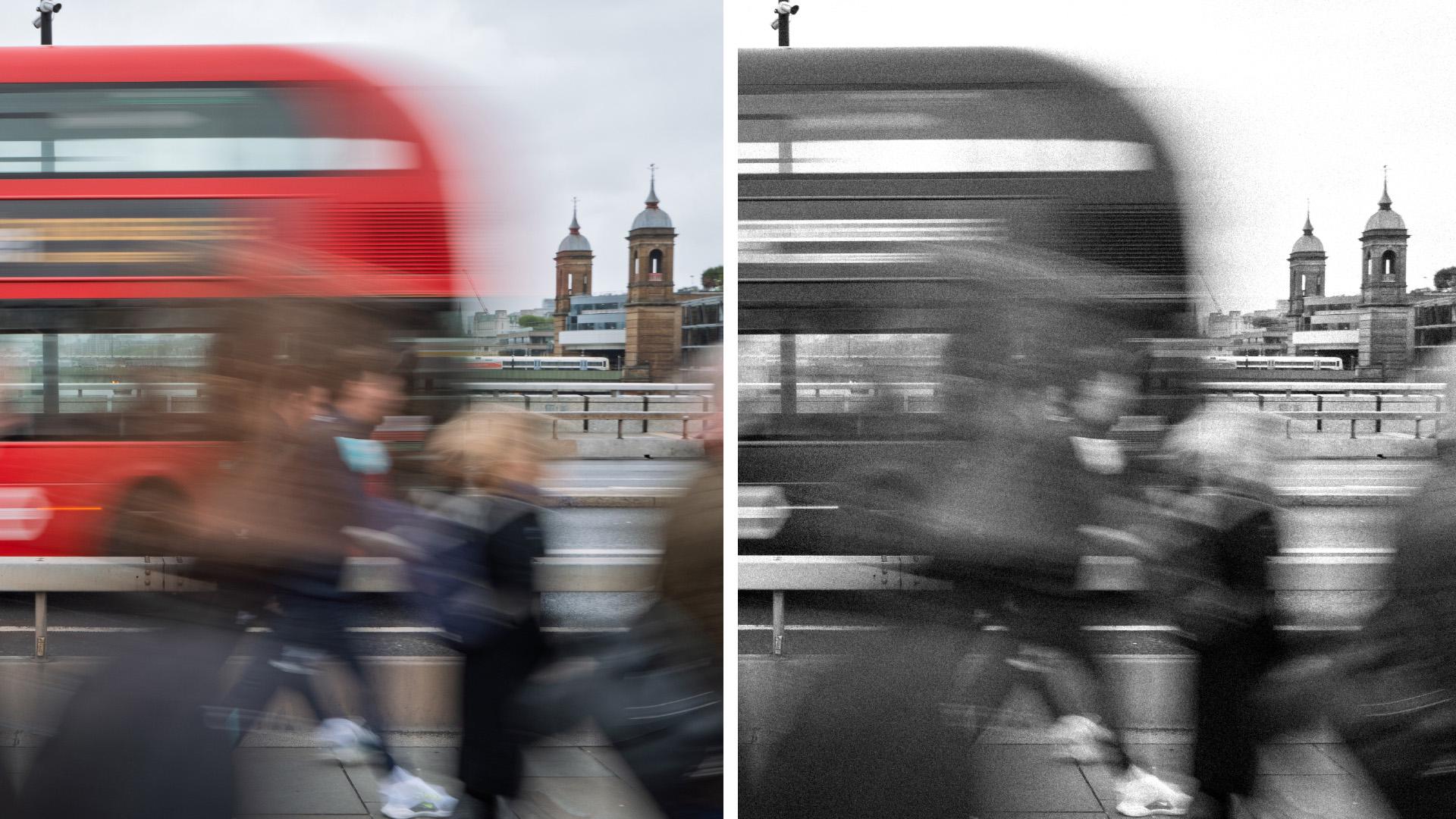
Note: Stock assets provided are for practice purposes only. See terms.
What you’ll learn
Adjustment layers let you edit without permanently changing your image
Adjustment layers are nondestructive, so you can stack, change, or remove edits anytime. This keeps your workflow flexible as you refine your image.
Adjust the entire image to quickly shape mood and direction
Global adjustments like grain, exposure, or black and white define the overall feel. This sets the visual direction before refining specific areas.
Select what you want to edit, then apply an adjustment layer to control where edits
Selections automatically create masks, limiting adjustments to specific areas like the sky or background. This keeps edits targeted and balanced.
Enhance key areas to guide attention and add depth
Selective adjustments like clarity or color balance bring out detail where it matters most. This helps direct the viewer’s eye and improves contrast.
Use a clipping mask to isolate edits to a single layer
Clipping masks apply adjustments to one layer only. This is key for compositing or changing a specific object while keeping the rest untouched.
Instruction and photography by
Adobe Stock Contributor

