Combine images with AI to spark new visual directions
Use the Remix feature in Firefly Boards to creatively blend images and shape original, client-ready concepts.
Published
Introduction
[Natasha Polozenko]: Hello, my Name is Natasha Polozenko, [Natasha Polozenko stands in front of a plain wall decorated with two framed art prints.] also known as Nataszko all over the web, and in this tutorial, I'm going to deep dive into the Remix functionality inside of Firefly Boards.
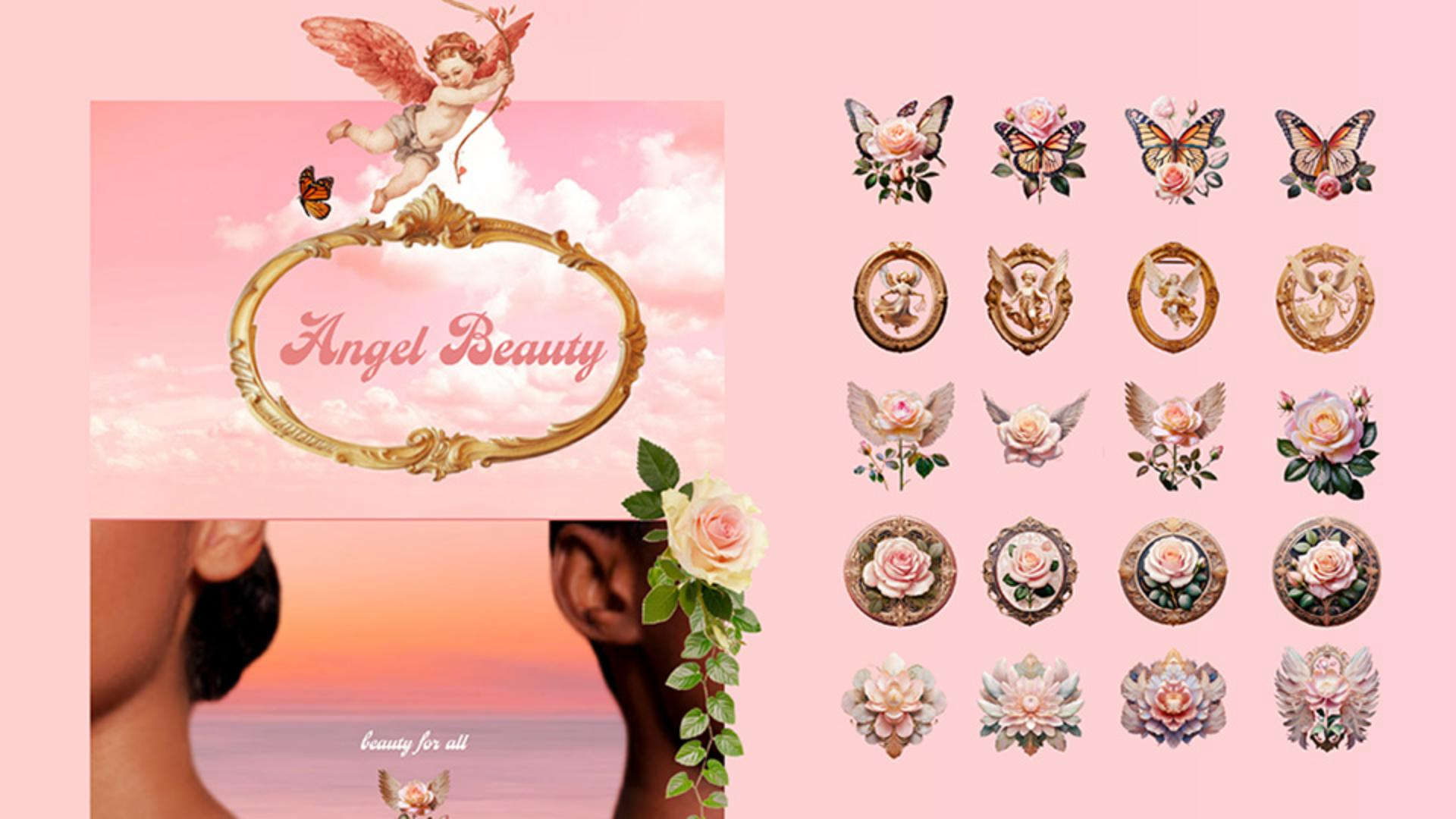
I'll show you how Remix allowed me [The screen shifts to the Adobe Firefly interface, showing a collage of digital beauty branding designs on a pink sky backdrop.] to create a whole proposal for this brand Angel Beauty, which includes some ideas for logos, brand illustrations and even packaging.
[The canvas clears, and she uses the search sidebar to find and place images of a cherub and water lilies.]
So let's go!
The brief from this client is Lush vintage.
Building a mood board and preparing design references
So using the search functionality, I sourced a range of different images that helped communicate the esthetic that I have in mind.
And here are a bunch that I found earlier.
[A grid of sourced images appears, and she rearranges them on a pink cloud background, clicking 'Remove Background' on the the images to marge them with the background.]
And now I'm arranging the images in a way that start to hint at a website layout, so that the client can really start to envision their brand coming to life.
And side note, I'm using the Remove background functionality on a lot of these images as I go.
Using remix to combine images and refine compositions
This is where the Remix functionality comes into play.
[She scrolls down a vertically arranged website layout mockup, selects a water lily and a butterfly image and clicks 'Remix'.]
For the Lotus image here, I actually want to incorporate the butterfly visual.
If I select both of these images and hit Remix, I'll get some more images to pick from.
[Four remixed image variations appear, she opens the generation settings panel, maximizes the strength slider, and clicks 'Generate'.
New images display with a stronger lily presence.]
And these are great, but I'm really picky and I want more lily pad coverage.
So if I select the one I like best, click Load, Composition, use the Eyedropper Tool to sample that original photo, and in the Generation settings, I'm going to turn the Strength up to the top.
This will give me a few more options that are closer to what I envisioned.
Generating logo concepts through iterative remixing
I'm excited about this so far.
[A large grid of new logo and graphic variations updates on the canvas as she continues to explore multiple creative directions.]
Now it's time to generate some logo ideas.
I'm going to start selecting various combinations of my visuals to remix.
This kind of exploration helps give me ideas for directions I may not have thought of otherwise.
I look at this as a starting-off point.
Depending on how the client responds, the idea is that later I would go in and build my designs from the ground up in my own style, using these visuals as my inspiration.
[She selects a remixed image of a pink rose inside a heart frame and clicks 'Vary' to generate four new design alternatives.]
Now from here, I can even remix some of the already remixed images if I like.
And clicking Vary is going to create even more options.
This process is super fun.
I went ahead and deleted the ones I didn't want, and organized and removed the backgrounds of the ones that I'd like to keep in as possibilities.
[A gallery of organized assets is displayed under text headings.
She places a selected winged-rose graphic onto the mockup.]
I wanted to include a few different directions for the client to review, but for now, I'm going to pick my favorite and add it to the mockup.
[She displays a blank grid of gold frames on the canvas to begin generating brand illustrations.]
I also want to generate some ideas for brand illustrations
Creating brand illustrations using composition and style references
to place in these frames.
Earlier I remixed these two images and got a few compelling generations that I thought could work really well.
I also wanted to create some additional variations that use these images over on the left as the composition reference.
The way I approached this was by selecting one of the images I previously generated and hitting Load.
[She clicks 'Load' on an angel illustration, assigns composition and style references in the generation panel, and updates settings to generate product mockups.]
The reason I do this is because I want all these sub-prompts loaded in for me.
Now I want to tell Firefly that I want to use this image as my composition, and I also want to reinforce that I want this image as the Style reference.
I can also go in and tweak the Generation settings if I want, and I'll get some nice options.
I also did the same with some beauty products too, which I thought might be fun for the client to see.
Finalizing layouts and presenting a proposal mockup
Here are the images that I downselected to.
[The chosen illustrations are neatly populated inside the gold frames, and the camera scrolls vertically through the finalized project board.]
I went ahead and placed them in behind the frames, resizing and cropping them to fit.
There we have it.
We all know that proposals can be extremely time-consuming, which can be frustrating, especially because it's not something we typically get paid for.
But with Firefly Boards, [The video cuts back to Natasha speaking directly to the camera until she waves goodbye.] you can generate ideas and concepts so quickly and efficiently, allowing you to breeze through proposals like this.
And if the client approves, this is an amazing launching off point to help you get to the actual fun work of designing, illustrating, and creating all these brand assets we teased in our Boards.
That's all for today.
Until next time.
Bye for now.
What you’ll learn
Build a visual identity mood board fast
To generate a mood board, search for imagery that matches the brief, remove backgrounds, and arrange visuals to explore fresh creative directions.
Explore unexpected logo and packaging ideas
Remix multiple images to generate bold new combinations — then tweak compositions to align with the brief and your vision.
Refine your direction with references
Re-remix to iterate. Load previous generations, then guide the outcome with style and composition references.
Instruction by
Design by

