Intro and meet presenter Claudio Zavala Jr.
[Claudio Zavala Jr.]: Hi everyone, I'm Claudio Zavala Jr., Adobe education evangelist.
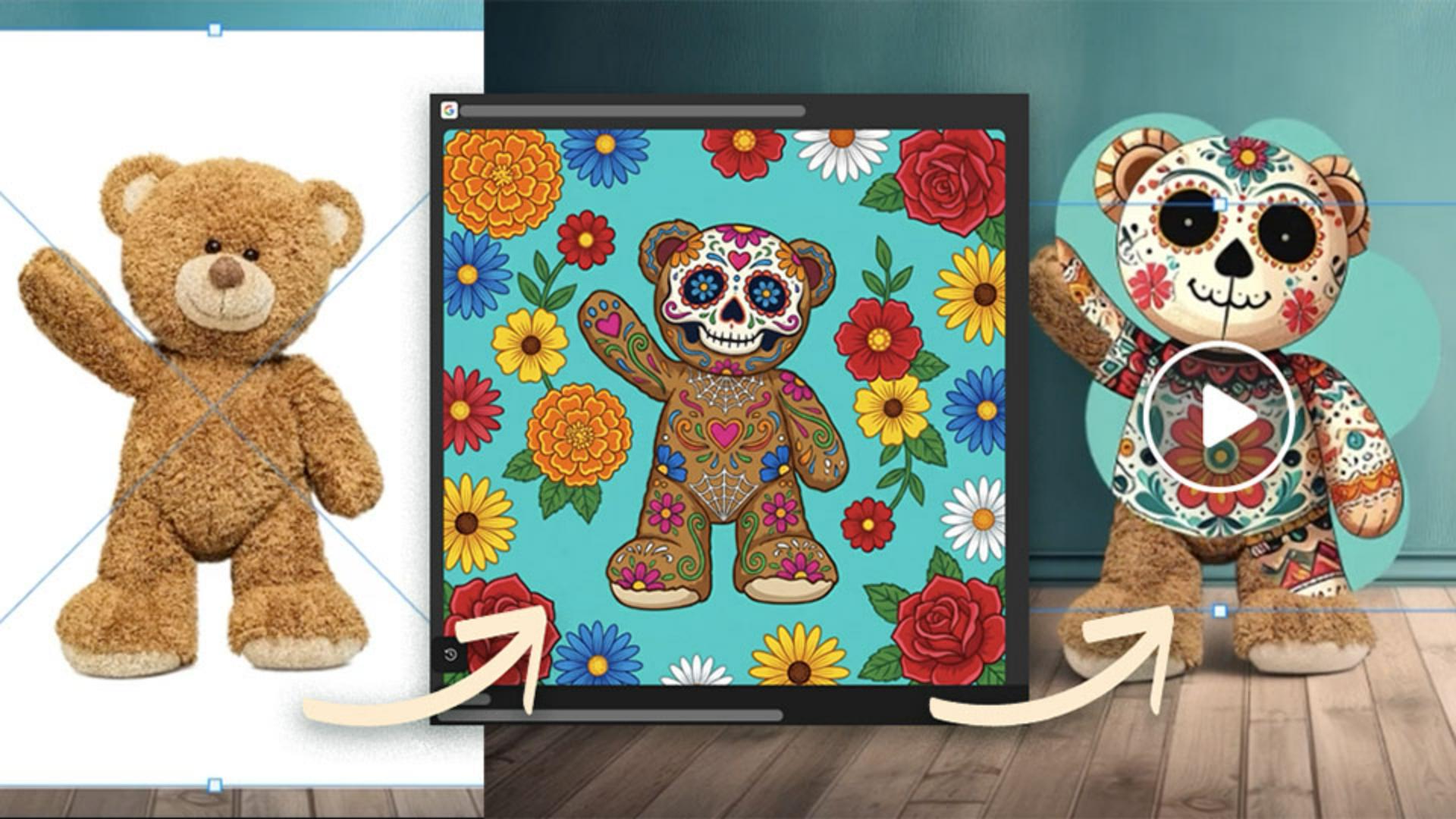
In this video, I'm going to walk you through a real modern creative workflow - how to turn a static image into a calavera or sugar skull style social ad designed for motion.
This is a fast project, but it's intentional.
We'll design in Photoshop, enhance with Firefly, and finish with simple animation in Photoshop like the one you see here.
Let's go ahead and get started.
Build a strong visual foundation in Photoshop
Here's a project I opened in Photoshop with this background layer of this room.
Now I'm going to embed an image of a teddy bear that I found on Adobe Stock.
Then I'll click on Remove background from the Contextual Task Bar.
To blend these two elements naturally, I will use the Harmonize option from the Contextual Task Bar, then I'll select from the different variations that were generated and select the one that I prefer.
Let's apply a subtle color adjustment using presets to give this a dreamy look.
Lastly, I'm going to go ahead and merge all of these layers into one, and then convert this into a Smart Object.
Now let's expand this idea with Firefly.
Explore bold visual directions in Firefly
I'm jumping in to generate an image using Text to image as well as an image reference.
I'm going to turn my teddy bear into a calavera.
First, I will select the partner model which is Firefly Image 4 - I'm going to change it to Square and then use a Reference image.
Next, I'm going to add the prompt: "a sugar skull teddy bear on a turquoise background with flowers" - and click on Generate.
Awesome results.
Something else you can try and do is click on the partner models and try another generation.
This is one of my favorite parts of Firefly.
I can explore ideas visually fast without breaking creative flow.
Once I have what I like, I'm going to download it and then embed it into my project.
Now it's time to bring this to life, but we're keeping the animation simple.
Bring it to life with simple motion
First, I'll add the sugar skull image that I created in Firefly to the project and place it at the topmost layer.
Next, I'll add an image of a cloud by clicking on the Add free Adobe Stock Images button from the Contextual Task Bar.
I'll search for "white cloud element" and add it to the layer below.
I love it actually with the sugar skull teddy bear.
Now for some magic, I'll add a clipping mask to the top layer.
This will create a see-through effect revealing the sugar skull teddy bear.
Now I'll turn on the Timeline window and create a video timeline.
Here I'll animate the cloud by creating keyframes and scaling, rotating, and repositioning it.
And I'll repeat the process for the entire clip in the Timeline.
Let's take a look at the final calaveras sugar skull by moving the Playhead to the beginning and clicking Play.
Fantastic.
Now, to get this out to socials for others to see, I'll need to export the project.
Click on File, then Export, and choose Render Video, choose your Name and Location - you can leave everything to default - and click Render.
To recap: we designed in Photoshop, we enhanced with Firefly, and we animated with intention.
Now why does this work?
It's a real cross-app workflow and it's immediately useful for creators like yourself.
Now it's your turn to explore Photoshop and Firefly to elevate your content and share your stories with the world.
Once again, I'm Claudio Zavala Jr. from the Adobe Education team, and thanks for watching.