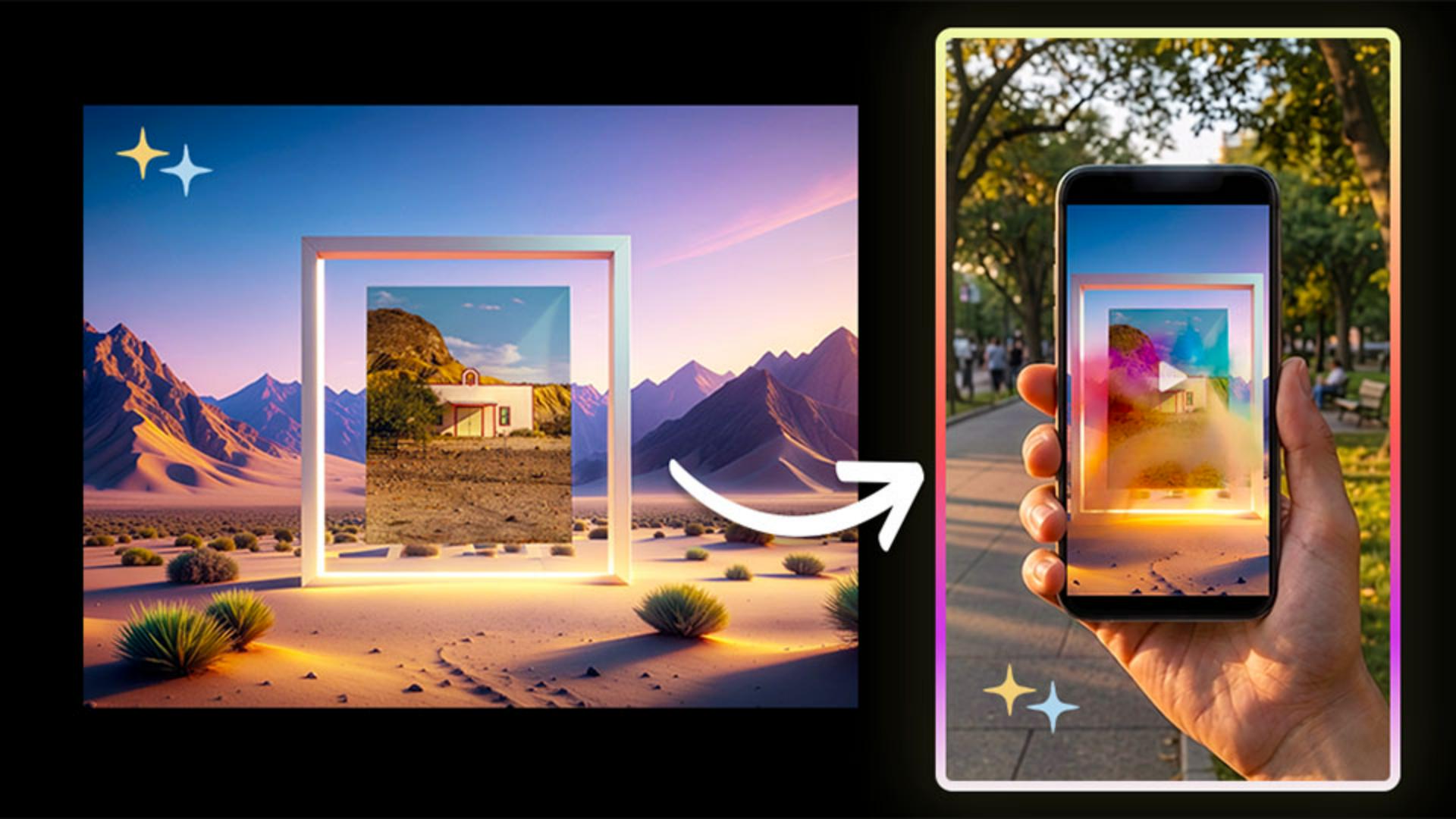
Build a surreal mockup in Firefly
On screen I'm going to open Firefly and choose Generate image.
For this first round, I'm going to click the Model menu and choose Firefly Image 4.
I like to start here because I'm not looking for the final image yet; I'm looking for options.
On the left panel, I'll upload the mockup image provided with this tutorial as both the Style Reference and the Composition Reference.
[Cyn opens the Composition Reference gallery and selects a reference image of a glowing picture frame in a desert landscape.]
The Composition Reference helps Firefly understand the placement, keeping the frame centered as the main subject, while the Style Reference carries over the atmosphere, the color, and the mood.
For the prompt I'm describing three things: what the mockup is, where it appears, and the surreal detail that brings the scene to life.
The prompt could look like this.
Now I'll click Generate.
A pro tip is to keep using the word mockup in the prompt, [Four AI-generated images appear, each showing a glowing frame in a desert at sunset.] because we want Firefly to leave a blank space for the artwork.
Remember, we're not asking it to finish the whole piece; we're asking it to build the stage.
If I want more ideas, I can just click Generate again.
[Four additional image variations appear in the grid.]
Once the results load, I'm going to look for the version with the clearest blank frame and the strongest mood.
Now I can go back to the Model menu and try the same concept in Firefly Image 5, Firefly Image 4 Ultra, or even a partner model to see how the same idea translates.
For this one, I'll pick Firefly Image 5.
Once I find one I like, I open the Edit options dropdown menu and I choose Use as reference image.
That way the next round keeps the same visual direction while I refine the quality.
Now I'll update the prompt with one clear improvement, like "Make the light more dramatic and cinematic."
Then I'll click Generate again.
So first we explore the direction, [A new image variation of the glowing portal-style frame appears.] then we refine the quality.
Once I have the mockup I like, I'm going to download it from Firefly.
[Cyn enlarges a glowing portal-like frame in a desert landscape.]
For me this is the one.
I found my mockup.
Now we're ready to blend our finished artwork [The image of a white building appears inside the glowing frame.] and our surreal mockup together in Photoshop desktop.
[The scene switches to Adobe Photoshop.]
First, I'll open our mockup file in Photoshop to place the artwork.