Add video effects and transitions in Premiere on mobile
Learn how to add video effects and transitions in Premiere on mobile to enhance your edits with professional polish.
Published
What you’ll learn
Add transitions between clips
Insert transitions directly at cut points in the timeline and preview them instantly. Adjust transition duration or apply them selectively to keep your video smooth and easy to follow.
Apply video effects to individual clips
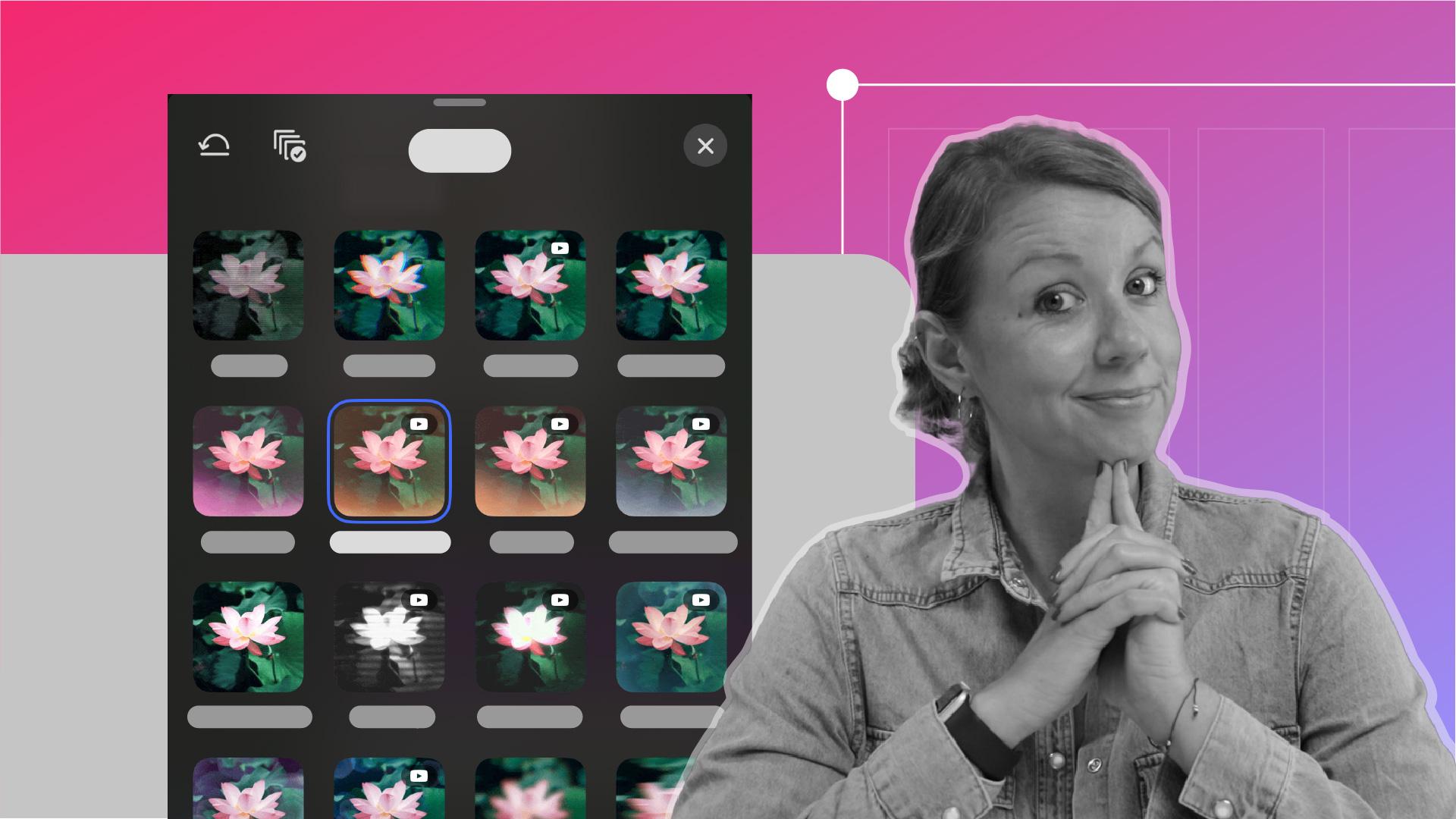
Use clip-level effects like warm flares, grow, or shrink to introduce motion and energy. Control intensity with sliders to achieve subtle enhancements or bold visual styles.
Pair effects and transitions
Combine transitions and effects to guide the viewer’s eye and improve flow between shots. Strategic placement helps avoid visual overload while keeping edits engaging.
Experiment with creative video layouts
Duplicate clips to create picture-in-picture effects and add background blur for depth.
Instruction by
Videography by

