Using track mattes and reflections to integrate layers
Let's create a Shape Layer now to use as a Track Matte so it's hiding behind the mountains.
I'll turn off the visibility of the planet so we can see the mountain's edge.
Let's make sure that no layers are selected by clicking anywhere in the Timeline that's empty, like here.
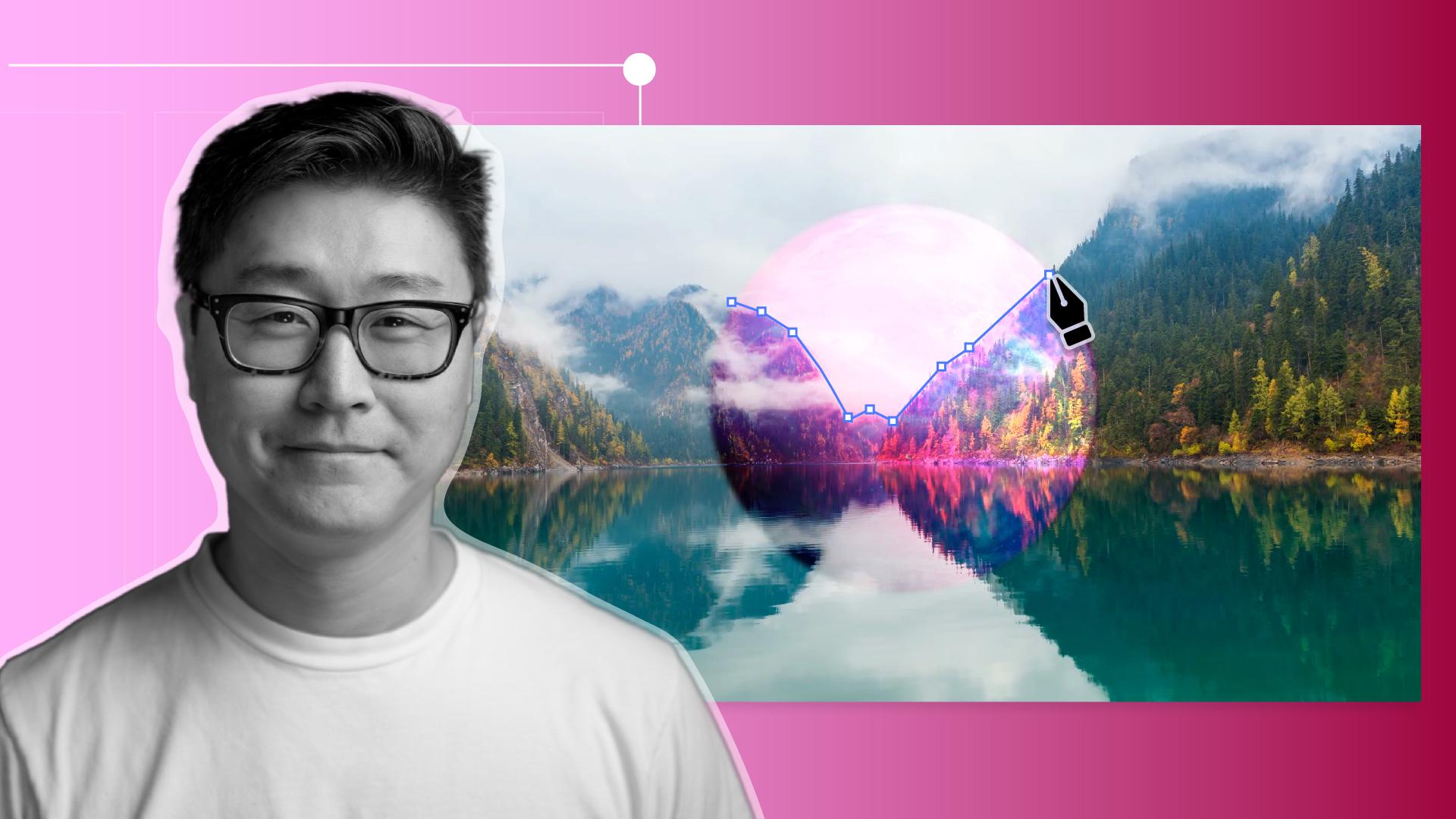
I'll grab the Pen Tool and start tracing along the edge of the mountain, getting it as close as we can.
But it doesn't have to be absolutely perfect, because we'll soften the edges with a little Gaussian blur.
So part of the planet glows through the trees and the mist, by right-clicking on the Shape Layer and going to Effect, Blur & Sharpen, Gaussian Blur.
Once we've closed up our Shape Layer, we'll go to the Pink Planet layer and under Track Matte, we'll grab the Pick Whip and drag it to the Shape Layer we just created.
We'll turn the visibility of our Pink Planet on again, but it looks like it's cut out the wrong part of the planet.
So what we need to do is invert the Track Matte by clicking here.
There we go.
Let's add a reflection of the planet on the lake surface by duplicating both the Pink Planet and the Shape Layer, and then moving them under the original ones, like this.
Before we flip the position of these layers, we need to unlink the X and Y properties of our Scale value.
Now we can click the Y value and make it minus so it gets flipped vertically.
Let's adjust the position of the Matte.
We'll adjust the layer a bit more so the reflection looks more realistic.
And since it's a reflection, let's add some Gaussian Blur to the reflection of the Pink Planet.
Let's try something like 10.
That's looking nice and moody and very sci-fi.
Now we're ready to add the final touch of the warping sequence.
First of all, we'll grab our Lake Mountain video