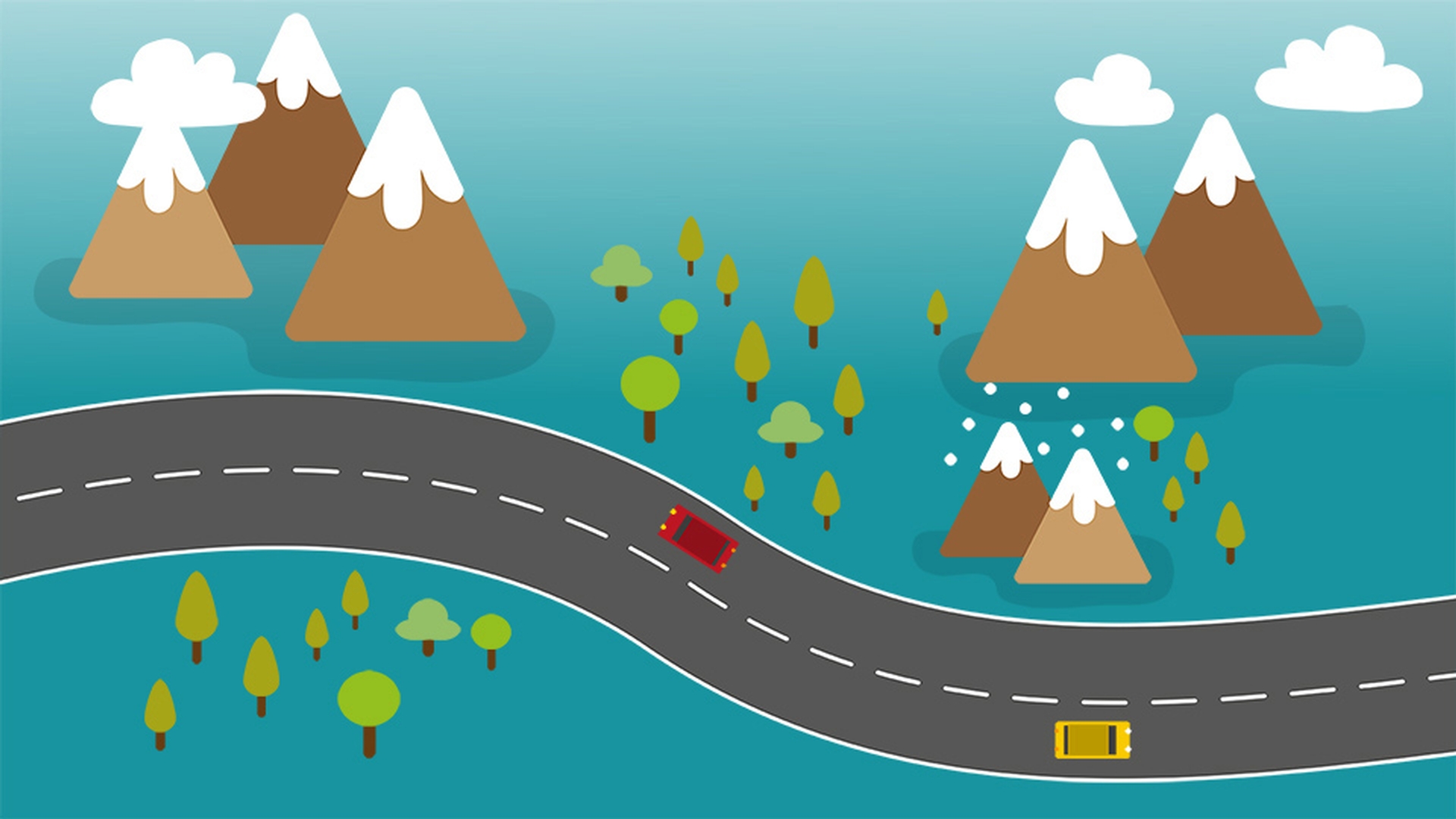
In this video we will be creating an animation where this little red car moves along the highway following a very specific path.
We're going to make it stay in its lane. and as we create this animation, you'll see how paths can be translated into position data for any layer in an After Effects CC project.
So, to start we need to actually create a path that goes along this road Go down to the Timeline and click once on the word Background to select Layer 4.
Then go up to the Tool panel and make sure you have the Pen Tool selected.
If you don't see the Pen Tool here, click and hold and make sure to choose the Pen Tool.
Now I'll go off the right-hand side of the composition and click once to create an anchor point.
Then I'll go right about here in the low point of the curve and click and drag holding the mouse down to get control handles.
Now I want to use as few points as possible to make this as smooth as possible with the different turns.
So, I'll go up to the top part of the next curve and click and drag to draw out really long handles here.
And then I'll go way far off the left side here and just click once to add another point.
Now clearly, we need to adjust this path.
Let's start by clicking on the second anchor point here.
Just click once and that'll get your handles.
And click and drag on the left handle to extend that curve out, so it better matches the edge of the road.
And we'll do the same thing up here with this handle.
Let's click and drag and kind of adjust things, so that the path actually is going along the right lane.
And sometimes, like in the case of this anchor we'll need to just click on the anchor and reposition it completely to better reposition the path along the different lanes.
So, this looks pretty good.
Now that we have our path created let's go up to the Tool panel and grab our Selection Tool.
Then to select the mask, let's go down here and select Layer 4 and press M to reveal the Mask Path.
Click on the words Mask Path and then go up under Edit and choose Copy.
Now since I want the red car to go along this path, I'll select the Red Car layer, Layer 1 and I'll press P to open its Position data.
Click on the word Position and then go up under the Edit menu and choose Paste.
Notice, we now have keyframes in here and the animation is going to take place over 2 seconds.
So, this mask path has been translated into position data.
Press the Spacebar to preview the animation and you'll see while the car is moving along the path it's not turning along with the curves.
So, let's press the Spacebar to stop playback and move the Current Time Indicator to about 1 second in the Timeline.
All right.
To make this orient along the path I need to click once on Layer 1 to make sure it's selected then go up under the Layer menu and go down to Transform under the Transform options, choose Auto-Orient...
We wanted to Orient Along Path, so choose that option and click OK.
Now the car's going to spin around and that's because it wasn't perfectly straight when it was created inside of Illustrator CC.
So, let's press R to open up the Rotation value of Layer 1 and scrub on the right most parameter by clicking and dragging and I'll rotate the car around till the headlights face to the left.
And I know those are the headlights because they're a little larger than the tail lights.
Now I can press the Spacebar and preview the animation.
And you'll notice the car is moving along its lane and it's turning along the path.
Now I'll press the Spacebar one more time to stop playback because I want to show you if I need to change the duration of this animation I can.
So, select Layer 1 and press U to open any animated parameters.
Now with the keyframes visible let's make this animation take a little bit longer.
I'll click on the right most keyframe and drag it to about 4 seconds in the Timeline and I know I'm at 4 seconds because I can see that up here in the Info panel.
Now if I press the Spacebar to preview the animation, you'll notice the car is moving much more slowly along the animation path, but it is staying in its lane.
So, as you can see any path can be used to create position keyframes inside of After Effects CC.