Hey, Jess here.
I'm a Motion Designer and Director.
Are you a follower or do you forge your own path?
Either way, this video is for you.
We'll create a path using the After Effects Pen Tool and animate an object along it.
This butterfly is ready to spread its wings and take flight.
Let's create the path this butterfly will fly along.
We need the Pen Tool, which is up top in your Toolbar, or you can use the shortcut G.
Click on the Composition Viewer panel to begin drawing a path.
Create an initial point right around where the butterfly is.
Next, we'll make another point for our path.
If you click and drag, you'll create a Bezier curve with handles.
To snap the handles to a 45-degree increment, you can hold Shift while doing this.
We can always revise this path after we draw it, so there's no pressure to make it perfect.
I'll add a couple more points with curves to create a flowing path.
With the Pen Tool still selected, we can click and drag these points around to change the position.
You can also drag the handles to adjust the curve and angle.
Clicking on a path will add a new point.
You should see a + icon next to the Pen Tool when hovering over the path.
To remove a point, hold Ctrl and click on it.
You'll see a - sign next to the Pen Tool icon while hovering.
Holding Alt will bring up the Convert Vertex Tool.
Clicking on a point while it's activated will remove the Bezier handles.
If you click and drag on a point while holding Alt, the curve handles will link and pull to the same length on either side of the curve.
Holding Alt and dragging on a Bezier handle will unlink the handles, and you can have different curves on either side of the point.
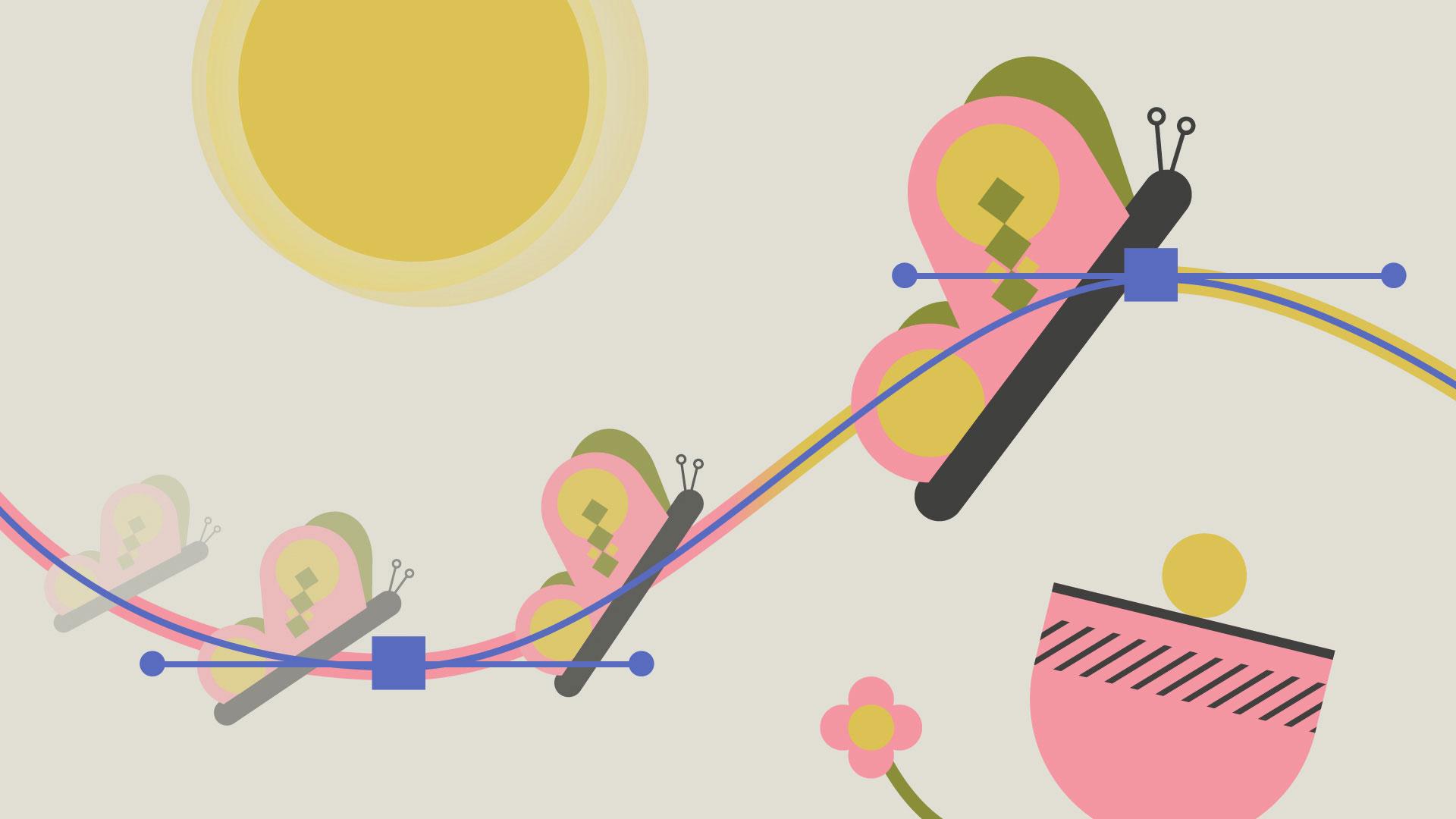
Once you're happy with the path created, we'll apply the path to the position of the butterfly.
Twirl open the Shape Layer 1 in the Timeline panel from Contents, all the way down to Path 1.
Find the Path property and click the Stopwatch to the left to set a keyframe.
Copy the Path keyframe with the shortcut Ctrl C.
Now select the Butterfly layer.
Click P on your keyboard to open up the Position property.
Click on Position and paste the path we just copied with the shortcut Ctrl V.
A keyframe will be created for every point on the path.
The keyframes in the middle of our path will adjust with the timing and speed changes of our start and end keyframes, unless you start tweaking them individually.
The layer's Anchor Point will align to the path.
If you want to change the butterfly's position in relation to the path, you can adjust the layer's anchor point using the values in the Timeline panel.
The butterfly might rotate to match the direction of the path it's moving along.
We can automate that by right-clicking on the Butterfly layer, navigate to Transform, Auto-Orient..., select Orient Along Path and click OK.
We may have to adjust its initial rotation to get the direction we want.
This is just one of many ways you can make an object move along a path.
Did you know that you can also copy paths from Illustrator into After Effects?
Have fun with paths and thank you so much for having me as part of your After Effects learning journey.
