Refine masks you applied in Premiere Pro
Control masks with greater precision by bringing a clip from Adobe Premiere Pro into Adobe After Effects and using the Track Mask effect.
Published
[male narrator] Adobe Premiere Pro CC allows you to apply masks to effects, and Adobe After Effects CC has the ability to import these masks for future refinement.
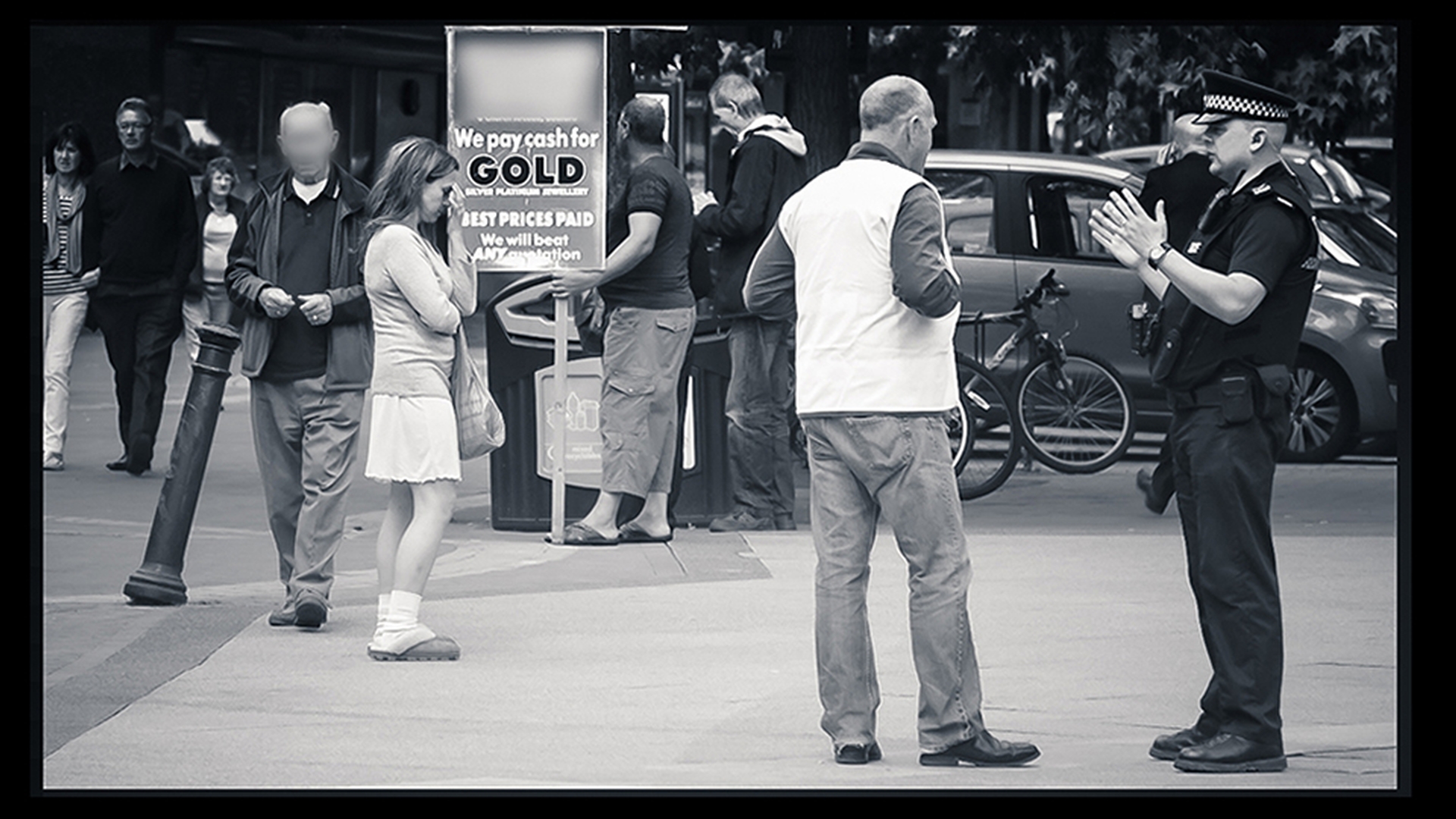
Here we have a Premiere Pro project, where we've added a mask while editing to blur out a company name.
But this is a handheld shot.
So the static mask isn't going to work.
And we could track the mask with the tracking tools here, but there's a point where this character passes in front of the logo.
This gentleman here is the one we're most concerned with.
And we don't want their head to be blurry on top of the logo.
So this is going to make more sense to fix in After Effects.
So let's right-click on this clip, scroll way down and choose Replace With After Effects Composition.
And here we are in After Effects.
Our clip in our timeline has been exported, where we can now work on it.
And you can see that the blur effect has already been applied to our clip.
You can check over here in the Effect Control window.
There it is, fast blur.
And we can tell at a glance that this is using an effect mask because of this new icon in the Effect panel.
And with the layer selected, if we tap the letter M, we'll see another new little icon that says Effects down here next to our mask property, telling us that an effect mask is being used.
We can of course fine-tune this effect or adjust the feather of the mask if we want to tweak that a little bit.
But the important thing is, we need to track this mask so it follows the sign.
So with our mask path selected, we're just going to right-click on the mask and choose Track Mask.
This opens up our Tracker panel, and here we can choose from several options, depending on the footage and the object that we're trying to track.
It's important to note that this feature is not designed to do complex reshaping or morphing of a mask to follow a changing shape.
But if your shapes are fairly consistent, as in this shot, it will work fine.
And in this case, we're just going to choose Position.
We'll turn off our effect while we're tracking, so we can see things more clearly.
Then using the Tracker panel, we could advance a frame at a time if we like, or just push the Play button to track forwards.
Of course, we could track backwards if we liked, but in our case that doesn't make sense.
We're just gonna track this forward.
And after a few moments, you'll see we have a decent track.
There's our character moving in front of the logo, but the track doesn't have a problem with that.
And there we go.
Nicely-tracked blur.
And if we turn our blur back on, we'll see it's working just fine.
Except we're blurring out this gentleman's head as he passes in front, which we want to fix.
So in this case, we can follow similar steps.
We'll go to the point just before this gentleman's head breaks the plane of the sign, and zoom in a little bit, hold my space bar down to pan around, grab my ellipse masking tool here, and I'm going to just click and drag a circle, and use my space bar while I'm dragging to reposition it as precisely as possible.
I'm going to try to align this circle with the top of this gentleman's head.
That looks pretty good.
Now, to fine-tune it, you might want to come down to our mask properties and set this to None.
That way we can see the mask floating on top of the layer.
And you can see that, as expected, we did a pretty decent job here.
And from this point, with the mask selected, we can just come back over to our Tracker panel and start to track again.
Now, I am going to do a frame at a time this time, for a very good reason.
I'm just gonna click, click, click.
You'll see that we're tracking this pretty well.
Once again, let's turn our effect off so that we can see things more clearly.
Track forward.
This is the reason I'm going a frame at a time— because I'm expecting our track to drift slightly when it gets interfered with.
And in fact that has happened just a little bit.
And all we have to do at any point where it starts to drift is just readjust it slightly, go back to a frame at a time, and that looks pretty good.
That one adjustment was all it took.
And now our gentleman's head has been nicely tracked.
And now we can just push the Play button, now that we've cleared the plane of the sign, and let it continue to track out for the rest of the scene.
All right.
So, that worked pretty well.
There we go.
Good, solid track.
We'll turn back on our fast blur effect, come down into our timeline, and with our layer selected, this time I'm gonna add the shift key and hit the letter E, to reveal not only the masks but the effects applied to this layer.
The only thing that pops up is fast blur.
And when I toggle that open, I can come down to my compositing options and hit the +.
Now, our first mask was already applied as an effects mask when it came in from Premiere.
But by hitting the +, we've now added mask 2 as a new mask for the same effect.
And if we come back to our mask 2 settings, and instead of None, set this to Subtract, notice as we scrub through that the intersection between these two mask shapes subtracts out the man's head as he passes in front of the sign so that it's not blurred, which is exactly the effect that we were going for.
Mask tracking is a great addition to Premiere Pro and After Effects CC, and the tight integration between the two applications means you have the creative freedom to use the best tool for the job at hand.
Contributor

