Try these tutorials with Adobe Express
Create web pages, social media graphics, and videos.
Create social posts that stand out.
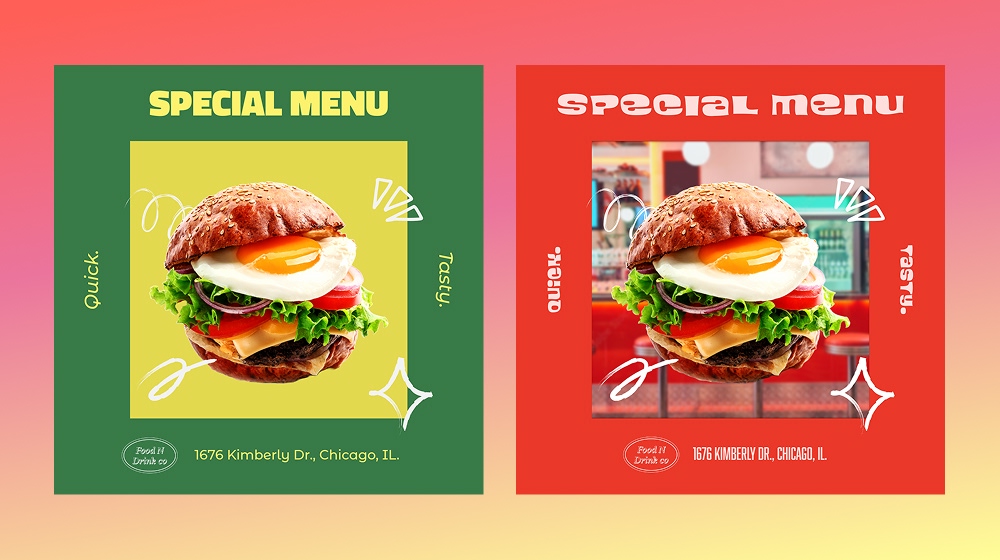
Social feeds move fast. New ideas, new posts, new moments to respond to. The pressure to create never stops, and taking the time to turn a rough concept into something polished can feel like a momentum killer.
AI Assistant (beta) helps you keep moving. Prompt anything. Edit everything. This guide shows you how to turn compelling ideas into standout, professional-looking posts — in a fraction of the time.
To use AI Assistant (beta), you really only need one thing: an idea. As your vision starts to take shape, you may need additional supporting assets to make it a reality.
If you’re promoting a product or people, be sure to have a few shots ready to use.
Make a clear plan for content promotion, including channels and placements, so you know which variants to produce.
AI Assistant access — learn how tostart using AI Assistant .
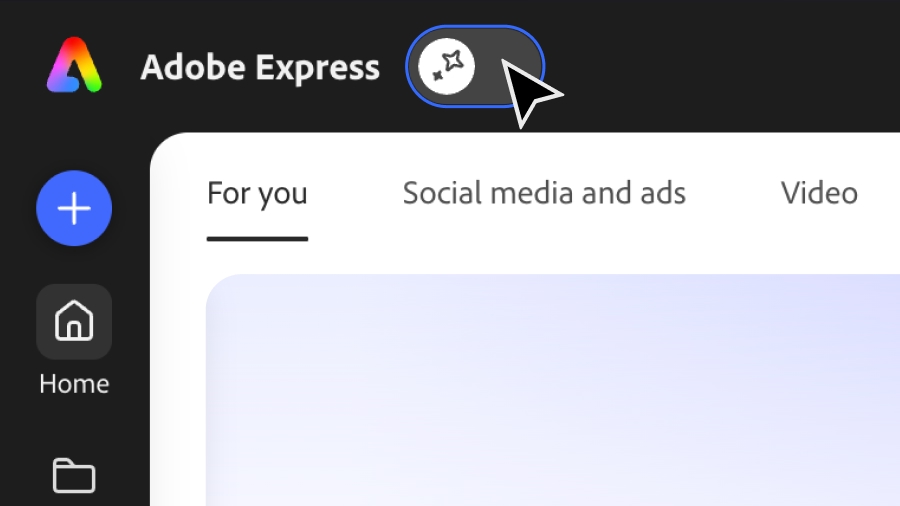
Select AI Assistant (beta) from the Adobe Express homepage and turn on the toggle. Note: If you already have a design in progress, you may also toggle on AI Assistant from the Editor.
Goal
Choose the right foundation for your post.
Example prompts
“Instagram post for a wellness app”
“YouTube thumbnail for coffee shop opening”
“Pottery sale flyer”
“Neon fitness class promo”
“LinkedIn post Real estate open house”
“Restaurant weekly special social post”
Goal
Quickly make major design transformations in a few prompts while keeping the parts you love intact.
Example prompts
Color
“Change the color scheme to be vibrant blues and greens.”
“Apply a funky ’70s color palette to my flyer.”
“Make the color scheme monochromatic and bold.”
Copy
“Change the copy to be for fall instead of summer.”
“Shorten the subhead to be fewer than 10 words.”
“Change the font style to be retro.”
Elements
“Change all the circles to stars.”
“Add a drop shadow to the coffee cups.”
“Add a minimalist paperclip icon to the top right-hand corner of the design.”
Layout
“Resize this for IG post.”
“Resize this to be a YouTube thumbnail.”
Goal
Add or edit imagery to nail your look.
Example prompts
“Replace the coffee mug with a photo of an espresso surrounded by chocolate chip croissants.”
“Adjust the man’s expression from serious to happy.”
“Swap the background for a clean, modern office setting.”
“Change the woman’s outfit to look professional.”
“Add a few paintbrushes and pots around the plates.”
Goal
Bring your idea to life and give it the finishing touch it needs to stand out on social with a single prompt.
Example prompts
“Animate my whole design to make it pop.”
“Fade in all the icons with top layer first, offset by 1 second.”
“Apply a subtle animation only to the headline and subhead."
“Give the coffee cups a wobble effect.”
Say exactly what you want to change, where, and how you want it to look. Use clear action verbs like change, replace, add, remove, or adjust, and reference specific parts of the canvas.
Break bigger ideas into smaller, sequential prompts so AI Assistant (beta) can follow your intent. Use the Workflow section above as a guide for structuring edits in phases.
If something’s close but not perfect, don’t be afraid to adjust it yourself. Click into any image and look for relevant manual tools at the top of your design. Reword and refine prompts when needed to get the results you’re looking for.
Whether it’s zany, techy, serious, or anything in between, AI Assistant (beta) is here to make it a reality. Prompt anything, edit everything, and try AI Assistant in Adobe Express today.


All Consent Allowed