Intro and meet author Tyler Pate.
[Tyler Pate]: Hey, my friends, my name is Tyler Pate, also known as The Creative Pain.
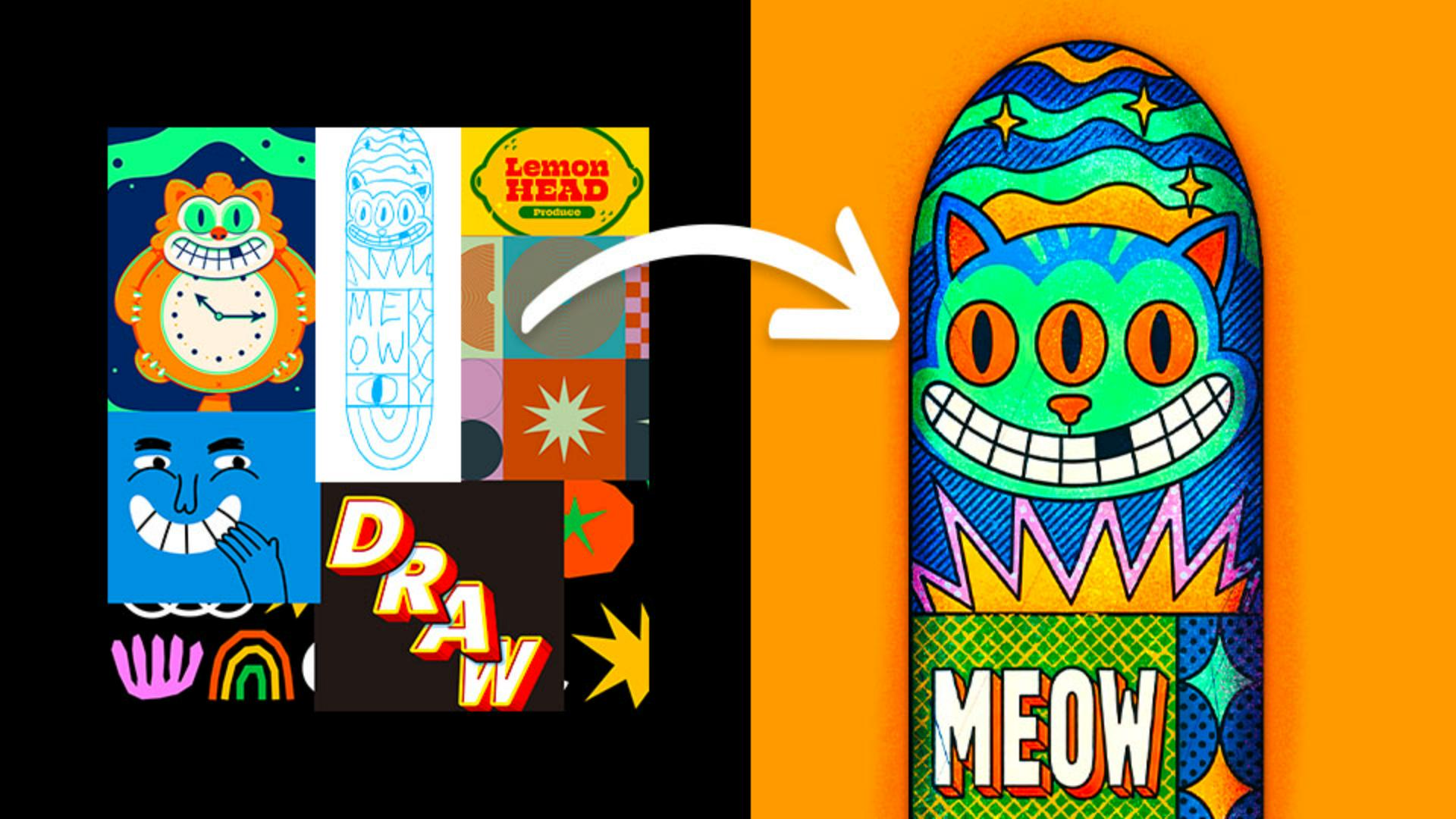
And today, we're going to be walking you through how we could use Firefly Boards to help create a custom skateboard graphic - from mood boarding to ideating multiple concepts, to exporting those ideas into Photoshop, where I can begin finalizing my design.
Let's dive in.
We could start by heading over to firefly.adobe.com/boards, where we can begin pulling references for our project.
To help define my art style, I'm going to import a few reference images by clicking the Add content button, or we could simply drag and drop files directly into our Boards.
I always like to reference some of my past work for art style, along with a few rough concept sketches I drew to inform my art direction and layout.
I even pulled in a few Adobe Stock images to help focus my direction.
We can also click on the Search icon on the right side to drag in additional images from Adobe Stock directly within Firefly.
Shape visual direction with focused mood boards.
From here, I can start arranging these assets onto different artboards I've created.
This helps me organize my workflow into focused mood boards.
I'll use one board for graphic styles, one for subject matter, and one for color.
Generate and refine concepts using visual references.
Next, I'll click Generate image to expand our Option panel.
I've selected the Gemini 3 model to use for this step.
Then, I'll click Sample from canvas, and with the Eyedropper cursor active, I'll first click on my concept sketch, since this will be the primary reference for my layout and overall direction.
Now, let's repeat this step.
But this time, I'm going to sample the entire artboard that contains my reference images for my graphic style and my color.
You'll start to see the reference thumbnails populate below.
From here, I'll add a text prompt to help guide my results.
I'm going to simply tell Firefly, "Use my sketch for layout placement, and reference my other images for the illustrative style and color."
Now, I'll click Generate.
And just like that, we have a concept idea we can start to develop further.
From here, I'll repeat my process by focusing my edits on specific areas of the concept, refining and revisiting sections one at a time to really dial my creative idea into a working draft.
This is where having multiple artboards becomes incredibly useful.
The more curated our Boards are, the stronger and more focused the generated directions become, especially when using our text prompts.
Now, this is one of my favorite features - being able to share Boards with teammates or even with a client.
All you need is a free Adobe ID.
This makes collaboration during the ideation phase super-easy, allowing everyone to leave comments or notes directly on the Boards while keeping everything flexible and easy to update.
Move concepts into production with Photoshop.
Once we have our concept locked in, we can move smoothly into production.
Just right-click on the image and select Open copy in Photoshop.
This will automatically open our image in a new browser window using Photoshop online, which is great for quick revisions and retouching.
But for this project, I'm going to download the file and open it in Photoshop on my desktop.
With Photoshop open, I'll start using my concept reference as a production-level blueprint.
From here, I can make final adjustments to layout and color while having full creative control and access to all of my favorite Photoshop tools.
This also lets me use my go-to texture brushes, retouching tools, and adjustment layers to create a fun, unique skateboard graphic in my own style.
Bonus tip!
And here's a pro tip I always keep in mind - treat Firefly Boards as part of your production process, not just for inspiration or final outputs.
Use Boards to help focus your concepts in the early stages of your process, and give you a clear direction that carries all the way through to the final design.
That's a quick walkthrough of how we can use Firefly Boards to help ideate a custom graphic and move confidently into Photoshop.
Thank you again for watching, and I'll see you at the next one.