Enhance your Firefly videos with pro techniques
Refine Firefly videos using frame cropping, composition references, style presets, and transparency controls.
Published
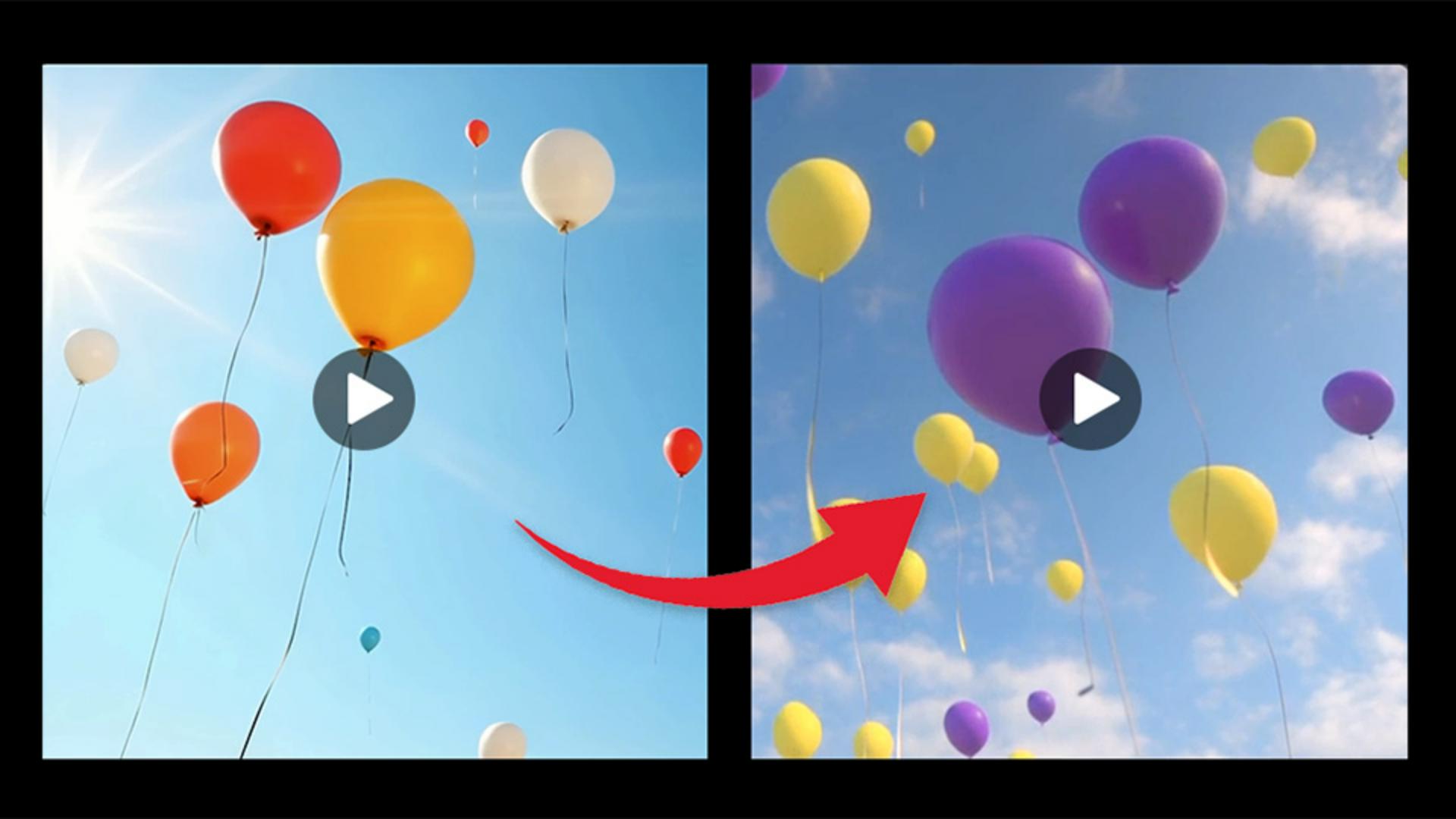
Note: Stock assets provided are for practice purposes only. See terms.
What you’ll learn
Control framing and camera motion
Use frame cropping to focus your shot and choose from camera motions like pan or zoom. Combine these with enhanced prompts for results that match your vision.
Match composition and apply a style using presets
Upload a video as a composition reference to mirror its attributes. Then choose a Style preset like Cinematic or Line art to set the visual tone.
Generate transparent effects
Toggle Transparent background to create overlays, visual effects, or elements ready to layer in your video edits.
To further refine your video, you can also use the Firefly AI video editor.
Instruction by
Adobe Stock Contributors

