See how different AI models transform the same prompt
Use partner models in Firefly for rich and varied results in Boards and other modules — across multiple content types.
Published
Introduction
[Angelo Montilla]: If you've ever wished for more variety in your AI-generated content, Adobe Firefly now has you covered.
With partner modeling at your fingertips, you can unlock new levels of creativity without having to hop to different apps or websites.
Hi everyone!
My name is Angelo Montilla from montilladesign.com.
Over the next few minutes, I'll show you how to use partner models available on Adobe Firefly to generate stunning images, videos and vector content.
Let's jump in and see what we can create.
Accessing partner models and comparing image results
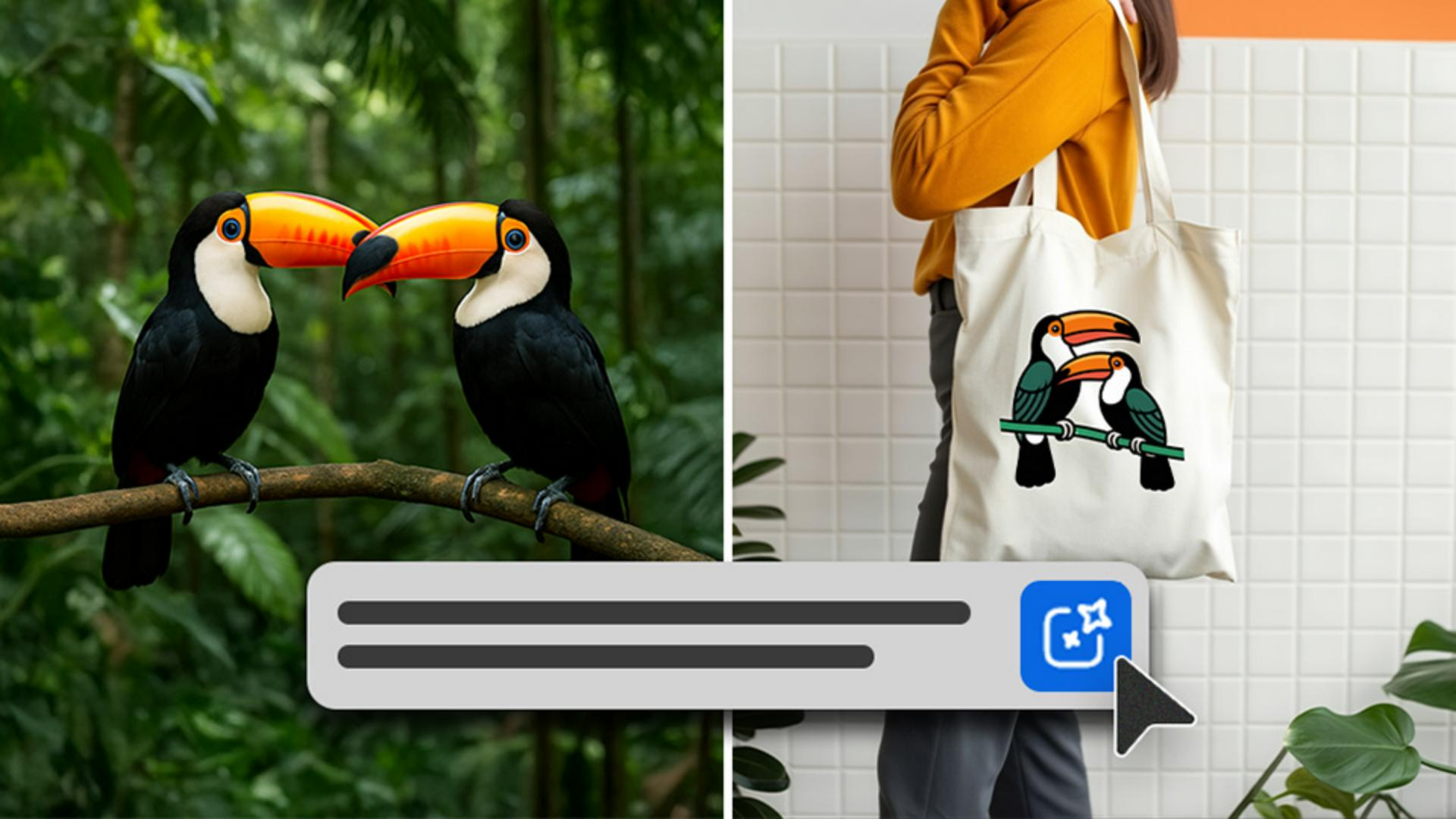
On the Firefly site, in the Text to image module, I generated a set of toucan images using Adobe Firefly 4 partner models to compare results.
To access partner models, click on the Model dropdown under the General settings tab and add them to Firefly.
I've already added Google Imagen 4 Google Imagen 3 and GPT image.
I'll choose the Google Imagen 4 model to generate an image of toucans sitting on a branch in a rainforest.
Imagen 4 provides results with strong depth of field and photo-like compositions, as you can see in the result here.
Next, I'll switch over to the GPT model and generate an image using the same text prompt.
You can see in the example, the toucans have a high level of realism in their feathers and overall texture.
Partner models are available in Text to image, Text to video, Text to vector, Image to video, and Firefly Boards.
The difference between Firefly and the partner models is Adobe models produce results that are safe for commercial use.
I really like these image options, so I'll download them and use them in a mood board exploration project with Firefly Boards.
Building a mood board and generating mockups in Firefly Boards
Let's jump over to Boards next.
I've switched over to Firefly Boards, and I'm building out a mood board for a brand called Toucan Clothing.
I've added the toucan images, as well as a photo from Adobe Stock that I'd like to use as a composition reference for a mockup that I'm working on.
I'll click the Prompt bar down below, and use a couple of the partner models to compare variation styles.
First, I'll choose Imagen 3 and I'll enter my text prompt description.
Under the Image label I'll click on this icon and sample the stock image of the woman holding a totebag to add it as a composition reference.
I'll leave the Aspect ratio at Square and click Generate to see the result.
Not satisfied with the result?
Click Generate again to generate another.
To place the image on the canvas, click on it once and then choose Place on canvas, drop it in and resize it accordingly and then use the Move Tool to position it in place.
I really like using Imagen 3 for mockup images, because of its powerful ability to generate content with realistic scenes and cinematic storytelling.
I'll switch the partner model to Flux 1.1 Pro and generate an image using the same prompt and composition reference.
Here's the Flux 1.1 Pro result.
I'll click on it once and place it on my canvas as well.
And much like I did in the first example, I'll resize it and position it in place.
Colors with this partner model tend to be rich, but more muted compared to Imagen and other models.
Creating logo concepts with partner models and editing mockups
Next, I'll create a toucan logo concept that I can place on one of the totebags for added inspiration.
For this, I'll be using a partner model called Ideogram 3.0.
I'll click the model dropdown and choose it from my partner model options.
This model in particular leans into stylized illustration, so it's perfect to generate logo concepts.
In the prompt field I'll replace the text prompt and clear the Reference image thumbnail.
Instead, I'll click on the Eyedropper Tool to reference style attributes from one of the toucan images.
For example, if I click the first one, I can choose Vivid palette and Toucans on a branch.
Once again, I'll leave the Aspect ratio on Square and click Generate to see my result.
Now I can place the toucan logo concept on the board and over one of the totebag mockup images.
With the image selected, I'll click the Remove background icon from the Contextual Task Bar to remove the white background.
Now I can click and drag to resize the logo and rotate it for added realism.
I'll increase the size a little bit more, and the mockup is complete.
It's important to note that as of now, Boards offers more partner models than the other Firefly modules.
Also, generative credits vary based on the partner model you choose.
Now that my mockup is complete, I'd like to bring it to life using a partner model in Text to video.
Let's do that next.
Generating video from images using text to video models
On the Firefly site, in the Text to video module, click the Model dropdown and choose one of the available partner models.
In this example, I'll choose Veo 2 by Google. under the Aspect ratio, I'll choose 9x16 Vertical.
I'll add my text prompt to the Prompt Bar, and then I'll drag and drop the mockup reference image as the first frame.
In the Preview window, you can make your crop adjustments, and then click Generate to see the result.
You can see that Veo generates a stunning result that brings my mockup image to life.
This model in particular produces exceptional sharp and fluid results, especially in motion rendering like camera panning, zooming, or object movement.
Next, let's jump over to Firefly's Text to vector,
Creating vector illustrations with partner models
and I'll show you how to create tropical-inspired illustration assets with GPT Image.
In the Text to vector module I'll choose GPT Image from the Partner models.
I'll ensure that the Content type is set to Subject, and I'll enter my text prompt.
As a last step, I'll click Generate to see my result.
You can see the GPT Image generates a super-detailed set of tropical leaf illustrations that I can open directly in Adobe Illustrator.
You should now have a better understanding of how to use partner models in Adobe Firefly.
Give them a try on your next project and explore new ways to create content.
Again, my name is Angelo Montilla, and I'll see you in the next video.
Note: Stock assets provided are for practice purposes only. See terms.
What you’ll learn
Access a variety of partner models
Choose from leading partner AI models directly within Firefly to broaden your creative results and styles. See our guide to partner models in Adobe products for model details and generative credit usage.
Compare outputs for style and quality
Run the same prompt through different models to discover fresh visual approaches.
Apply models in Boards and across Firefly modules
Use partner models in Boards, Text to image, Text to video, Image to video, and Text to vector to enrich any creative project.
Instruction by
Design by

