When you launch Adobe Fresco the first thing that you'll see is the Home screen.
Here you can create a new drawing or painting from scratch which is what we'll do in this lesson.
You can tap Import and Open to import an image from another location, such as Dropbox, or you can open images that you've recently worked on.
Let's go ahead and start a new image by tapping on the Create New button.
In this screen there are a variety of presets you can choose from or you can create a custom size.
I'm going to tap on Print and then I'll tap on the little arrow next to the word Poster down here and I'll choose to switch to a landscape format.
Then I'll tap on the Poster icon, to open up a blank document into Fresco.
I'm going to start by going up to the Pixel brush and in the Favorites I'm going to choose the Ink Stains.
Now let me clarify that all of these brushes are found in different Pixel brush groups and I have added them to the Favorites in my version of the app.
If you're using Fresco for the first time you won't see any brush favorites here.
The Ink Stains brush can be found in the FX brushes.
I'm going to tap on the Color chip and I'm going to use this color wheel here to dial in a blue-ish green color, something like that.
Then I'm just going to paint over the center of the image to add that in there.
I'm using a pretty big brush, it's about 1800 pixels.
I'll tap on that Color chip again and I'm going to get more of a violet color, we'll add some of that in, go back to that Color chip, and lets get some orange color in there, and then finally lets come here and get some yellow color to put in there so just a blend of different colors.
All right, that looks good.
Next what I'm going to do is I'm going to come up to the Pixel brush again, and I'm going to choose this Gritty brush that I had earlier saved to my Favorites.
I'm not going to actually paint with the Gritty brush, I'm going to use it as an eraser.
Now there is an Eraser tool in Fresco, but it doesn't really have a lot of character, it just erases.
Now of course sometimes, you need to have that, and it's very useful that it's there, but, what I like to do is use a brush and turn it into an eraser and I can do that by holding down the Touch shortcut in the lower left, so when I do that, my brush is going to become an eraser, and I can erase with all the interesting edge characteristics of that brush.
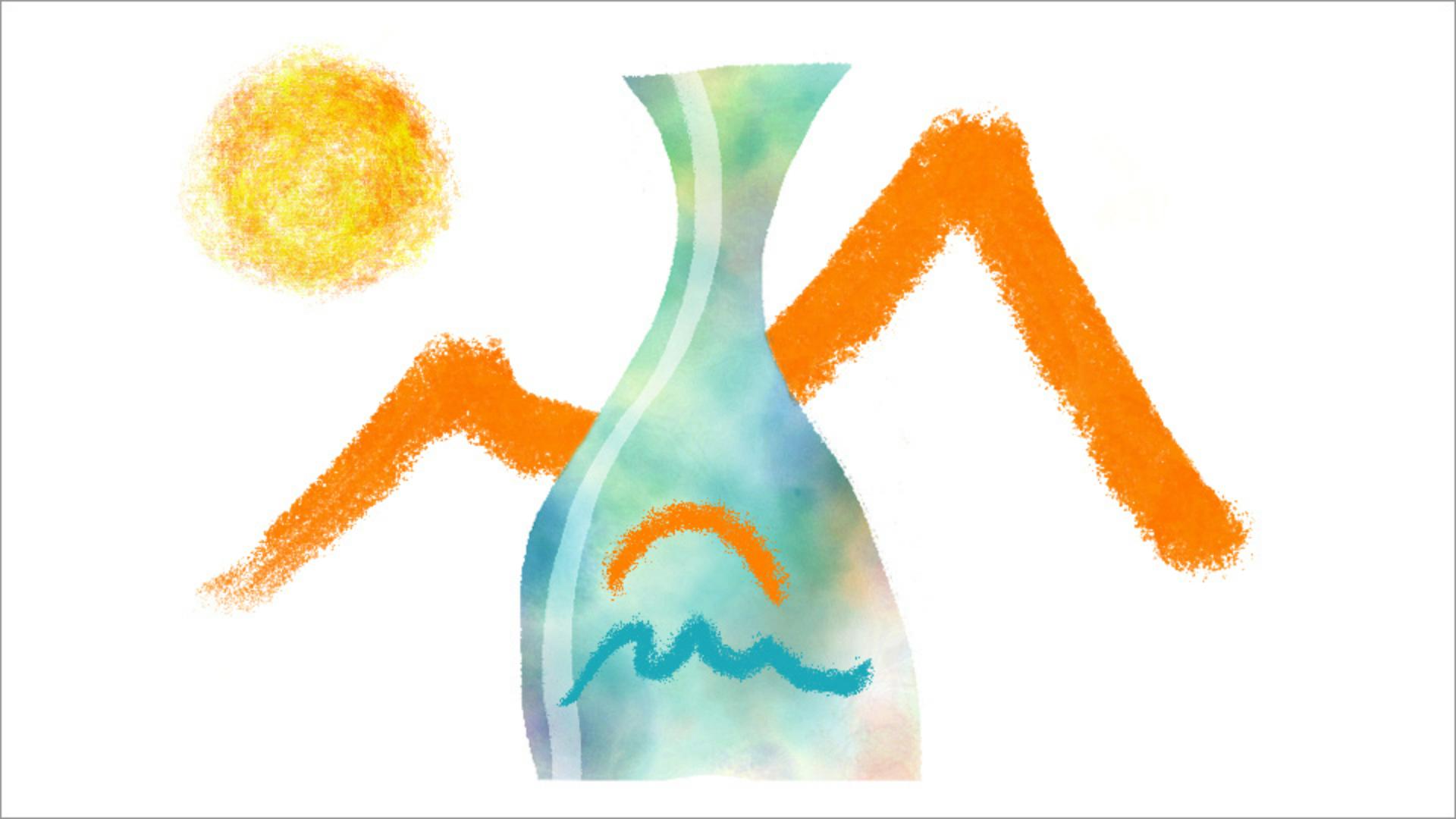
So let me just make this brush a little bit bigger, and I'm gonna try to use this Eraser brush to define the shape of a bottle, kind of a stylistic fanciful bottle, but a bottle nonetheless, and we'll come along there.
There we go, that looks good.
And let me get my brush a lot bigger now, and I can come in and quickly erase all this other stuff along the sides and the top.
All right, that looks good, let me come to the Color chip, and I'm going to tap on the white color up here, and I'll lower the opacity to about 40, 50 percent, something like that.
And let me come up to make sure I still have that Gritty brush selected, I'm going to lower the size of that down to maybe about 200, and I'm going to double check the Smoothing, that's just the little curved line here in the bottom of the Tool options, I definitely want to have my Smoothing turned up because I'm going to draw a curved line, and what I'm going to do is just draw a line that comes down and follows the edge of the bottle, just to suggest a little bit of a highlight there.
Next, it's time to add a new layer, so I'll tap on the Add Layer button over here, in the Layer taskbar.
I'll get to my Color chip and I'll tap on the recent swatch for the blue green color I used earlier.
I'll come up to the Pixel brushes and I'll use the Conte Crayon brush which is one of the Dry Media brushes and let me lower the size down a little bit to about 280, and what I'm going to do is just draw a squiggly line there across the bottom of the bottle.
I'll tap on that Color chip again and come and get an orange-red color make my brush size a little bit larger here and I'm just going to draw an arc shape just like that, just to suggest maybe a sun over the mountains.
All right, lets add another layer.
I'll come back up to the Pixel brushes and I'm going to get the Pastel Square brush which can be found with the Dry Media brushes and with the Pastel Square brush, what I'm going to do is draw a mountain shape.
And I'll press down on the Touch shortcut in the lower left to erase the mountain where it's over the bottle just to suggest that the mountain is in the background.
And on that same layer let me tap the Color chip and make that orange color a little bit more yellow, and lets come up and get a different brush, and I'll choose this Cezanne 1 brush which is from the Painting group of brushes and I'll paint a simple circular shape to suggest a sun up in the sky.
One of the nice things about Fresco is that you don't have to worry about saving your drawings or paintings as you're creating them.
Your work is automatically saved at regular intervals as a Cloud document.
There are a lot of possibilities for drawing and painting in Adobe Fresco.
Start exploring with the different brushes and tools and have fun following the creative pathways that you discover.