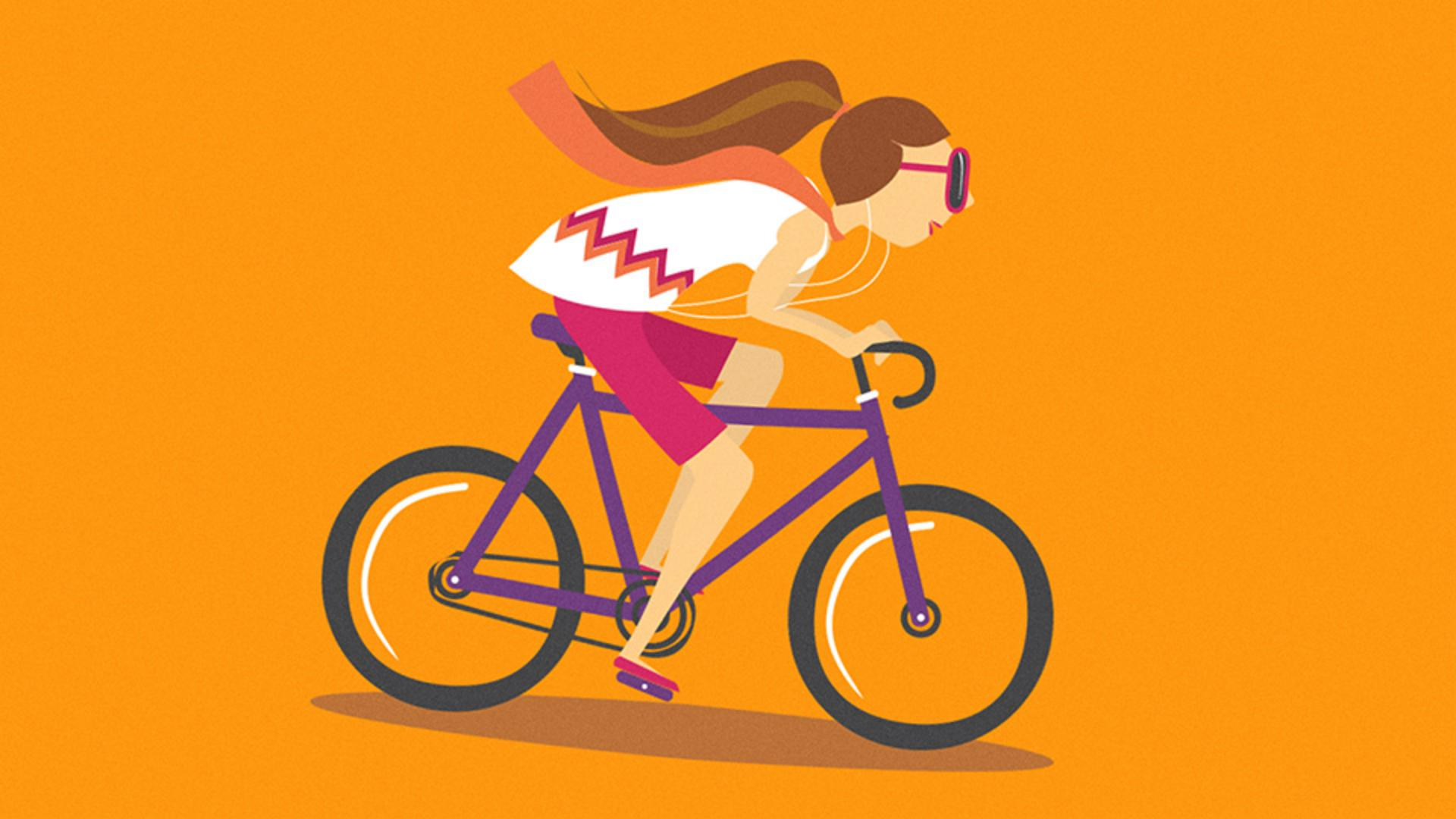
Adjusting body posture using multiple pins
So if we're going to rotate her head, think of where the pivot point - for that might be.
I'm thinking probably here at the neck.
Click to add a new pin.
Now I want to rotate this pin, - which would rotate the head but the problem is, if I do that watch.
It's going to look weird - because we already have a pin in the head.
To rotate the head freely, - we need to remove all pins.
So I will undo what I just did.
Select any pins in the head here and press Delete or Backspace - to remove them.
Now you can select that pin again - at the neck and try rotating it.
That's better.
Her torso needs to be - a little more horizontal, so we'll move the pin - you added at her shoulders.
But before you move it, if you move it, you're going to see that only that one moves, - and the rest are going to stay still.
The hands on the bike and her hips - shouldn't really move.
So there need to be pins there.
Now I've got a pin here at the elbow - and if you do too, let's remove it.
So select it and delete it, and then add a pin somewhere down here - near her wrist or forearm.
That's going to keep that area still.
Now, I've got a pin here - in the lower back.
If you don't have one, - go ahead and add one.
We need to move the head, body - and scarf down.
You can drag these pins one at a time, but it'll be faster - if you drag them all at once.
So to select multiple pins, - you can press the Shift key and click on all of them.
Now you can drag one of them down.
That looks pretty good.
I don't want to crush the artwork - too much here.
There we go.
A little adjusting here.
Once I think it looks good, now the head - will need to get rotated again.
She's looking down.
She needs to kind of look straight ahead.
So go to the neck pin and rotate the head, - and, there it is.