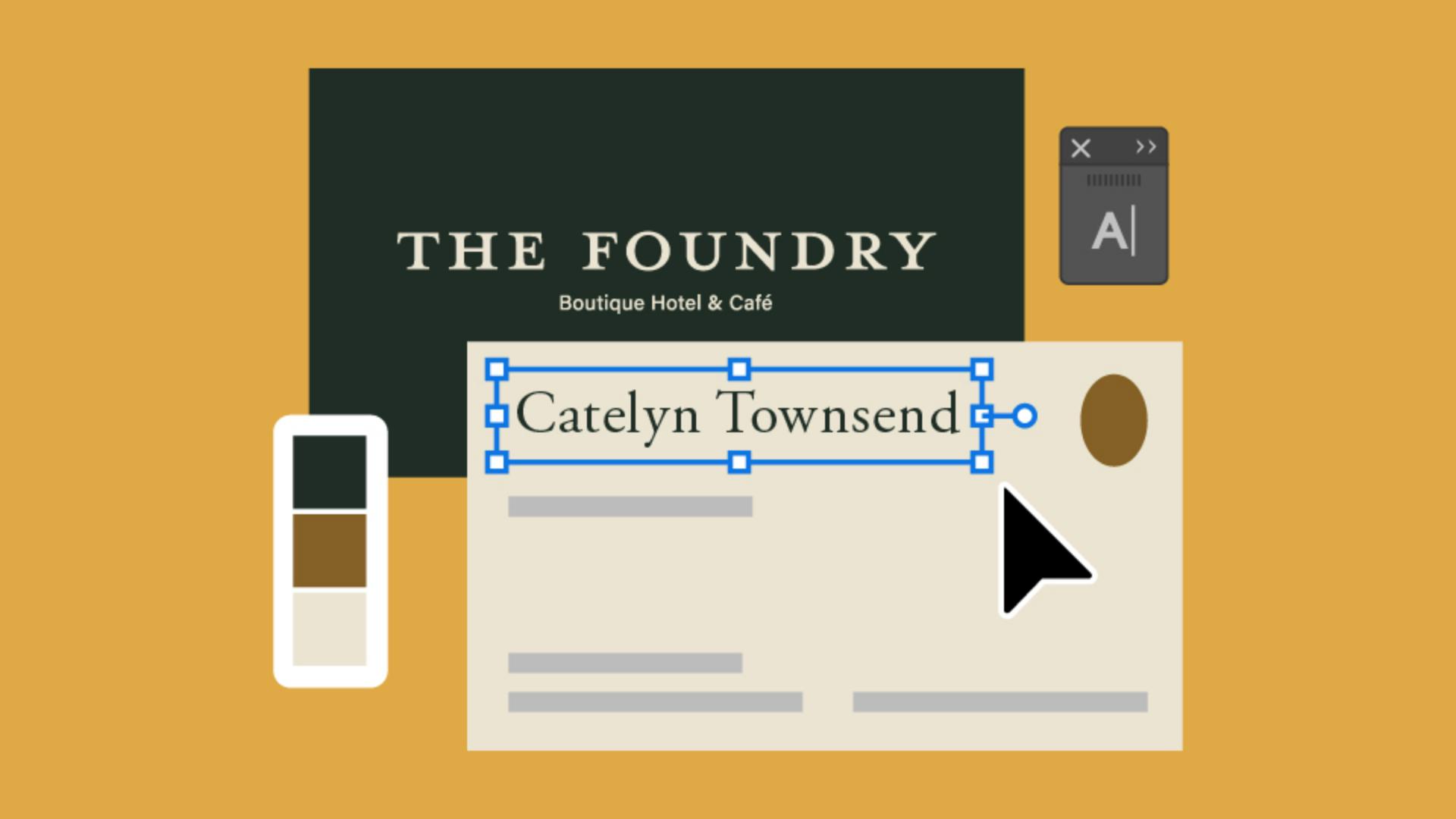
Do you need business card designs, but not sure where to start?
Some brands only have a logo without fonts systems or colors to back them up.
In this tutorial, I'll show you how to choose fonts and colors to match your brand while designing a business card template.
My name is Sydney Michuda, Creative Director of Super Creative.
Let's jump in.
Setting up the business card document for print
Create a new document and set the artboard size of 3.5 in x 2 in.
Increase the Artboards to 2 for both sides of the cards and the Color Mode to CMYK Color for printing.
Designing the front and back layout
Place the primary logo on the front of the card for brand awareness.
With the Rectangle Tool, create a shape to fill the background color.
Go to Object, Arrange, and Send to Back.
Then change the color of the background.
Use a darker color, so it feels impactful like a book cover, and change the logo to a lighter color.
We'll refine these later.
For the back, use a lighter color for the background, so it's easy to read the text.
The back of the card will hold all the personal information.
Include a first and last name, their job title, and some contact info like their email, phone number, the hotel's website, and since this brand has a physical location, the address.
Typically, the name should be the largest text on the back, like a headline.
So, let's make the name a little larger while we choose fonts, and let's move the job title a little closer to the name, since it acts as a label for that person.
Now to pick some fonts,
Choosing fonts for brand personality and hierarchy
select the name, go to the Character window, select the Fonts dropdown and add some Filters.
Since the hotel is boutique and sophisticated, use a classic serif font to match that elevated esthetic.
Let's go with Adobe Garamond Pro Regular.
For the job title and contact info, choose a clean, understated sans serif font that's easy to read, like Acumin Pro, make the job title font a slightly thicker weight, so it feels like a subhead.
Let's also make the name a bit larger, so it has clear priority in the layout.
Make the title and info a little smaller, then move the info away from the name and title since it's a different kind of content.
Try different layouts until you find one that fits your needs.
To choose a color palette,
Building and applying a cohesive color palette
pick a refined darker color like a navy or evergreen.
Then pick an accent color you might see in the space.
This hotel has brass finishes, so we'll go with a brown hue, then a neutral warm off-white.
Apply the dark color to the front background and the back text and apply the off-white to the front logo and the back background.
Apply the accent color to any design elements on the back.
This hotel has a custom room illustration, so we'll add that to the front for a bit of interest and texture.
Saving the design as a reusable template
To save as a template, lock the front and the back backgrounds, so future editors don't adjust the core elements.
Lastly, go to File, Save As..., name your file, select Illustrator Template and hit Save.
Creating business cards for your brand doesn't have to be a hassle, place the logo, add your information, select fonts and colors, save as a template, and voilà!
Again, my name is Sydney Michuda of Super Creative.
Give it a try yourself and share your results.
Note: Stock assets provided are for practice purposes only. See terms.
What you’ll learn
Set up artboards for the two sides of the business card
Enter typical dimensions for a business card and set a suitable color space and resolution for high-quality printing.
Block out the main text elements
Add essential details such as the name, job title, company name, and URL. Adjust the size and arrangement of each text element to balance the design.
Choose fonts and colors
Filter fonts by appearance traits like elegant, clean, or modern. Select a brand-associated color and an accent color inspired by the brand’s theme or location. Thoughtfully apply the colors and integrate a logo or illustration for a polished look.
Save the design as a template
Lock background elements to prevent accidental edits. Save the design as an Illustrator template to ensure the original stays intact when reused.
You can control how Adobe websites use cookies and similar technologies by making choices below. But note that if you disable cookies and similar technologies entirely, Adobe websites may not function properly.
Cookies are small text files stored by your web browser when you use websites. There are also other technologies that can be used for similar purposes like HTML5 Local Storage and local shared objects, web beacons, and embedded scripts. These technologies help us do things like remembering you and your preferences when you return to our sites, measure how you use the website, conduct market research, and gather information about the ads you see and interact with.
You can make choices in the menu below about what cookies and other technologies you want us to use on Adobe sites when you visit them from this browser. You can always change those choices later by clicking on the Cookie Preferences link at the bottom of the page.
If enabled:
We can improve your experience by tailoring the site and the content to things we think might be of interest
We can better keep track of your preferences — like what language you prefer to use
We will better understand your likely interests so we can provide you more relevant Adobe ads and content on non-Adobe websites and in non-Adobe apps
It will help us improve the performance of our website and those of our partners who use the Adobe Experience Cloud
If disabled:
We won’t be able to remember you from session to session so the experience may not be tailored to your interests
You’ll still have access to the content of the site but certain features that depend on cookies may not function
You’ll still see ads, they just may not be as relevant to you
General information
You can control how Adobe websites use cookies and similar technologies by making choices below. But note that if you disable cookies and similar technologies entirely, Adobe websites may not function properly.
Cookies are small text files stored by your web browser when you use websites. There are also other technologies that can be used for similar purposes like HTML5 Local Storage, web beacons, and embedded scripts. These technologies help us do things like remembering you and your preferences when you return to our sites, measure how you use the website, conduct market research, and gather information about the ads you see and interact with.
You can make choices in the menu below about what cookies and other technologies you want us to use on Adobe sites when you visit them from this browser. You can always change those choices later by clicking on the Cookie Preferences link at the bottom of the page.
If enabled:
We can improve your experience by tailoring the site and the content to things we think might be of interest
We can better keep track of your preferences — like what language you prefer to use
We will better understand your likely interests so we can provide you more relevant Adobe ads and content on non-Adobe websites and in non-Adobe apps
It will help us improve the performance of our website and those of our partners who use the Adobe Experience Cloud
If disabled:
We won’t be able to remember you from session to session so the experience may not be tailored to your interests
We’ll still count your use of our site and services
You’ll still have access to the content of the site but certain features that depend on cookies may not function
You’ll still see ads, they just may not be as relevant to you
Operate the site and core servicesOperate site and measure engagement
Always active
These cookies are required, and they are used to enable the site and related services core functionality. Without them the site could not operate, so they cannot be disabled.
These cookies enable the site and related services’ core functionality and collect statistics about user engagement, such as counting active use to help us understand trends. These cookies cannot be disabled.
Measure performance
These cookies are used to analyze site usage to measure and improve performance. Without them Adobe cannot know what content is most valued and how often unique visitors return to the site, making it hard to improve information we offer to you.
These cookies are used to analyze site usage to measure and improve performance. Without them Adobe cannot know what content is most valued, making it hard to improve information we offer to you.
Extend functionality
These cookies are used to enhance the functionality of Adobe sites such as remembering your settings and preferences to deliver a personalized experience; for example, your username, your repeated visits, preferred language, your country, or any other saved preference.
Personalize advertising
These cookies are used to enable Adobe and our partners to serve ads more relevant to your interests. Without them you will still see ads, but they might not be as relevant to you.
Personalize advertising
These cookies are used to enable Adobe and our partners to serve ads more relevant to your interests. Without them you will still see ads, but they might not be as relevant to you.