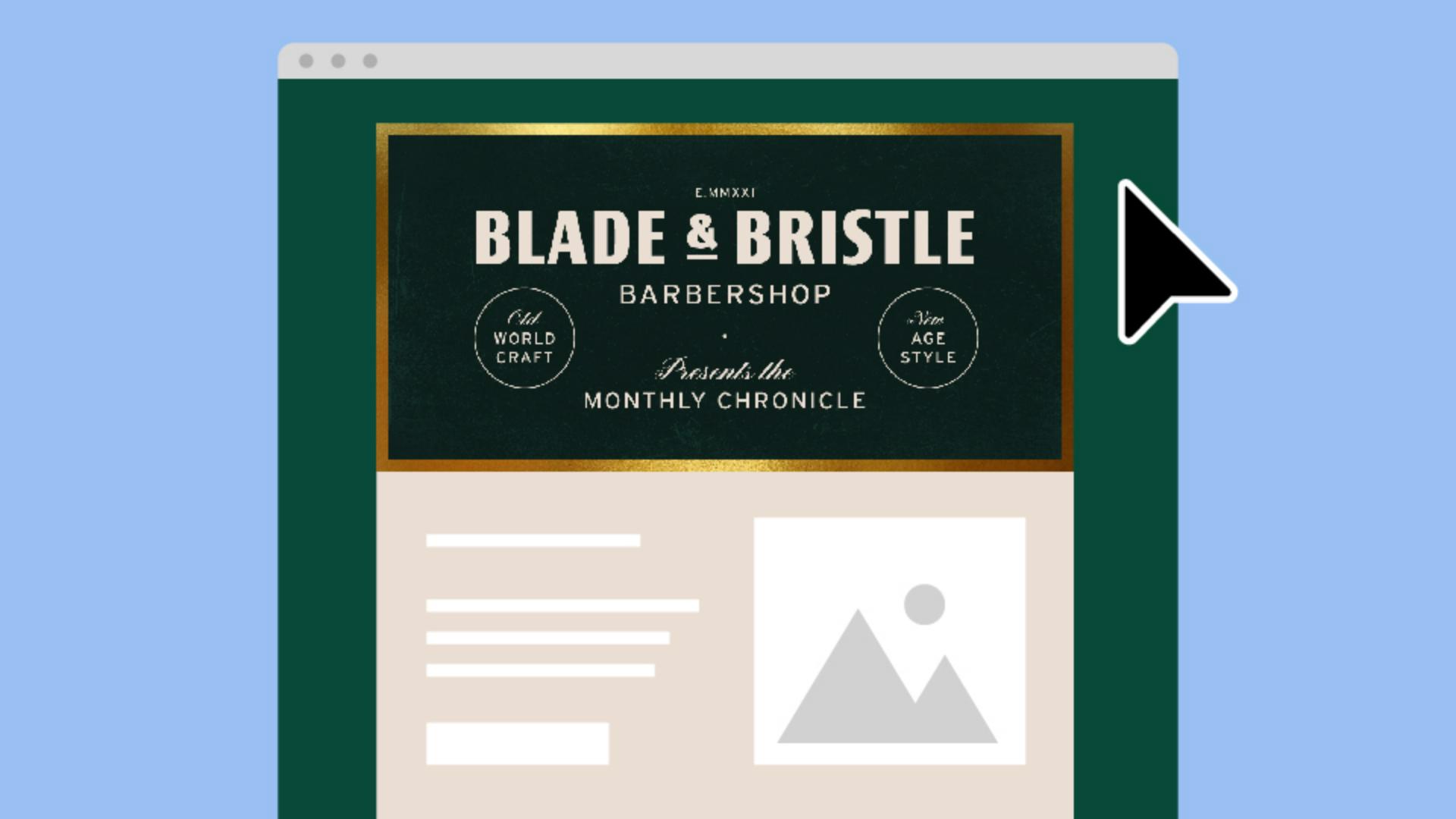
Looking to give your email newsletters a signature look?
My name is Sydney Michuda, Creative Director of Super Creative, and together we'll create a vintage-modern header that you can use again and again.
Create a new document and set the artboard to an email header size like 600 px x 300 px, and make sure the Color Mode is RGB Color for digital.
Bring your logo and colors into the document.
Since the header acts as the title of the newsletter, let's give it a dark background so it stands out from the inner email content.
Let's also add a subtle grunge texture to give it an artisanal look.
To do this, place your grunge texture in the document and in the Transparency window, select Multiply and reduce the Opacity to 45%.
Let's start laying things out.
Move your logo to the upper middle of your artboard.
I'm going to add Barbershop below the logo, so viewers have an added layer of context.
Let's use a font like Interstate to match the utilitarian style and track it out to 100.
Increase tracking to uppercase letters adds an elevated vintage touch.
Let's also add the name of the newsletter, so viewers know what they're looking at.
I'm using the same font as Barbershop, but I've made it a little smaller since it's slightly less important than the logo.
I'd like to add a decorative script font to the layout to continue this vintage modern vibe.
So, let's add a descriptor line above the name and find a fancy but still legible script like R41 Alphabeta 16.
I'm going to add a small dot between the logo and the name as a subtle way to separate the information.
And just for fun, I'm going to add the shop's established year in Roman numerals above the logo.
The sides feel a little empty, so let's add more decorative text.
Type out a tagline in the sans serif font Interstate but change the adjective to the script font R41 Alphabeta.
Stack and vertically align this type.
With the Ellipse Tool, click near the center of your text and hold Shift and Alt to create a circle around your group of text.
Change the fill to an outline and make sure it's centered inside the circle.
Then drag it into the empty space.
Repeat this process for an accompanying tagline on the right side.
Lastly, let's add a gold border around the graphic to frame our design.
Place a gold foil image into your document.
With the Rectangle Tool, click and type the artboard size 600 px x 300 px, remove the color fill and add a stroke.
In the Stroke window, click Align Stroke to Inside and increase the stroke Weight to 10 pt.
We're going to turn this outline into a mask for the gold foil, so we'll need to change this outline to a solid shape.
Select the shape and go to Object, Expand Appearance.
You'll notice this is now a filled shape rather than an outline.
From here, select the shape and gold foil image and go to Object, Clipping Mask, Make.
Now the gold foil is contained within that clipping mask and with that your email header is finished.
Save your work as an .ai file for future use, and save it for web by selecting File, Export, Export As..., select JPEG, click Use Artboards, select Medium (150 ppi) and hit OK.
Feel free to use the same header for every email or if you'd like the header to be slightly different, change the background color or add the release date to the layout.
Now you're ready to create polished email headers with custom type details that will keep your newsletters looking sharp.
Again, my name is Sydney Michuda of Super Creative.
Thanks for watching.