Design dimensional artwork with Project Neo (Beta)
Create striking isometric artwork with dimensional shapes in Project Neo (Beta), then refine your layout in Illustrator.
Published
Introduction
Have you ever wanted to make an isometric illustration but struggled with the proportions?
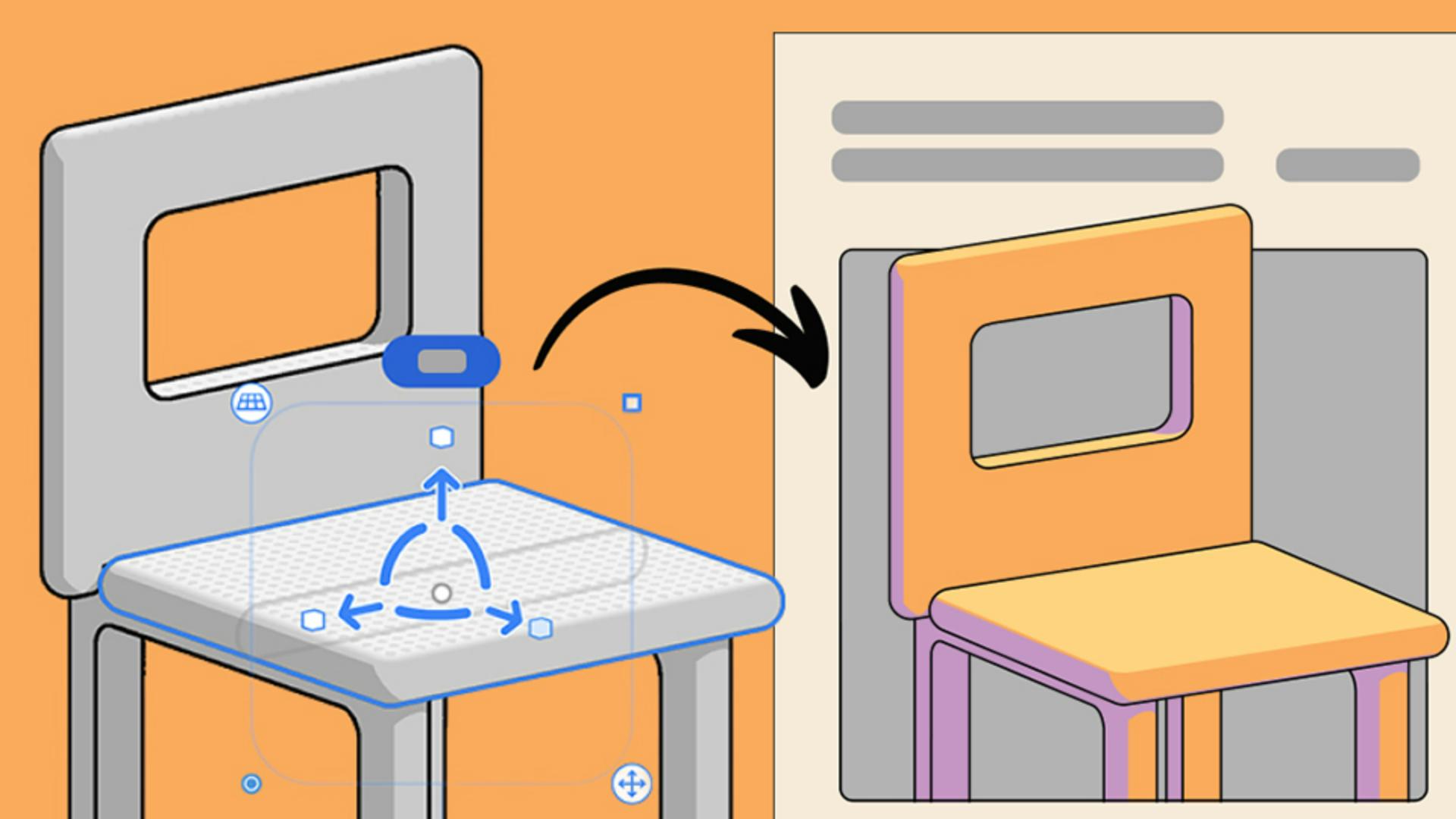
My name is Kaleb Gonyea, and today I'll show you how to design a modern isometric event poster using Adobe's new web app, Project Neo.
By the end of this, you'll have a clean isometric event poster just like this.
Let's jump in.
Getting started in Project Neo
Let's start by going to Adobe Project Neo and selecting Create.
After selecting Create, you'll be launched into this interface.
Let's take a look at our canvas.
For this project, we're not going to need the base.
So, I'm going to select and delete.
Now we're met with just our basic cube.
This looks pretty cool, but I think it can look even cooler.
In the top left we have Styles.
Select that, and I'm going to use Vector Art.
Shaping and editing isometric forms
Underneath that we have some adjustments like Outline color and Outline thickness.
I like the black color, and I'm going to keep the thickness at 2.
But feel free to mess with this on your own.
Let's start making the chair.
I'm going to select the cube, and I'm going to grab this handle right here.
I'm going to pull this in, adjusting the width of this cube.
That's pretty cool.
But it's about to get a lot cooler.
I'm going to come over here to my Edit Shape tool, and I'm going to select this cube again.
So, now if I look top down, I can grab these points right here and rotate them just like Bezier points in Adobe Illustrator.
And that's going to round this rectangle.
I can actually do the same thing to the top just by pulling these handles down as well.
Pretty cool, right?
Building complex objects with duplication and carving
What I want to do next is I want to duplicate this shape.
I can come down to my Contextual Bar and I can select Duplicate object, or I can select Command D on the keyboard.
Now I can rotate this shape to be perpendicular with our first shape.
I'm going to use these arrows to move this into place where I want it.
Quick tip: This Frame icon actually allows you to move your content back into the middle of the screen.
Here's a great opportunity to use our Align tool.
So, I'm going to select my shapes and I'm going to come and select Align.
And you'll see I have a bunch of different options here.
I can align to top, center, or bottom.
This is perfect because I want to align these to the bottom.
Let's go ahead and let's duplicate the shape one more time.
I'm going to move this down, and I'm actually going to rotate this, so it's perpendicular again.
Now I've got this shape in the right position but it's not the right width and height.
So, let's adjust that.
Again, I can use these little handles right here to make this correct width and height that I want.
Don't forget the arrows allow you to move this into place.
Now we're going to do something really cool.
I'm going to select this bottom shape, and I'm going to duplicate it again.
What we're going to do is we're going to look at our Properties panel on the right-hand side and we see an option that says Combine.
What I want to do is I want to select Carve under Subtractive.
Now it doesn't look like anything yet, but just wait.
I'm going to look at it from the back here, and I'm going to adjust this just a little bit and then move it into place.
If I rotate back this way and adjust the width, you'll see what's happening.
I'm actually carving the shape below it.
Now we just adjust the width and height to our liking.
Pretty cool.
The more I look at this, I don't want this shape to be rounded.
So, I'll go back to my Edit Shape tool, and I'll just turn the roundness off.
Much better.
Let's make this chair actually functional and let's add another leg.
It might be hard to sit on a chair with only one leg.
We're going to duplicate and move this into place.
Now it's looking like a chair we could actually sit in.
The more I look at it, the more I'm feeling this back is just a little boring.
So, let's change that.
Let's duplicate this back one more time and repeat the step we just did.
I'm going to come over here to my Properties panel and select Carve again.
We want to make sure that this width is big enough to make the actual carve.
Now I'm just going to adjust and move into place.
Much more interesting to look at.
Adjusting camera angles and saving snapshots
Now that we've got the chair built, we want to make sure to get the position just right.
We can do this by using the Orbit and the Tilt controls.
The arrows on the Orbit tool allow you to move in a perfect 45-degree rotation.
The same goes for the Tilt arrows as well.
I really like how this angle looks.
Let's make a snapshot of it.
In the top-left corner you'll see a Camera icon.
Select that and click Snapshot.
Now if I move the angle of my chair, I can come back over here to my Camera icon and select that Snapshot we just took.
I really like this angle too.
Let's create another one.
Now it's super easy to rotate between my two snapshots.
Once you have your chair positioned how you like it,
Exporting to Illustrator and final poster color styling
you can go to the top-right corner and select Share.
Here we have an option to Send to Illustrator as vectors.
You can also select Download in the top right and we can download as an SVG.
Inside Adobe Illustrator I've got my template made up.
What I'm going to do is I'm going to take my chair, I'm going to copy it and I'm going to place it inside the template.
I also took another angle of my chair that I'm going to paste in the lower right-hand corner.
This looks really cool, but I think a pop of color would go a long way.
I'm going to use Adobe's Generative Recolor to add a cool mid-century modern look.
And there you have it, a modern isometric poster that was quick and easy to make.
Again, my name is Kaleb Gonyea, and I'll see you in the next video.
What you’ll learn
Start with dimensional shapes
Build and style simple 3D forms using intuitive, accessible tools.
Set your angles
Orbit and tilt your design to capture the perfect isometric view with snapshot presets.
Finish in Illustrator
Send the vector art to Illustrator to finalize the layout and add color, type, and finishing touches.
Instruction by
Design by

