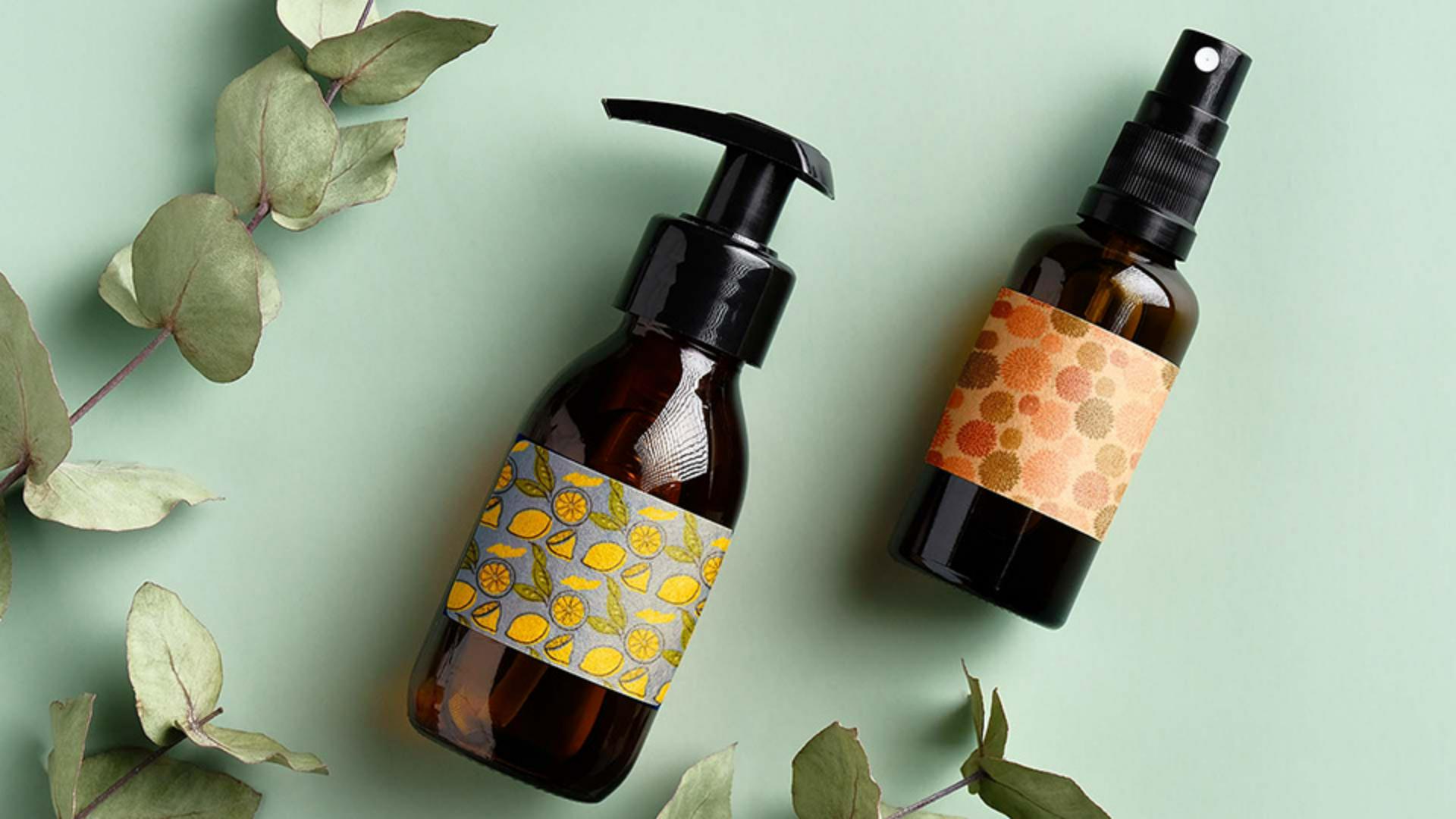
Aside from creating color - and even gradients in Illustrator, which you've probably done before, you can make some pretty amazing patterns.
From wallpaper or wrapping paper to packaging to architectural design elements, you can find examples - of patterns everywhere.
Now to make a pattern, - you can use your own artwork.
In this tutorial, - let's take this lemon artwork and create a custom pattern - to fill this packaging design.
Go ahead and select it - by dragging across it.
Now how to create a pattern from it?
Choose Object, Pattern, Make.
Illustrator enters - what's called a Pattern Editing mode and the Swatches panel actually opens.
The reason why that's important - is because patterns in Illustrator are saved as a swatch and we you can easily apply them - or edit them later.
Click OK in this dialog box.
In Pattern Editing mode, - you can see a gray bar at the top, which is how you actually stop editing - if you want to by clicking Done.
You can see that your artwork - is in a center here and it's repeated around.
You should also see this little box - around your artwork.
This is called the Pattern tile.
Anything in this box gets repeated - in the pattern.
The Pattern Options panel over here - is also open where you can do all kinds of things - and change your pattern and how it works.
Now to start, let's give it a name.
That way you name the swatch.
I'll change it to Lemons.
By default, the artwork in the Pattern tile - is repeated in a grid, straight across, up and down, but you can change that - in this Tile Type menu.
Try choosing something else.
I'm going to try like Brick by Row.
You can see that the repeat - is kind of staggered now.
This brick offset actually determines by how much the centers of the tiles - are out of vertical alignment.
Go and choose 1/2 from this menu and you can see - how it affects the pattern.
Now, the Width and Height here - determines the pattern tiles sides.
If you make the Width or Height bigger, then there'll be spaced - around our repeated artwork.
Maybe if you want to add - some more content to it because you can go out here - and draw and paste and do all kinds of things.
If you make the Width or Height smaller, - then the repeats will overlap.
Now come out to the artwork - and like I said, you can still add, delete or edit - any of the artwork in the pattern.
As a matter of fact, - try dragging this leaf shape around and you can see - how it affects the pattern.
Also notice that when I drag that the box size doesn't change - if I get the leaf kind of out of it.
If you want the pattern tile to change - as you move an edit pattern artwork, you can select Size Tile to Art here.
Then if I move this leaf, you can see the pattern tile - now surrounds all of the artwork.
Let's try changing the appearance - of the artwork.
So let's change the color here.
Click to select this blue marker scribble - and we'll change the fill.
Go and try a different color.
I'll pick this lemony yellow.
Now back in the Options over here you can see the horizontal spacing - and vertical spacing.
These actually control the space - around the pattern tile.
To change the value here, go and click the words H Spacing - for instance, and change the value.
We're going to bring the repeats - closer together.
So I'll type in like -0.1 - and press Return or Enter.
The artwork actually - now overlaps horizontally.
Let's try the same for the vertical.
I want to bring all of this a little closer and have a little bit of an overlap.
So go ahead and type in like -0.2, press Return our Enter and you can see - there's a bigger overlap here.
How things overlap, you can also adjust.
So you can adjust the horizontal - and vertical overlap here.
Let's try this one.
Try selecting - the Bottom in Front option here and you can see that the artwork below - now overlaps the artwork above.
If you want to explore - any of the other options, go ahead.
I think the pattern looks pretty good.
So when you're finished, - you can now click Done in the bar up here and go ahead - and close the Swatches panel as well.
Now that you got your pattern made, you can apply it.
So let's apply it to the shape.
The way we apply a pattern is - either as a fill color or even a stroke.
So going to select your Pattern swatch.
And there you go.
You can see the repeat within the shape.
Now you're going to need - to make changes, I could imagine.
If you want to, - you can double click the swatch here to enter Pattern Editing mode again.
You can then make any changes - to the artwork, you can change the options, - you can do whatever you want.
And once you're finished, click Done.
The swatch is saved, - and it's applied to your artwork.
Now, one last thing here.
I want to give you a tip.
A lot of times - I'll apply a pattern to something and the pattern is too small within - or too big within.
Now you can go back - to the original pattern by editing the swatch, make changes to the artwork - and things like that, but you can also scale the pattern - that's already applied to the object.
Let's try that.
With this rectangle selected, Go ahead and choose Object, Transform, Scale...
Come in here and I want - to make the pattern smaller maybe.
So you can set a Scale value - like 70% or 80% or something like that.
And to get it to transform the pattern - and not the object, select Transform Patterns, not Transform Objects.
If you turn on Preview, - you can see it happen.
Click OK.
You've got your pattern fitting perfectly.
You'll find that patterns - can liven up your designs.
They can add texture - and just do so much to it.
If you look in the asset, we've actually got a whole bunch - of different things you can try and experiment with.
Why don't you try - and taking some of this artwork, creating patterns from it, and then applying it to these creations. -