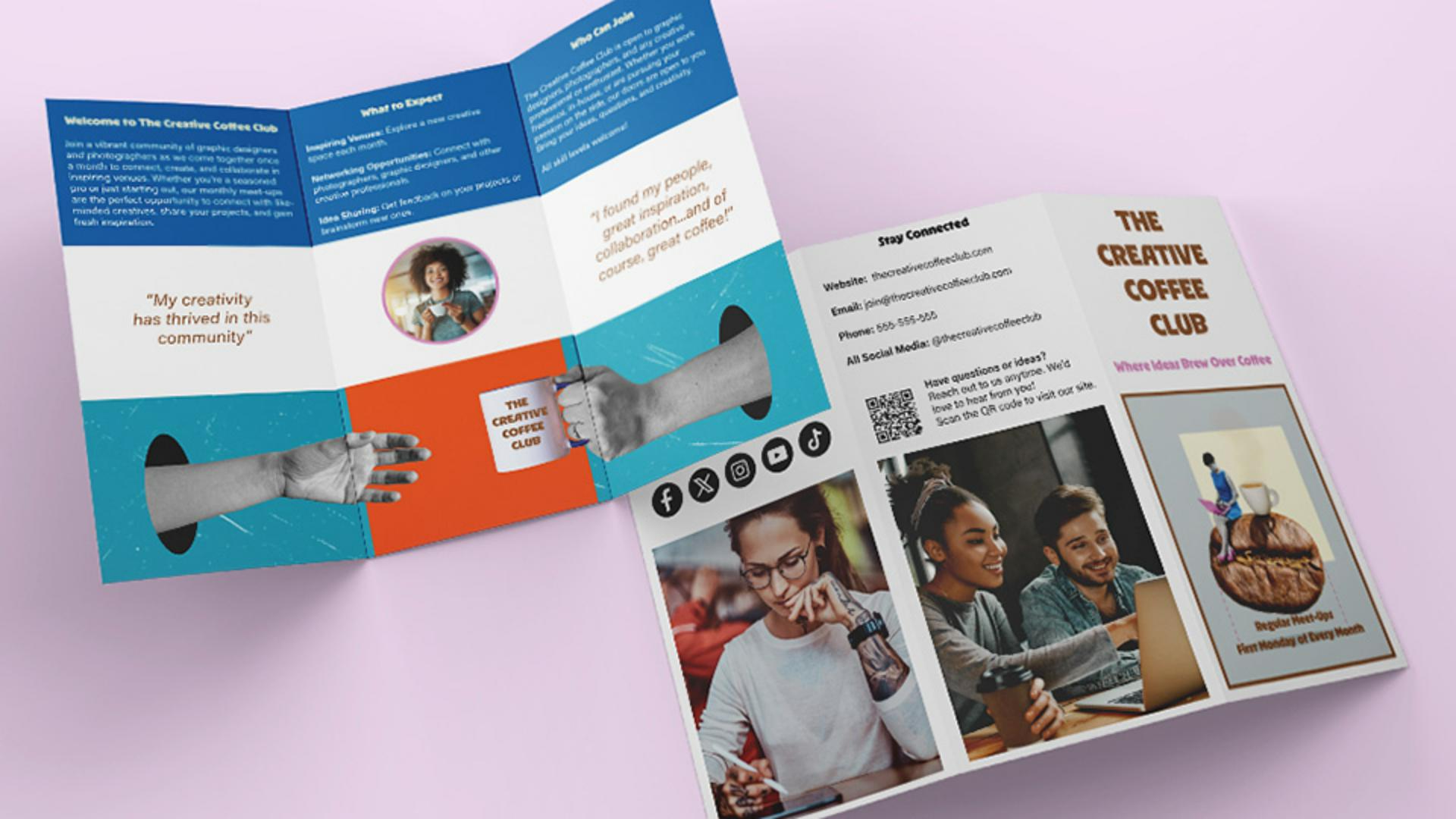
Have you ever thought about making your first document in InDesign but wondered where to start?
I'm Dave Clayton, and in the following videos, I will show you how easy it can be to get started and create a stunning trifold brochure design.
We'll look at setting up our document, creating a simple layout, then we'll dive into adding some eye-catching content, design elements, and then how to export your brochure for print.
Here's what we're going to be creating over the next three videos.
Pretty cool, right?
It's time to fire up InDesign, and let's get started by setting up our document.
Understanding trifold brochure layout
Setting up your InDesign document correctly from the start is a crucial step in any design or print project.
Before we start, here's how a trifold document works.
We have two pages, and you can see in the photo where each panel is located.
We will be adding content to each panel and across the panels.
Let's set up our document.
Creating a new InDesign document
First, go up to File, and select New, Document... or click on the New file on the home screen if that's what you see when you start InDesign.
Once you've done that, you'll be presented with your New Document dialog panel.
Now we need to set our paper size next.
Since I'm in the UK, I'll be working with A4 size, which means setting the Width to 297 mm and the Height to 210 mm, which is also a Preset in the Print menu, along with some other size options.
If you're in the US, you can follow along using US Letter or Legal size instead.
Just keep in mind that US paper sizes are measured in inches.
For example, Letter size is 11 in x 8.5 in in Landscape.
The setup process is exactly the same, you'll just be working with different dimensions.
We need this document to be in Landscape mode,
Configuring pages, columns, and margins
and we need 2 Pages, one for the front and one for the back of the brochure.
Let's also set up the document spacing.
This time, I'll set the Gutter, which is the gap between columns to 5 mm, which is about 0.2 in.
This keeps the content a little closer to the edges while giving some breathing room.
For now, we need to turn off Facing Pages.
Since this is a trifold, we need to divide the page into three sections.
To do that, we'll set the Columns to 3 and adjust the Margins, which is the space around the edge of the columns, to 10 mm, which is roughly 0.4 in.
This adds a bit more space between the fold lines and matches the Gutter spacing.
We will leave all the other settings for the moment.
Now that everything is set exactly to how you need it, let's have a look at how we can save this for future use.
Saving the document as a preset template
Up here at the top, we can name our document, but next to that is the Save Document Preset icon.
Click this, and we're taken to the Preset menu.
Here, it will ask you to name your preset and also let you make any final setting changes.
Give it something clear, like A4 Trifold Brochure Setup, and click on Save Preset.
From now on, whenever you create a new document, you can find your saved set up under the Saved tab in the New Document window over here.
Just select your preset, click Create, and InDesign will automatically apply all your preferred settings, saving you time and ensuring consistency across projects.
Now that it's all set, we're ready to move on.
That's it for this video.
You've now successfully set up your document for your trifold brochure and saved it as a template.
In the next video, we'll take it up a creative notch by adding content, design elements, and making it visually stunning.
I'll see you there.
What you’ll learn
Start with the right document setup
Create a landscape document sized for print — A4 or US Letter both work. Set up two pages and add three columns to match the trifold layout.
Add margins and gutters for structure
Adjust your margins and column gutters to keep content well-spaced and fold-friendly, giving your layout the room it needs to breathe.
Save your layout as a reusable preset
Once your setup is dialed in, save it as a custom document preset. Reuse it in future projects with one click — no need to recreate your settings.
You can control how Adobe websites use cookies and similar technologies by making choices below. But note that if you disable cookies and similar technologies entirely, Adobe websites may not function properly.
Cookies are small text files stored by your web browser when you use websites. There are also other technologies that can be used for similar purposes like HTML5 Local Storage and local shared objects, web beacons, and embedded scripts. These technologies help us do things like remembering you and your preferences when you return to our sites, measure how you use the website, conduct market research, and gather information about the ads you see and interact with.
You can make choices in the menu below about what cookies and other technologies you want us to use on Adobe sites when you visit them from this browser. You can always change those choices later by clicking on the Cookie Preferences link at the bottom of the page.
If enabled:
We can improve your experience by tailoring the site and the content to things we think might be of interest
We can better keep track of your preferences — like what language you prefer to use
We will better understand your likely interests so we can provide you more relevant Adobe ads and content on non-Adobe websites and in non-Adobe apps
It will help us improve the performance of our website and those of our partners who use the Adobe Experience Cloud
If disabled:
We won’t be able to remember you from session to session so the experience may not be tailored to your interests
You’ll still have access to the content of the site but certain features that depend on cookies may not function
You’ll still see ads, they just may not be as relevant to you
General information
You can control how Adobe websites use cookies and similar technologies by making choices below. But note that if you disable cookies and similar technologies entirely, Adobe websites may not function properly.
Cookies are small text files stored by your web browser when you use websites. There are also other technologies that can be used for similar purposes like HTML5 Local Storage, web beacons, and embedded scripts. These technologies help us do things like remembering you and your preferences when you return to our sites, measure how you use the website, conduct market research, and gather information about the ads you see and interact with.
You can make choices in the menu below about what cookies and other technologies you want us to use on Adobe sites when you visit them from this browser. You can always change those choices later by clicking on the Cookie Preferences link at the bottom of the page.
If enabled:
We can improve your experience by tailoring the site and the content to things we think might be of interest
We can better keep track of your preferences — like what language you prefer to use
We will better understand your likely interests so we can provide you more relevant Adobe ads and content on non-Adobe websites and in non-Adobe apps
It will help us improve the performance of our website and those of our partners who use the Adobe Experience Cloud
If disabled:
We won’t be able to remember you from session to session so the experience may not be tailored to your interests
We’ll still count your use of our site and services
You’ll still have access to the content of the site but certain features that depend on cookies may not function
You’ll still see ads, they just may not be as relevant to you
Operate the site and core servicesOperate site and measure engagement
Always active
These cookies are required, and they are used to enable the site and related services core functionality. Without them the site could not operate, so they cannot be disabled.
These cookies enable the site and related services’ core functionality and collect statistics about user engagement, such as counting active use to help us understand trends. These cookies cannot be disabled.
Measure performance
These cookies are used to analyze site usage to measure and improve performance. Without them Adobe cannot know what content is most valued and how often unique visitors return to the site, making it hard to improve information we offer to you.
These cookies are used to analyze site usage to measure and improve performance. Without them Adobe cannot know what content is most valued, making it hard to improve information we offer to you.
Extend functionality
These cookies are used to enhance the functionality of Adobe sites such as remembering your settings and preferences to deliver a personalized experience; for example, your username, your repeated visits, preferred language, your country, or any other saved preference.
Personalize advertising
These cookies are used to enable Adobe and our partners to serve ads more relevant to your interests. Without them you will still see ads, but they might not be as relevant to you.
Personalize advertising
These cookies are used to enable Adobe and our partners to serve ads more relevant to your interests. Without them you will still see ads, but they might not be as relevant to you.