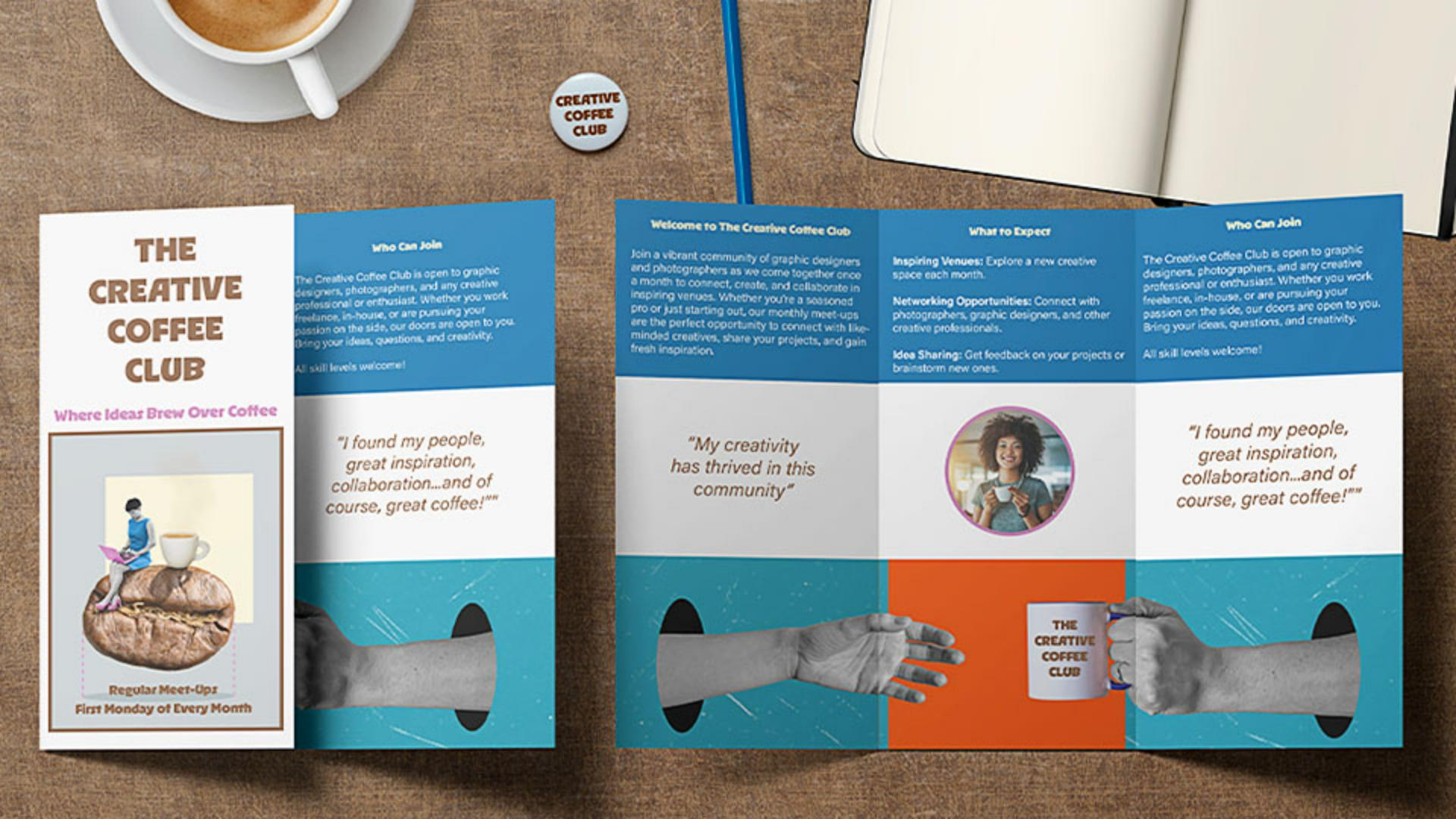
Hi everyone, it's Dave Clayton again, and in this final video of our trifold brochure tutorial, I'll show you how our final design adds some additional features and then get it ready to export and share your finished design.
Let's wrap things up and get your brochure ready to shine!
Let's have a quick reminder of what we're creating by looking at the final brochure again.
We have our text and images in place, so it's time to bring everything together, with color, refine the design, and get it ready for print.
Creating a cohesive color palette from images
To make our design more cohesive, we'll pull colors from the cover image using the Color Theme picker.
To do that, just select the Eyedropper Tool and then hold to select the Color Theme Tool mode.
Then just click on the cover image, and InDesign will instantly generate a color palette from it.
Simply click the Add this theme to Swatches icon, and now we have a set of custom colors ready to use.
Applying colors to text and layout elements
Let's now start applying them.
First, we'll highlight the cover title text and change it to the brown color, and then we'll do the same for the subtitle, but using the pink color.
Simple changes, but they really bring the design together.
Next, let's apply the blue color to the upper frame.
To do this, just select the frame, go to the Swatches panel, find our new color theme again, and apply the blue.
We also need to extend the blue frame to fit to the bleed lines, the same way we did with the lower image to ensure the color goes all the way to the edges.
Once we've done that, you'll see that the text isn't readable now, so let's fix that.
We're going to change the color to white from the Swatches panel.
In InDesign, white is called Paper.
We'll apply that color to the text in all the affected frames by highlighting the text and clicking on white or Paper.
For the section titles, let's use the cream color from our swatches to keep the design consistent.
Now, let's introduce a circular design element for balance.
Adding shapes, strokes, and visual accents
To do that, just select the Ellipse Tool in the Toolbar, hold Shift, and drag to create a perfect circle.
Position it in the center of the middle in the panel on the second page here.
To place an image inside, select the circle, go to File, Place... as before, choose the image, and click Open.
And if you need to, adjust it using the Content-aware Fit for the best composition.
To make the circle stand out, we'll add a stroke using one of our theme colors.
We'll select the stroke color in the Control panel by clicking on the swatch and selecting the pink color.
Then increase the Weight to 4 pt.
We'll also add a stroke to the cover image, but this time in brown to match the title.
Now, a cool little addition,
Inserting interactive elements with a QR code
let's add a QR code for some interactivity.
To do this, just go to Object, Generate QR Code..., then select Web Hyperlink and then to the website URL.
Click OK, and InDesign will generate this QR code.
Then drag it into position like it was a frame, and resize it, so that it fits neatly in the center area of the brochure, next to the QR code text.
We'll just add a couple of little extra elements to refine the design, and then our design is finished.
With everything in place, it's time to export for print.
To do this, go to File, Export...,
Exporting a print-ready trifold brochure
decide where you can save your PDF, and click Save.
And then, under Marks and Bleeds, check Use Document Bleed Settings to include our 3 mm bleed.
Then, click Export, and your print-ready PDF is complete.
And that's it!
We've added color, refined our layout, placed final images, and included a QR code for engagement.
Now, your trifold brochure is polished and ready for print.
And that's a wrap!
I hope you enjoyed this InDesign tutorial series and picked up some valuable design tips.
Now you're ready to create and share your very own trifold brochure.
Thanks for watching, and happy designing!
Note: Stock assets provided are for practice purposes only. See terms.
What you’ll learn
Create a color palette from your image
Use the Color Theme tool to sample colors from your cover image and generate custom swatches. Apply them to titles, backgrounds, and section headers to unify your design.
Add design elements and interactive features
Balance the layout with a circular element and use a colored stroke to make it stand out. Add a QR code with a web link so readers can connect with you directly.
Export a print-ready PDF with bleed
Export your brochure as a high-quality PDF. Check the document bleed settings to make sure your design prints cleanly from edge to edge.
You can control how Adobe websites use cookies and similar technologies by making choices below. But note that if you disable cookies and similar technologies entirely, Adobe websites may not function properly.
Cookies are small text files stored by your web browser when you use websites. There are also other technologies that can be used for similar purposes like HTML5 Local Storage and local shared objects, web beacons, and embedded scripts. These technologies help us do things like remembering you and your preferences when you return to our sites, measure how you use the website, conduct market research, and gather information about the ads you see and interact with.
You can make choices in the menu below about what cookies and other technologies you want us to use on Adobe sites when you visit them from this browser. You can always change those choices later by clicking on the Cookie Preferences link at the bottom of the page.
If enabled:
We can improve your experience by tailoring the site and the content to things we think might be of interest
We can better keep track of your preferences — like what language you prefer to use
We will better understand your likely interests so we can provide you more relevant Adobe ads and content on non-Adobe websites and in non-Adobe apps
It will help us improve the performance of our website and those of our partners who use the Adobe Experience Cloud
If disabled:
We won’t be able to remember you from session to session so the experience may not be tailored to your interests
You’ll still have access to the content of the site but certain features that depend on cookies may not function
You’ll still see ads, they just may not be as relevant to you
General information
You can control how Adobe websites use cookies and similar technologies by making choices below. But note that if you disable cookies and similar technologies entirely, Adobe websites may not function properly.
Cookies are small text files stored by your web browser when you use websites. There are also other technologies that can be used for similar purposes like HTML5 Local Storage, web beacons, and embedded scripts. These technologies help us do things like remembering you and your preferences when you return to our sites, measure how you use the website, conduct market research, and gather information about the ads you see and interact with.
You can make choices in the menu below about what cookies and other technologies you want us to use on Adobe sites when you visit them from this browser. You can always change those choices later by clicking on the Cookie Preferences link at the bottom of the page.
If enabled:
We can improve your experience by tailoring the site and the content to things we think might be of interest
We can better keep track of your preferences — like what language you prefer to use
We will better understand your likely interests so we can provide you more relevant Adobe ads and content on non-Adobe websites and in non-Adobe apps
It will help us improve the performance of our website and those of our partners who use the Adobe Experience Cloud
If disabled:
We won’t be able to remember you from session to session so the experience may not be tailored to your interests
We’ll still count your use of our site and services
You’ll still have access to the content of the site but certain features that depend on cookies may not function
You’ll still see ads, they just may not be as relevant to you
Operate the site and core servicesOperate site and measure engagement
Always active
These cookies are required, and they are used to enable the site and related services core functionality. Without them the site could not operate, so they cannot be disabled.
These cookies enable the site and related services’ core functionality and collect statistics about user engagement, such as counting active use to help us understand trends. These cookies cannot be disabled.
Measure performance
These cookies are used to analyze site usage to measure and improve performance. Without them Adobe cannot know what content is most valued and how often unique visitors return to the site, making it hard to improve information we offer to you.
These cookies are used to analyze site usage to measure and improve performance. Without them Adobe cannot know what content is most valued, making it hard to improve information we offer to you.
Extend functionality
These cookies are used to enhance the functionality of Adobe sites such as remembering your settings and preferences to deliver a personalized experience; for example, your username, your repeated visits, preferred language, your country, or any other saved preference.
Personalize advertising
These cookies are used to enable Adobe and our partners to serve ads more relevant to your interests. Without them you will still see ads, but they might not be as relevant to you.
Personalize advertising
These cookies are used to enable Adobe and our partners to serve ads more relevant to your interests. Without them you will still see ads, but they might not be as relevant to you.