[Kenneth Hines Jr.]: Have you ever wondered if there's a way to speed up your workflow in Lightroom?
Presets may be the answer to do just that.
I'm ZEISS Ambassador Kenneth Hines Jr., and in this tutorial, I'll show you how you can create your own custom presets that can be used to quickly apply a favorite look or style for a faster processing experience.
Understanding what presets are and why they speed up editing
What are presets?
Presets are simply the saved edit adjustments that have been applied to an image, you can select from pre-installed presets by Adobe or create your own custom presets.
These can save anything from brush adjustments to color grading to tone curve adjustments, and more.
One great benefit presets have is that they allow you to shorten the time spent on editing images.
If you have a set of images from a particular event or setting, and there are minimal changes in the various frames, then editing one of the images with an adjustment you want saving as a preset and applying it to the other images in a set will save you a lot of time.
Another method is having categorized presets that include only specific functions needed to create a certain look.
You may have presets solely for masking of the sky, tonal adjustments, or color adjustments, which we'll explore later in this tutorial.
Locate the overlapping circle icon
Exploring the presets panel and preset categories
on the top right of the right-hand panel.
Here you'll find tabs for Recommended, Premium, which are the pre-installed presets, and Yours, which are custom presets you created after making your adjustments on an image and saving them, which we'll be exploring.
There are a lot of great presets to discover in the Recommended and Premium sections, but for this tutorial, I want to concentrate on creating your own.
This image of the Lincoln Memorial in D.C., I've already applied my adjustments to.
Here's a look at the before image without any adjustments.
I really like this look and I want to save this as a new preset.
In Presets, let's locate the + icon in the panel,
Creating and saving a custom preset
select it, and then next we're prompted with naming our preset.
Next, we can choose the Group on where we would like to save it and what selections we want to save, and then click Save.
Now we have our newly created preset.
Let's apply our preset to another image.
This is also from D.C., but of the Washington Monument, and I think it would be a great look with our preset.
Let's locate our preset in the Preset panel.
Now let's apply it.
Our preset worked very well for this image.
Presets can be saved with any combination of adjustments you'd like to save.
There will be situations where the look you're going for wouldn't work for every adjustment.
Therefore, saving only certain settings makes sense.
Or you may want a preset for a specific function, such as creating your own adaptive preset.
Building selective and adaptive presets with masking
Let's look at this beach sunrise image that has a sky mask adjustment.
I only want to save the sky mask, so we'll go back through the steps for saving a preset and locate my Adaptive Preset group to save to.
This time, I'll choose the Select dropdown menu and choose None.
With no selections, I can now locate Masking.
Make sure that my Sky mask is selected and then click Save.
Now I have a new preset just for a sky mask adjustment.
Let's look at some other image examples
Applying custom presets across different images
and see how my created presets work on these images.
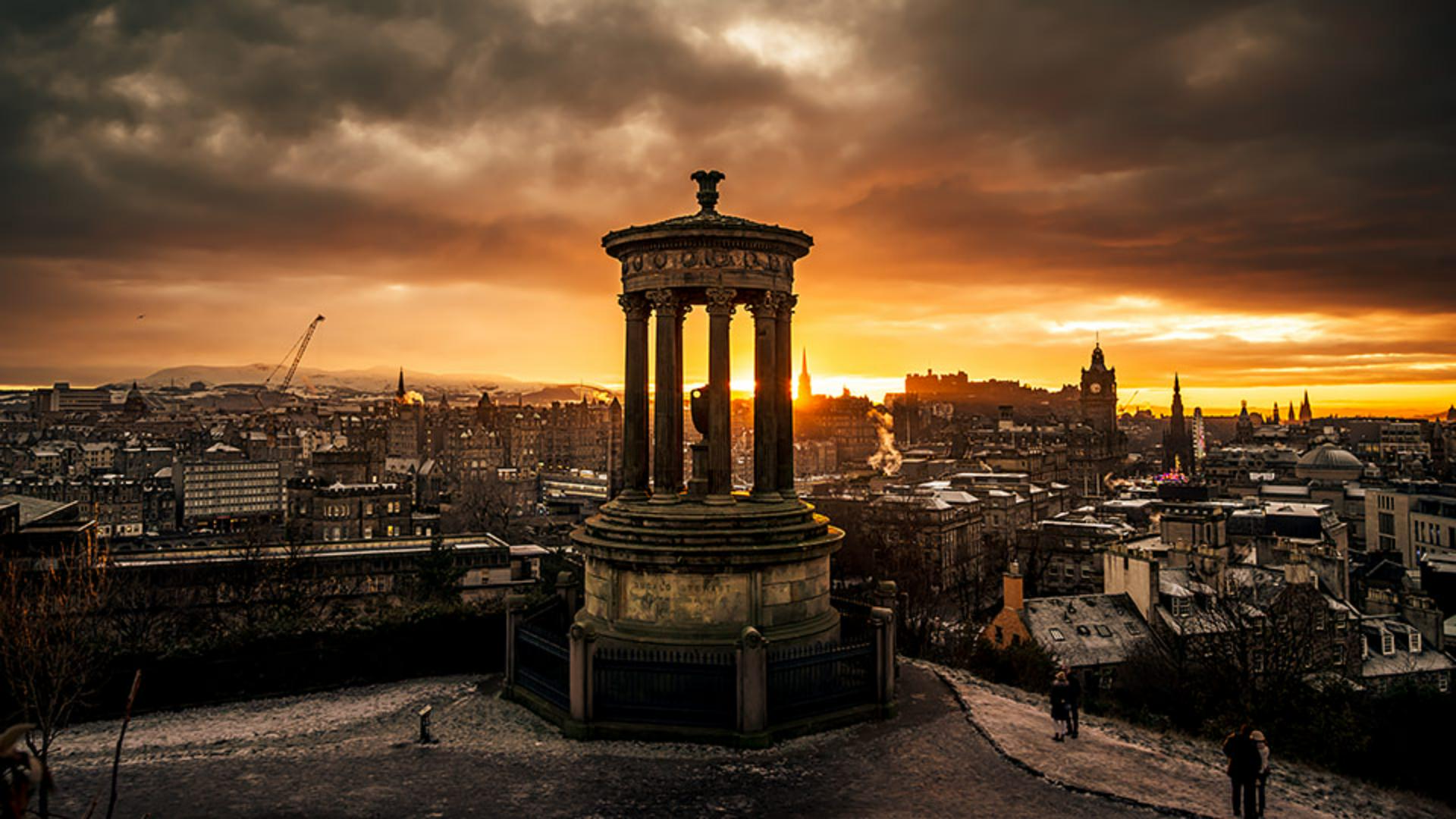
For this image from Scotland, let's look at some of my presets created for skylines and sunsets.
Hovering over any selections gives you a preview to what it will look like before you select it.
This Skyline Sunset preset I think looks the best, and I'll select this one for this image.
Now let's look at this image from New York City.
For this, I only want to adjust the sky as I like this subtle look on the buildings and water, but want my sky to have more detail.
Let's go into my Adaptive Sky presets and let's see what works best for this image.
I think this London Sunset Sky works best here, so I'll select that.
And there we go.
Should a preset not work entirely with an image you're working on, you can always adjust as needed with the Edit sliders, but this gives you a quick and easy way to go about your workflow.
Explore presets on your own and see what you can create.
I'm Kenneth Hines Jr., and I look forward to exploring more of Lightroom with you soon.
Note: Stock assets provided are for practice purposes only. See terms.
What you'll learn
Streamline your editing with custom presets
Presets allow you to save select Edit panel settings so that you can apply the edits to other photos with a single click. Presets can be used for simple improvements or creative transformations. You can even create presets that use adaptive AI masks to apply adjustments to specific areas of an image, like the subject, the background, or the sky. The saved settings in a preset can always be adjusted with the controls in the Edit panel.
You can control how Adobe websites use cookies and similar technologies by making choices below. But note that if you disable cookies and similar technologies entirely, Adobe websites may not function properly.
Cookies are small text files stored by your web browser when you use websites. There are also other technologies that can be used for similar purposes like HTML5 Local Storage and local shared objects, web beacons, and embedded scripts. These technologies help us do things like remembering you and your preferences when you return to our sites, measure how you use the website, conduct market research, and gather information about the ads you see and interact with.
You can make choices in the menu below about what cookies and other technologies you want us to use on Adobe sites when you visit them from this browser. You can always change those choices later by clicking on the Cookie Preferences link at the bottom of the page.
If enabled:
We can improve your experience by tailoring the site and the content to things we think might be of interest
We can better keep track of your preferences — like what language you prefer to use
We will better understand your likely interests so we can provide you more relevant Adobe ads and content on non-Adobe websites and in non-Adobe apps
It will help us improve the performance of our website and those of our partners who use the Adobe Experience Cloud
If disabled:
We won’t be able to remember you from session to session so the experience may not be tailored to your interests
You’ll still have access to the content of the site but certain features that depend on cookies may not function
You’ll still see ads, they just may not be as relevant to you
General information
You can control how Adobe websites use cookies and similar technologies by making choices below. But note that if you disable cookies and similar technologies entirely, Adobe websites may not function properly.
Cookies are small text files stored by your web browser when you use websites. There are also other technologies that can be used for similar purposes like HTML5 Local Storage, web beacons, and embedded scripts. These technologies help us do things like remembering you and your preferences when you return to our sites, measure how you use the website, conduct market research, and gather information about the ads you see and interact with.
You can make choices in the menu below about what cookies and other technologies you want us to use on Adobe sites when you visit them from this browser. You can always change those choices later by clicking on the Cookie Preferences link at the bottom of the page.
If enabled:
We can improve your experience by tailoring the site and the content to things we think might be of interest
We can better keep track of your preferences — like what language you prefer to use
We will better understand your likely interests so we can provide you more relevant Adobe ads and content on non-Adobe websites and in non-Adobe apps
It will help us improve the performance of our website and those of our partners who use the Adobe Experience Cloud
If disabled:
We won’t be able to remember you from session to session so the experience may not be tailored to your interests
We’ll still count your use of our site and services
You’ll still have access to the content of the site but certain features that depend on cookies may not function
You’ll still see ads, they just may not be as relevant to you
Operate the site and core servicesOperate site and measure engagement
Always active
These cookies are required, and they are used to enable the site and related services core functionality. Without them the site could not operate, so they cannot be disabled.
These cookies enable the site and related services’ core functionality and collect statistics about user engagement, such as counting active use to help us understand trends. These cookies cannot be disabled.
Measure performance
These cookies are used to analyze site usage to measure and improve performance. Without them Adobe cannot know what content is most valued and how often unique visitors return to the site, making it hard to improve information we offer to you.
These cookies are used to analyze site usage to measure and improve performance. Without them Adobe cannot know what content is most valued, making it hard to improve information we offer to you.
Extend functionality
These cookies are used to enhance the functionality of Adobe sites such as remembering your settings and preferences to deliver a personalized experience; for example, your username, your repeated visits, preferred language, your country, or any other saved preference.
Personalize advertising
These cookies are used to enable Adobe and our partners to serve ads more relevant to your interests. Without them you will still see ads, but they might not be as relevant to you.
Personalize advertising
These cookies are used to enable Adobe and our partners to serve ads more relevant to your interests. Without them you will still see ads, but they might not be as relevant to you.