Make precise adjustments to specific colors in Lightroom
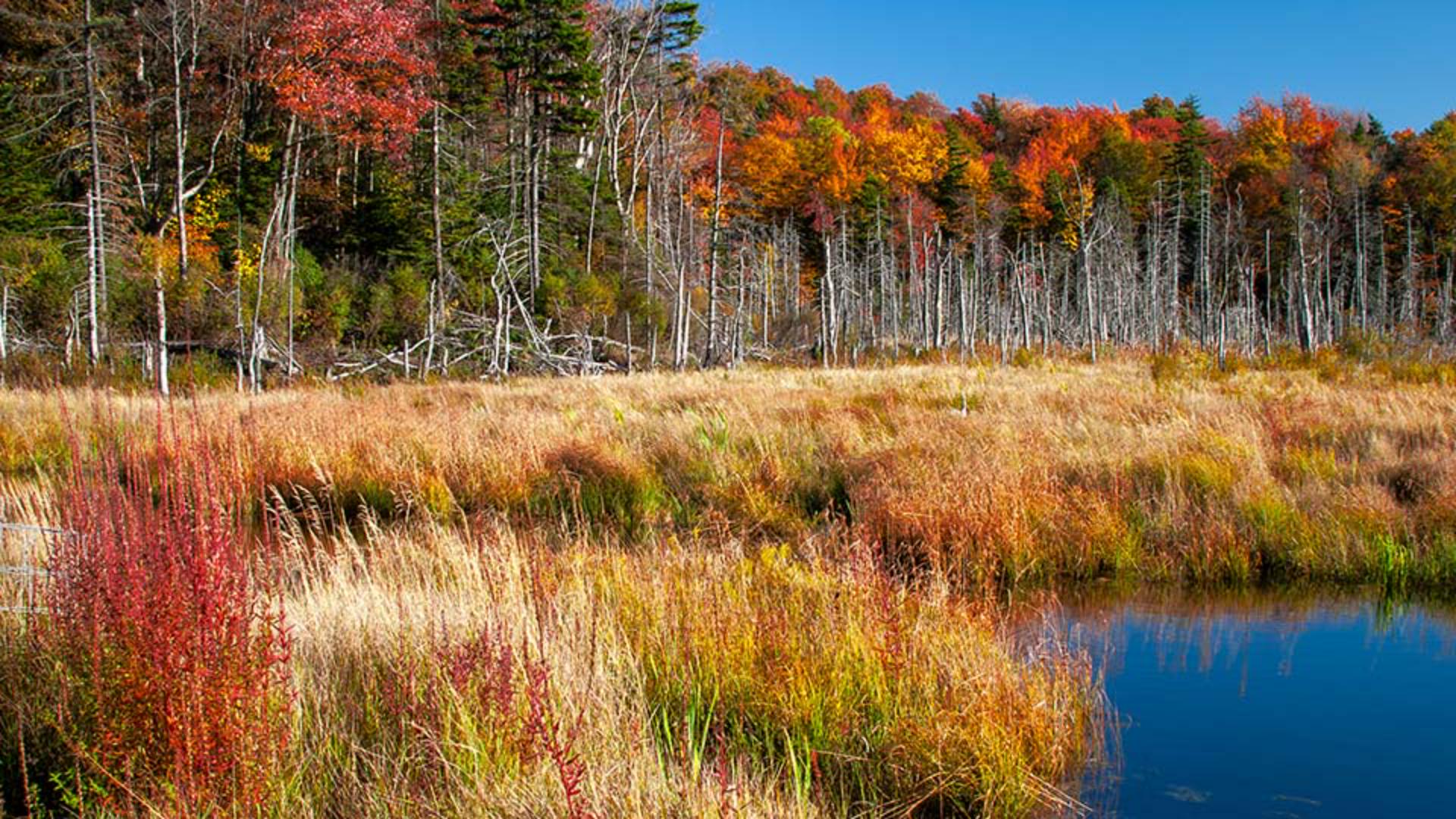
Note: Stock assets provided are for practice purposes only. See terms.
What you’ll learn
Select a specific color in the image
The first step for using Color Variance is to use the eyedropper tool at the top of the Point Color panel to sample a color in your image. Choose a color that is approximately midway between the darkest and lightest versions of the general color you want to change.
Understand how Variance affects a range of color
The Variance slider will affect a range of colors that are similar to the color you sampled with the eyedropper tool. Moving the slider to the left will cause the range of colors to become more alike, while moving the slider to the right will increase the contrast between the colors and enhance their differences.
Use Variance with masks for more precise control
A Variance adjustment that is applied to the entire image may affect other areas that you do not want to change. You can apply the Variance adjustment to specific areas in a scene by creating a mask, so the change is only applied to the masked region that you select.
Fix uneven sky color in landscape photos
Variance can work well to remove color shifts in a blue sky that are sometimes created when a polarizing filter is used.
Minimize redness and create natural, even skin tones in a portrait
In portrait subjects you can move the Variance slider to the left to remove the redness from a sunburn or fix blotchy or uneven skin tones. If the skin tone appears too uniform, move the slider back to the right until you find a balance that results in a more natural look.
Instruction and photography by
Adobe Stock Contributors

