How to apply multiple generative AI techniques in Photoshop
Use Generative Fill and Generative Expand to add to, remove from, and expand an image.
Published
Introduction
You'll often use more than one generative AI technique as you work on an image in Photoshop.
You might expand an image, add objects, remove distracting content and more all in the same image.
I'm Jan Kabili from Adobe's Learn team.
In this video, we'll pull together what you've learned about Firefly powered generative AI capabilities in Photoshop, applying several different techniques to the same image.
It looks like part of this photo may have been cut off.
A more complete view of this beautiful scene is likely to be more visually pleasing and tell more of a story.
Expanding the image with generative expand
So let's start by expanding the image horizontally with Generative Expand.
Select the Crop Tool and in the Options bar, make sure that Fill is set to Generative Expand.
Then hover over the left side of the image on the crop boundary and drag over to the left until the crop boundary just about fills up your Document window.
Now go to the Contextual Taskbar.
You can often leave the text prompt blank when using Generative Expand, but this time let's try it with a text prompt.
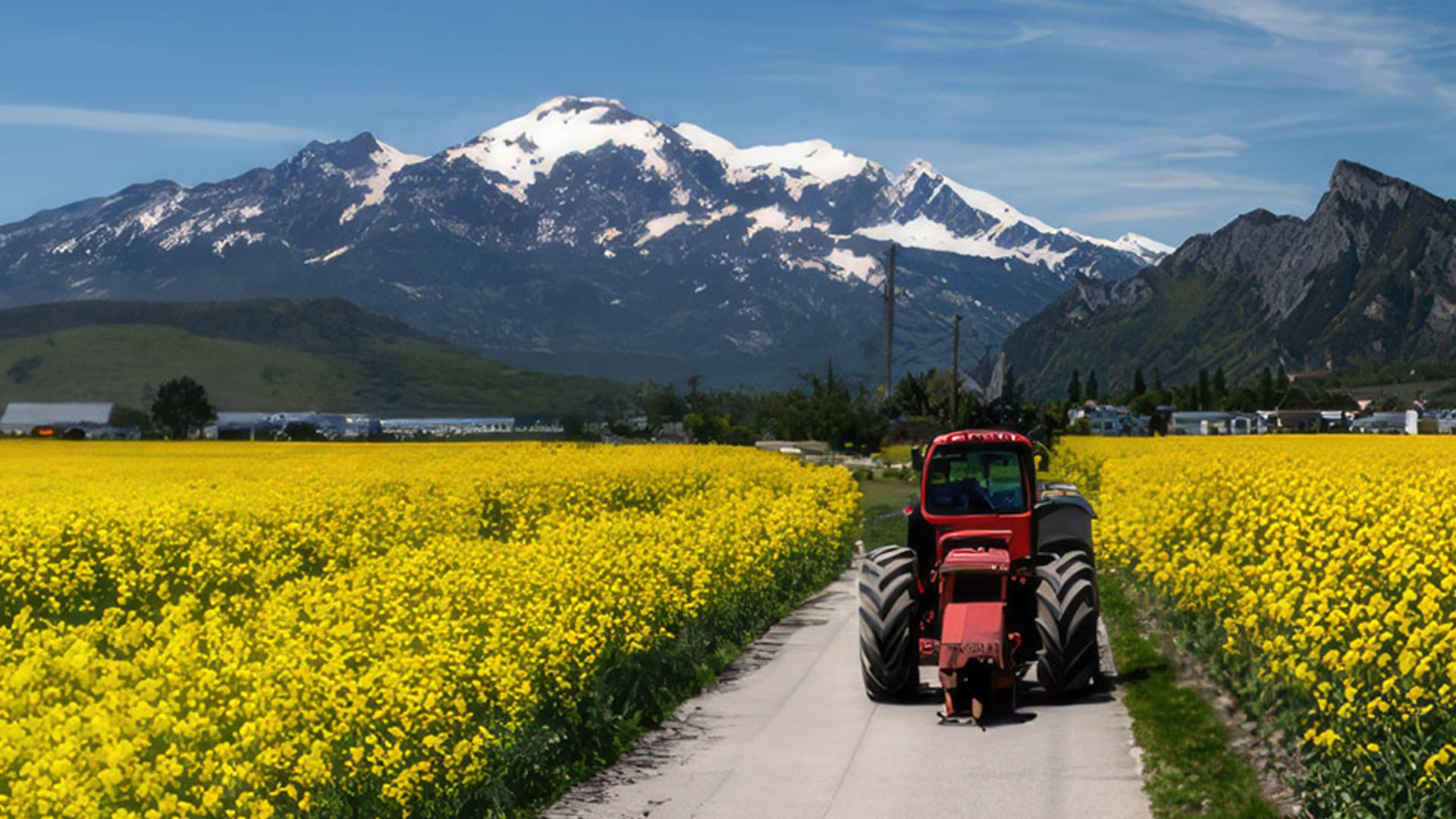
So I want the area on the left to have lots of yellow flowers.
So I'll type yellow flowers and click Generate.
In the Properties panel, cycle through the variations that Photoshop made for you until you find one you like best.
Now let's add some objects to this image for visual interest.
Adding new objects with generative fill
And for this we'll use a different Firefly powered capability in Photoshop, Generative Fill.
How about adding a tractor on the road?
Select the Lasso Tool in the Toolbar and then come into the image and draw a rough shape in a location where you'd like the tractor to be, leaving a little extra room beyond the size of the tractor that you want.
Everything inside this selection is going to be filled with new content.
Now, up in the Taskbar, let's try typing just tractor and click Generate.
In the Properties panel, cycle through the variations that Photoshop made for us and select the one you like best.
I'm going to zoom in
Refining generated objects with additional generative edits
because I see part of the tractor that I'd rather not have, this area here.
You can always modify whatever Photoshop generates for you, and one way to do that is to remove something.
So I'm going to select the Lasso Tool again, and I'm just going to click and drag over this little part of the generated tractor that I don't want.
It's just a rough selection.
I'll click where it says Generative Fill in the Taskbar and click Generate.
And we have three variations to choose from.
In the Layers panel, notice that there are now two Generative layers.
This one contains the tractor, and this one contains content that's replacing that extra bit of tractor.
Removing unwanted elements using generative fill
Now let's remove something from this image using another capability of Generative Fill in Photoshop.
Let's say I want to get rid of this tower over here.
With the Lasso Tool, I'll make a rough selection around it, you could use a different selection tool if you prefer, and again, I'll click Generative Fill in the Taskbar and click Generate.
And now there's yet another Generative Fill layer in the Layers panel.
Now, here's the challenge for you, see if you can add some other objects on your own, like maybe some rusty farm equipment or a red barn and see if you can remove some unwanted content too maybe those white distracting buildings in the background.
I've done all that and I'll show you the results I got.
And each time I made a new selection and generated I have a new layer in the Layers panel.
These are all nondestructive independent layers.
Now, one more thing,
Combining generative layers and finishing with adjustments
because all of these Firefly powered features are built into Photoshop, all of Photoshop's other features are here at your fingertips, so you can continue to edit this image using your usual Photoshop workflow.
It's just an example, let's add an adjustment layer.
How about a Photo Filter adjustment layer to add a soft warming filter that helps bring all this together?
So that's a look at how to use different generative AI techniques together in Photoshop.
You can take advantage of these and other generative and traditional Photoshop techniques to get just the results you want on your own images.
Note: Stock assets provided are for practice purposes only. See terms.
What you'll learn
Use more than one generative AI technique on an image
Bring together everything you’ve learned about generative AI in Photoshop, using Generative Fill and Generative Expand to add to, remove from, and expand an image.
Instruction by
Adobe Stock Contributor

