Modify a selection by adding to or subtracting from the selection.
Introduction
Not every selection is perfect - and ready to work with right after you've made it.
Sometimes, depending on - how the selection was made, there could be parts of the image - that were selected that you didn't want.
Or there might be areas - that were not selected that need to be added to the selection.
Hi, I'm Seán Duggan, a photographer, - Photoshop author and instructor.
Knowing how to modify a selection - by adding to it or subtracting from it, - is an essential skill for working with selections - in Adobe Photoshop.
Let's check it out.
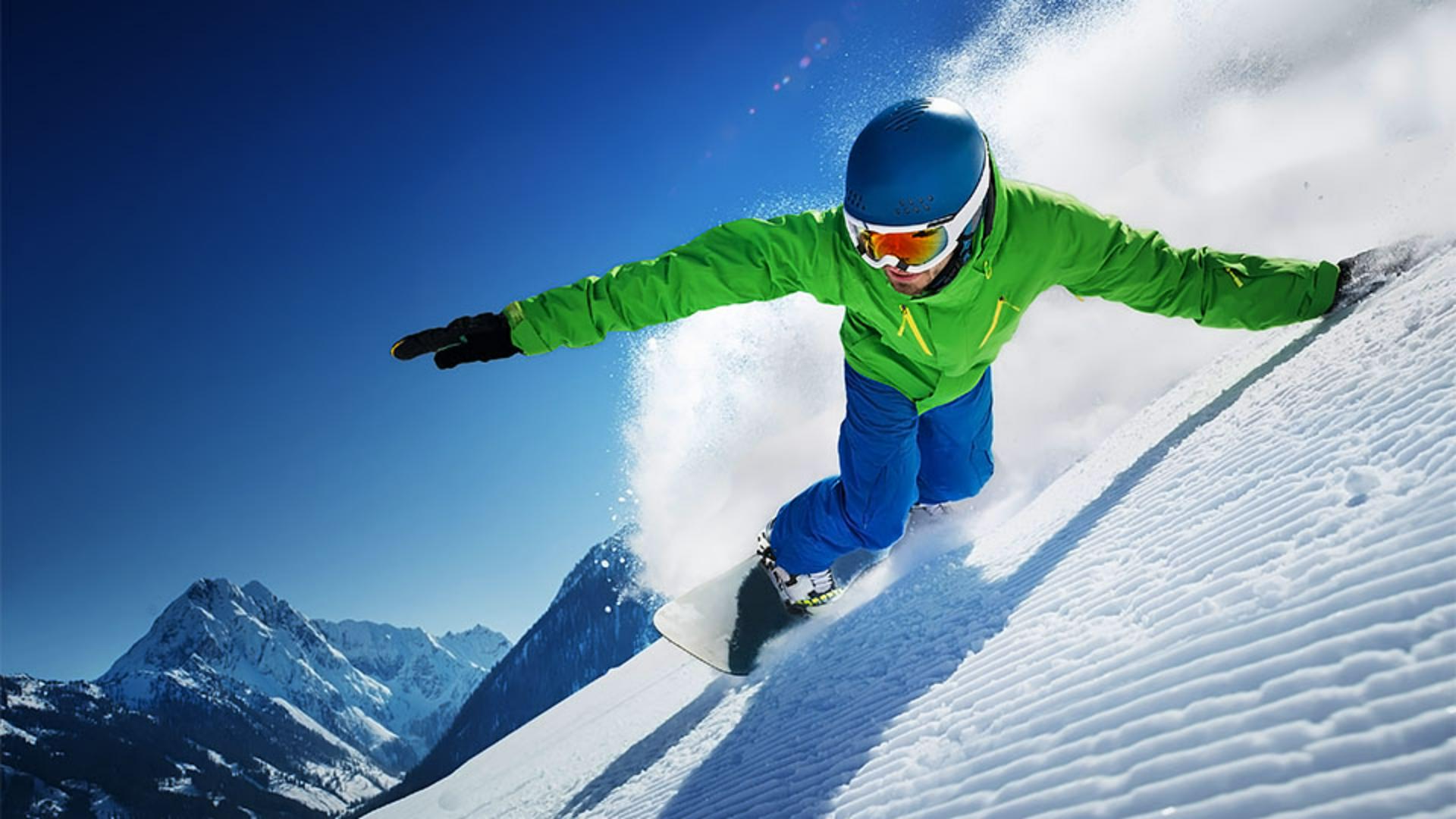
One of the things - that makes this image so dynamic is that it's backlit.
This creates a dramatic shadow and lightens the plume of snow - behind the snowboarder.
But the backlighting has also resulted - in the subject being a bit too dark, which is not uncommon in backlit photos.
Selecting the main subject automatically
We can fix that - by selecting the snowboarder and lightning just that area.
Since the snowboarder - is the obvious subject in the scene, I'll go to the Select menu and I'll choose Subject.
Overall, Photoshop did a good job, but there are areas - where too much of the background has been selected - by the front of the snowboard as well as part of the helmet - that was not selected.
There's an area of the glove over on the right side of the photo - that's also not selected.
But I'm not going to worry about that - because most of that part of the glove is covered with snow.
Adding missing areas to a selection
I'll start with the top of the helmet.
Let me zoom up for a closer view.
I'll go over to the Toolbar, and I'll choose the Lasso Tool.
In the Options bar for this tool, I'll click on the second icon - from the left, which will allow me - to add on to the existing selection.
With the Lasso Tool set to Add, I'll draw a lasso - around the top part of the helmet to add that into the selection.
I'll loop back around.
Come back to where I started - to close the loop.
In addition to the add icon - in the Options bar, you can also hold down the Shift key - to add to a selection.
Next, let's deal with the area - by the snowboard where too much of the snow - in the background was selected.
I'll hold down the Spacebar - and drag on the image to reposition it on screen, - so we have a better view of that area.
I'll stay with the Lasso Tool,
Removing unwanted areas from a selection
but this time - I'll click the third icon from the left, which will allow me - to subtract from the selection.
The keyboard shortcut for subtracting - from a selection is holding Option or Alt - as you use the Selection Tool.
I'll start on the bottom here and just drag around - on this area of the snow that was selected - underneath the snowboard.
And for the adjustment - that I'm going to apply to this selection, I don't really need - the snowboard selected at all, so in addition to removing the area - of the snow in the background that was selected, I'm also going to just deselect - the entire front of the snowboard.
There we go.
We'll just loop around there - to subtract that.
No matter what Selection Tool you use, this is the way - to manually add to a selection or subtract from it.
You can use the icons in the Options bar - for a Selection Tool, or you can use the shortcuts of Shift - to add to a selection and Option or Alt - to subtract from a selection.
Applying an adjustment to the refined selection
Now we can add an adjustment - to brighten the selected area and make the snowboarder - stand out a bit more.
To do this, - I'll go over to the Adjustments panel and I'll click on the first icon of a Sun to add a Brightness/Contrast - adjustment layer.
When you have a selection in an image - and you add an adjustment layer, the selection is turned into a layer mask so that only the selected area - will be affected by the adjustment.
In the Properties panel, I'll move the Brightness slider - to the right to 44, 45 looks pretty good and there, that looks a lot better.
If I click the Eye icon - for that adjustment layer to turn it off and then on again, you can see how lightning the snowboarder - improves the image.
Selections are a powerful way - to apply adjustments to certain parts of a photo.
Even if they're not perfect right away, you can easily modify them by adding to - or subtracting from the selected areas. -
This sample file contains assets provided by Adobe Stock for your tutorial practice purposes only. Check out the ReadMe file in the folder for the terms of use for this file. Adobe Stock has millions of royalty-free images and videos for your commercial use. You can get 10 images with a free month trial.
What you learned
How to add to a selection
If a selection doesn’t include everything you want, click the Add To option for any selection tool. Then select what you want to add to the selection. The keyboard shortcut for adding to a selection is to hold the Shift key as you use a selection tool.
How to subtract from a selection
To subtract areas from a selection, click the Subtract From option for any selection tool. Then select anything you don’t want to include in the selection. The keyboard shortcut for subtracting from a selection is to hold the Option or Alt key as you use a selection tool.
You can control how Adobe websites use cookies and similar technologies by making choices below. But note that if you disable cookies and similar technologies entirely, Adobe websites may not function properly.
Cookies are small text files stored by your web browser when you use websites. There are also other technologies that can be used for similar purposes like HTML5 Local Storage and local shared objects, web beacons, and embedded scripts. These technologies help us do things like remembering you and your preferences when you return to our sites, measure how you use the website, conduct market research, and gather information about the ads you see and interact with.
You can make choices in the menu below about what cookies and other technologies you want us to use on Adobe sites when you visit them from this browser. You can always change those choices later by clicking on the Cookie Preferences link at the bottom of the page.
If enabled:
We can improve your experience by tailoring the site and the content to things we think might be of interest
We can better keep track of your preferences — like what language you prefer to use
We will better understand your likely interests so we can provide you more relevant Adobe ads and content on non-Adobe websites and in non-Adobe apps
It will help us improve the performance of our website and those of our partners who use the Adobe Experience Cloud
If disabled:
We won’t be able to remember you from session to session so the experience may not be tailored to your interests
You’ll still have access to the content of the site but certain features that depend on cookies may not function
You’ll still see ads, they just may not be as relevant to you
General information
You can control how Adobe websites use cookies and similar technologies by making choices below. But note that if you disable cookies and similar technologies entirely, Adobe websites may not function properly.
Cookies are small text files stored by your web browser when you use websites. There are also other technologies that can be used for similar purposes like HTML5 Local Storage, web beacons, and embedded scripts. These technologies help us do things like remembering you and your preferences when you return to our sites, measure how you use the website, conduct market research, and gather information about the ads you see and interact with.
You can make choices in the menu below about what cookies and other technologies you want us to use on Adobe sites when you visit them from this browser. You can always change those choices later by clicking on the Cookie Preferences link at the bottom of the page.
If enabled:
We can improve your experience by tailoring the site and the content to things we think might be of interest
We can better keep track of your preferences — like what language you prefer to use
We will better understand your likely interests so we can provide you more relevant Adobe ads and content on non-Adobe websites and in non-Adobe apps
It will help us improve the performance of our website and those of our partners who use the Adobe Experience Cloud
If disabled:
We won’t be able to remember you from session to session so the experience may not be tailored to your interests
We’ll still count your use of our site and services
You’ll still have access to the content of the site but certain features that depend on cookies may not function
You’ll still see ads, they just may not be as relevant to you
Operate the site and core servicesOperate site and measure engagement
Always active
These cookies are required, and they are used to enable the site and related services core functionality. Without them the site could not operate, so they cannot be disabled.
These cookies enable the site and related services’ core functionality and collect statistics about user engagement, such as counting active use to help us understand trends. These cookies cannot be disabled.
Measure performance
These cookies are used to analyze site usage to measure and improve performance. Without them Adobe cannot know what content is most valued and how often unique visitors return to the site, making it hard to improve information we offer to you.
These cookies are used to analyze site usage to measure and improve performance. Without them Adobe cannot know what content is most valued, making it hard to improve information we offer to you.
Extend functionality
These cookies are used to enhance the functionality of Adobe sites such as remembering your settings and preferences to deliver a personalized experience; for example, your username, your repeated visits, preferred language, your country, or any other saved preference.
Personalize advertising
These cookies are used to enable Adobe and our partners to serve ads more relevant to your interests. Without them you will still see ads, but they might not be as relevant to you.
Personalize advertising
These cookies are used to enable Adobe and our partners to serve ads more relevant to your interests. Without them you will still see ads, but they might not be as relevant to you.