


Change a portrait's background, outfit, and pose in Photoshop
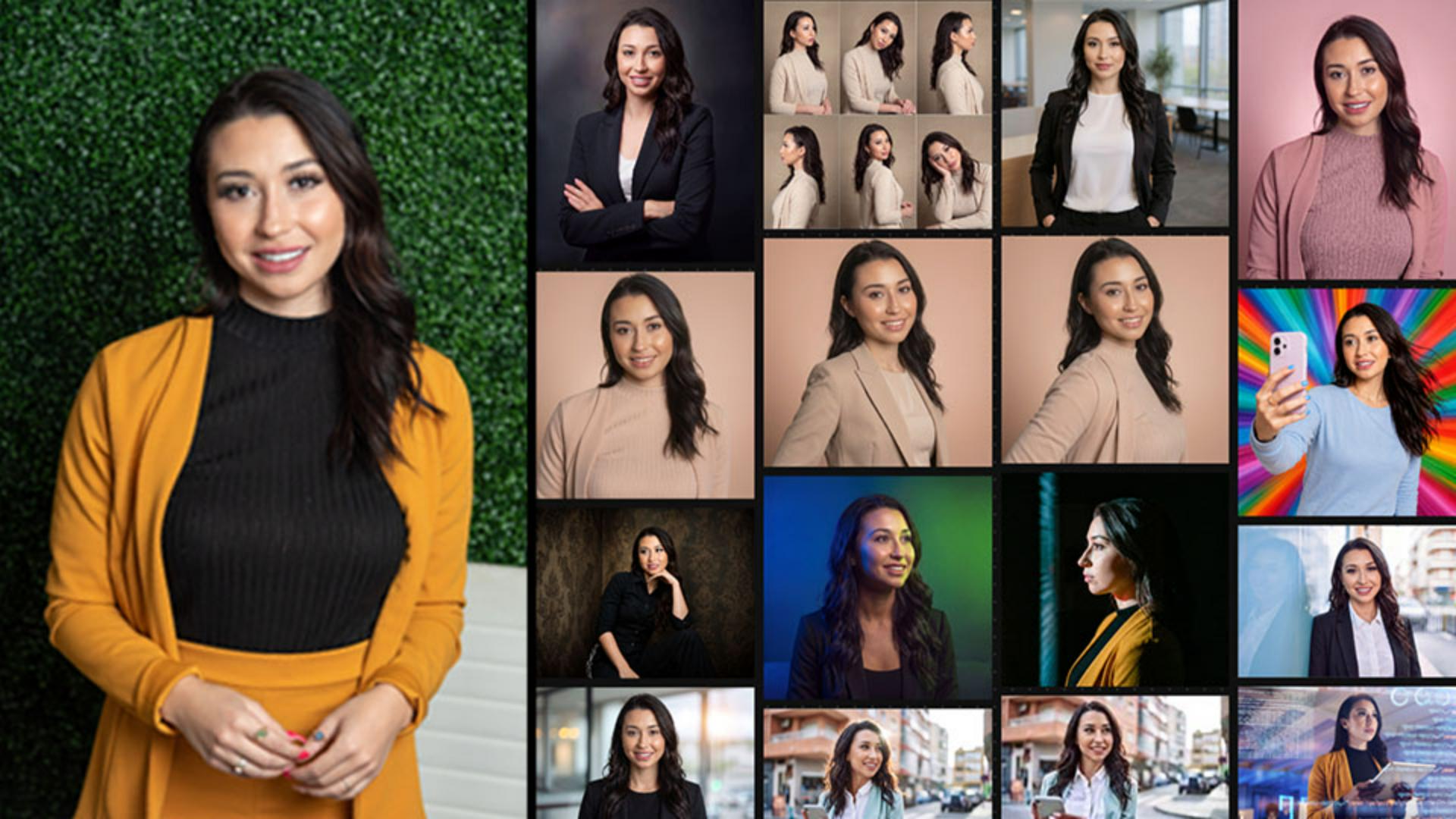
Note: Stock assets provided are for practice purposes only. See terms.
What you'll learn
Send a portrait to Firefly Boards to generate new looks
A finished retouch doesn't have to be the end of the process. Send it into Firefly Boards to explore new looks. Uploading a PSD keeps your original work intact while experimenting with new backgrounds, wardrobe, and lighting.
Write a prompt that changes the scene but keeps your subject intact
A vague prompt gets a vague result, so be as specific about what stays the same as what changes. Naming the exact color and protecting your subject's face keeps a dramatic change from looking like a bad composite.
Build on your last render to compare variations
One render only shows one direction, so treat your first generation as a starting point, not the final look. Feed that render back in as the reference to try a new palette or pose without losing your progress.
Use Adobe Stock images as references to guide dramatic changes
Describing a new scene in words only goes so far, so add real photos to show what you are looking for. Try Adobe Stock images as references so Firefly can borrow the lighting, pose, or backdrop from a photo you like, with your subject placed right into it.
Send your favorite variation back to Photoshop for finishing touches
A strong Firefly render isn't always the final image, and that's expected. Send the variation back into Photoshop to retouch and finalize the small details that finish a portrait.
Tip: Start at 1K or 2K to explore ideas quickly, then switch to 4K for your final version. Higher-resolution generations use more generative credits.
Instruction by


