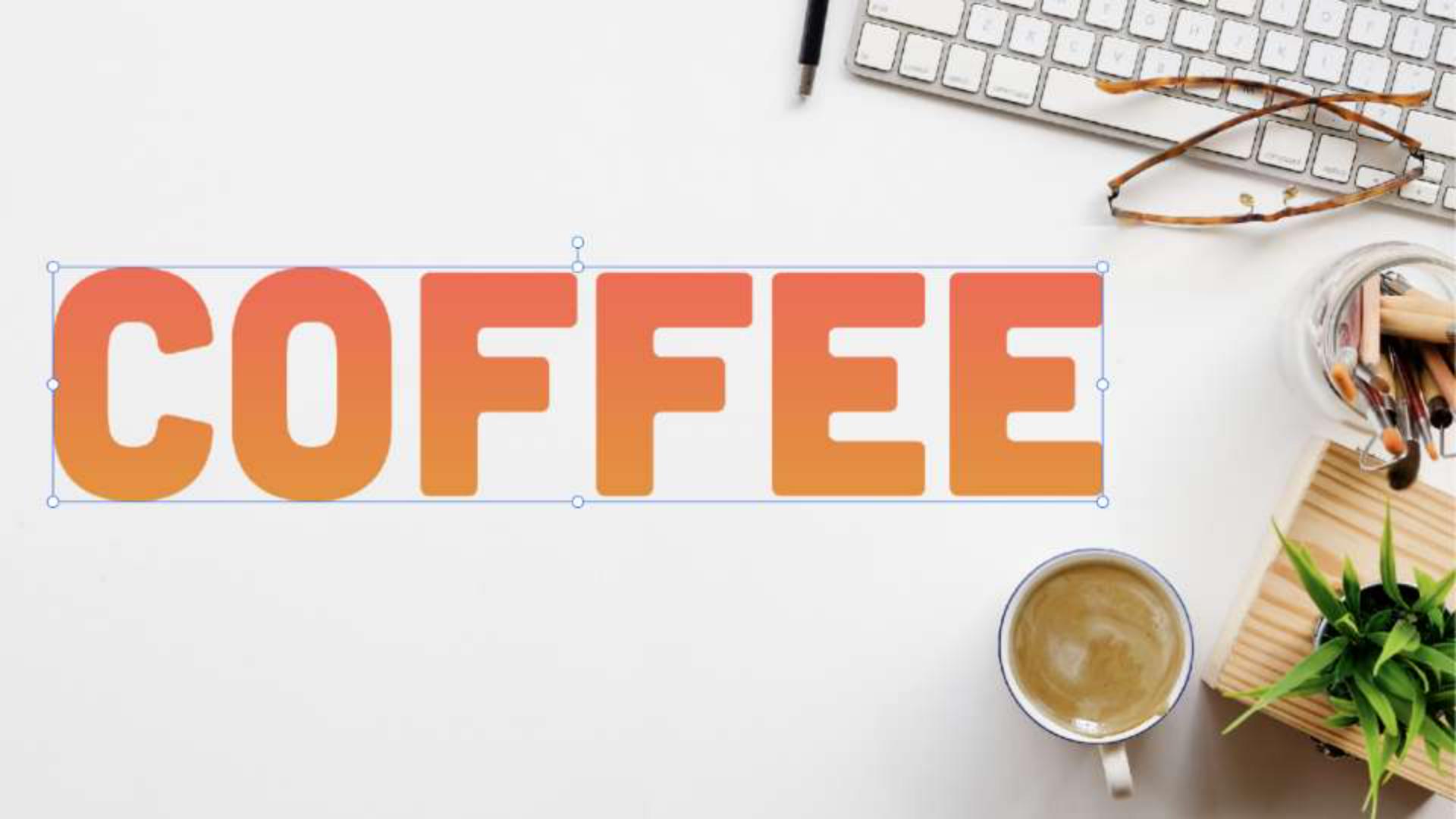
Sometimes, your layers need a little extra something to stand out.
And that's exactly what Layer Effects in Photoshop on the web are for.
Here we have a text layer, but it's looking a little bland for this design, so making sure it's selected, our first layer effect can be added by pressing the FX icon at the top of our Layers panel.
Let's start off with a gradient overlay, and we can now edit the properties down below.
The Gradient dropdown includes quite a few presets sets to get us started, and they're all nicely organized by color.
Or, if you want to define your own, you can set the foreground and background colors, then choose that option under Basics.
Scrolling down a bit here, we can control the Style, Angle and Scale of the gradient to help you hone in on the exact effect that you're after.
All right, this is looking better, but we can add additional layer effects to help our design pop even more.
For example, an outline can be added using a Stroke.
I'll keep this simple with a white fill and increase the size.
Finally, let's maybe add a Drop Shadow as well.
I'm going to want the shadow to extend from the top of the layer, so I'll swivel the angle to 90 degrees, then I'll pull it down and soften it out by increasing the distance and size.
And that's looking quite a bit better.
At any point during your editing, you can access and edit all of your effects by selecting the corresponding layer, then scrolling down to the bottom of your properties.
This is where you can also hide individual effects, or all of them at once.
And that's a look at layer effects in Photoshop.