One of the first things you do in Photoshop is open an image, so that you can start editing it.
Whether you want to enhance the photo, add creative elements, or simply adjust the colors, opening an image is the essential first step that allows you to make all these changes.
My name is Rob de Winter.
I'm an Adobe Certified Instructor, author, and designer from the Netherlands.
And in this video, I'll show you how to open images in Photoshop and combine them to create a simple photo composite.
When you launch Photoshop, you'll probably see this Photoshop home screen.
The home screen provides quick access to recent files, tutorials, and options to create new documents or open existing ones.
Instead of using the Open button here, let's go directly to File, Open... because it's available no matter where you are in Photoshop.
This will launch the Finder on macOS or the File Explorer on Windows, where you can navigate through all the files on your system.
Click on the image file in your Finder or Explorer to open it in Photoshop.
If you want to open more than one image, hold Command on macOS or Control on Windows, and then click on that image file too.
Click the Open button to open your selected images.
Both images will open in different tabs at the top of your Document window.
Each tab contains the name of one of the documents you opened.
By clicking on the tabs, you can choose which image you want to view or edit.
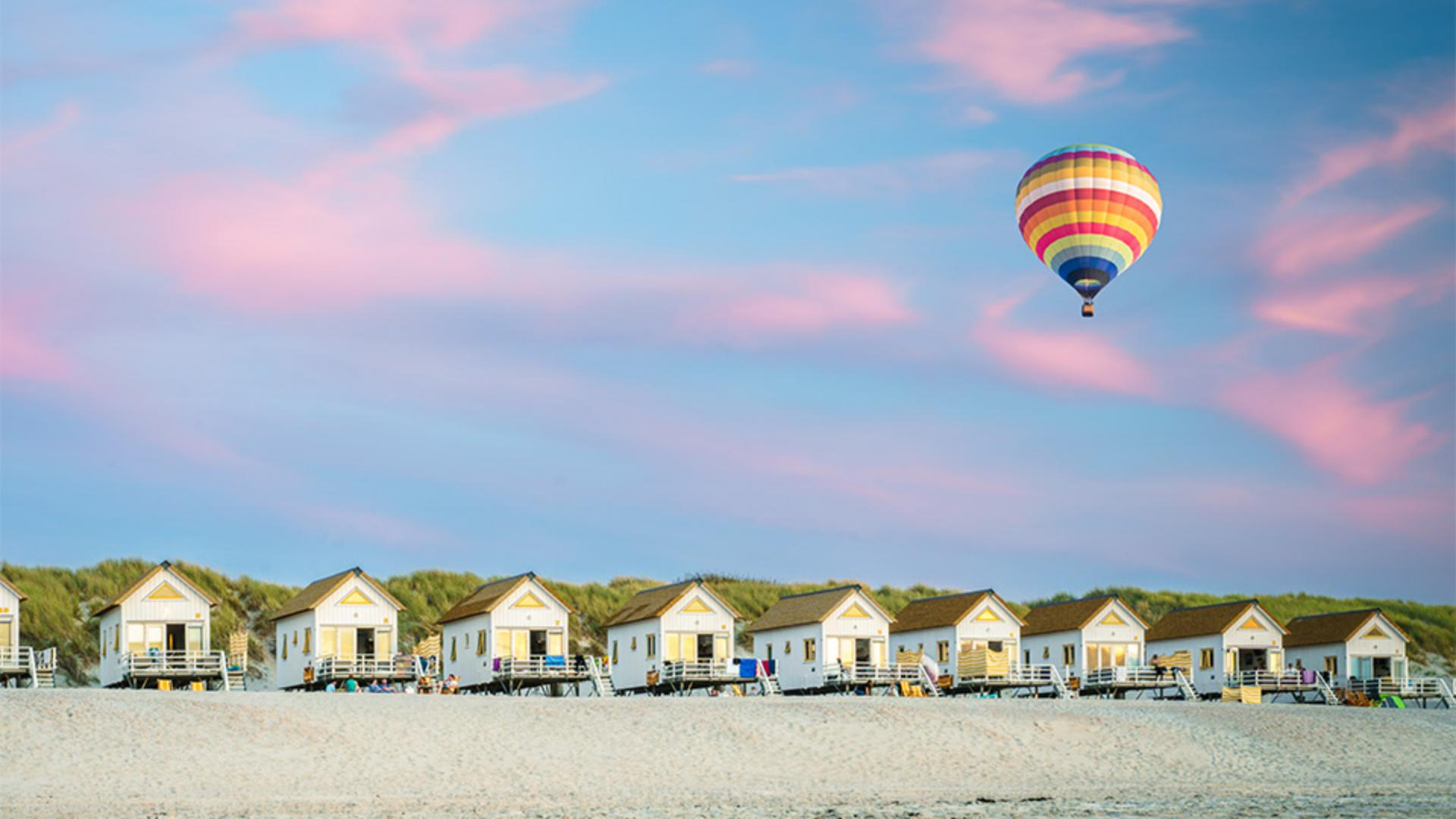
Click this tab to start editing the beach houses photo.
Now let's see how to add another image to a document that's already open in Photoshop like this one.
Start by finding a photo in the Finder or the Explorer.
To place this photo of a balloon on top of your photo of the beach houses in Photoshop, click and drag your balloon photo directly into this open document.
Then adjust the size by dragging the scale handles.
Next, adjust the position by clicking and dragging the balloon.
When you're happy, click Done in the Contextual Task Bar.
If you want to quickly remove the background of your balloon image, you can click Remove background in the Contextual Task Bar, which is this floating bar that contains some commands like Remove background.
If you don't see your Contextual Task Bar, just go to Window and open the Contextual Task Bar there.
The Remove background command helps you to hide the area around the main subject, making the background visible again.
Now that you've learned how to open single or multiple images in Photoshop and how to combine two different images, I hope this skill will give you the confidence to kickstart your own creative projects.
Again, my name is Rob de Winter, and I look forward to seeing you in more Adobe videos.