Fill areas by painting with pixels from the same image
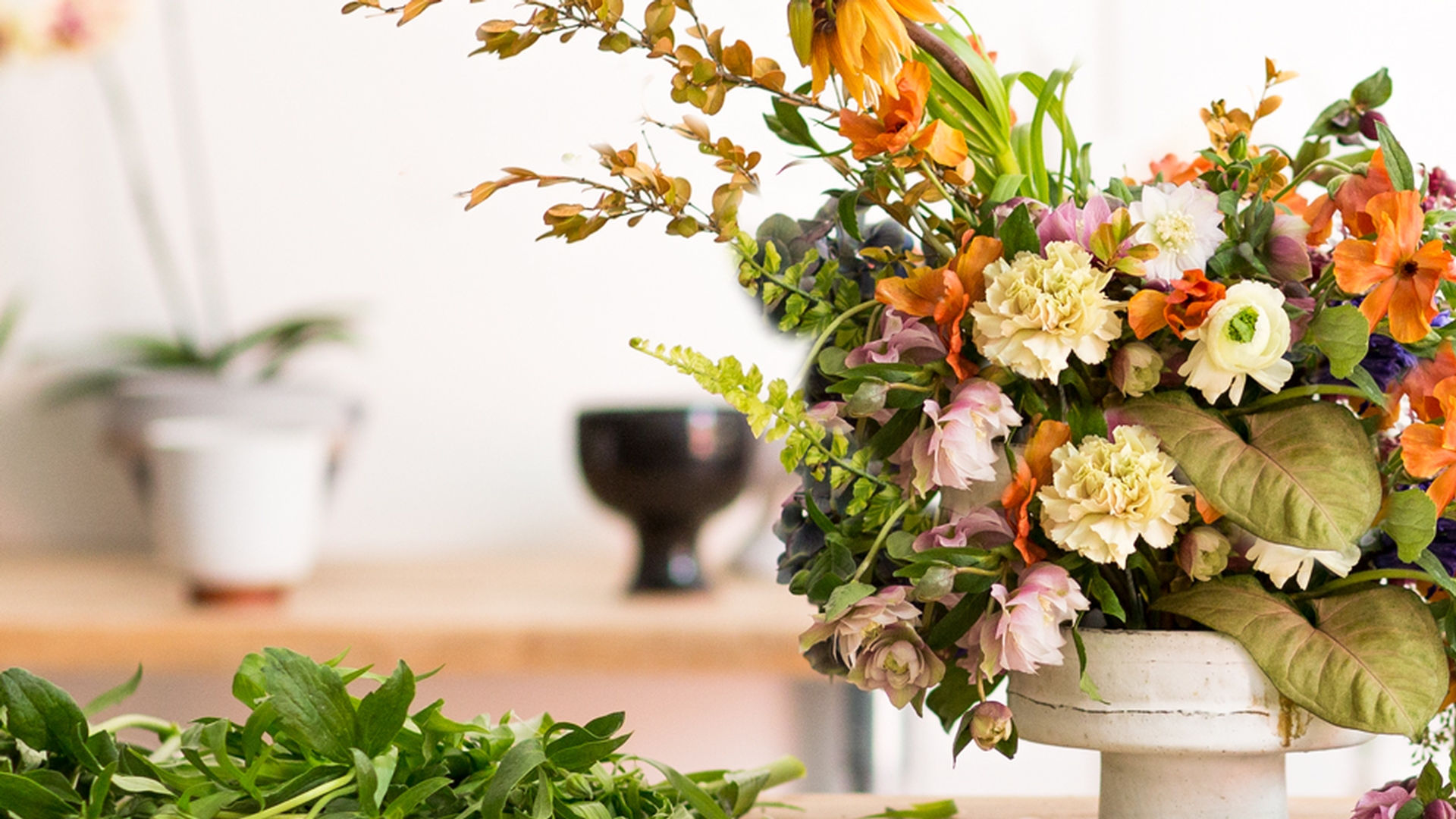
Note: Stock assets provided are for practice purposes only. See terms.
What you’ll learn
Copy content from one part of your image to another using the Clone Stamp tool
Unlike other retouching tools, the Clone Stamp requires you to tell it where to sample from. It’s like you’re loading up a paintbrush before you paint. Hold Option (Mac) or Alt (Windows) and click the area you want to copy. That area becomes your source, and the brush tip previews it as you move across the canvas.
Set your brush size and hardness before you clone
Brush size affects how much content you stamp with each stroke, and hardness controls how sharply it blends at the edges. A larger, softer brush works well for organic content like flowers or foliage; smaller and harder is better for details with defined edges. Getting these right before you start saves a lot of resampling later.
Sample from multiple areas to avoid repeating patterns
Cloning from a single source creates a repeating pattern that's easy to spot. As you paint, watch the crosshair, or source point, which shows you what's being sampled in real time. When you notice a pattern starting to form, hold Option or Alt and resample from a different area to keep the result looking natural.
Tip: Change your brush size as you work. A smaller tip gives you more control around edges and detailed areas, while a larger tip covers open areas faster.
Instruction by
Florist

