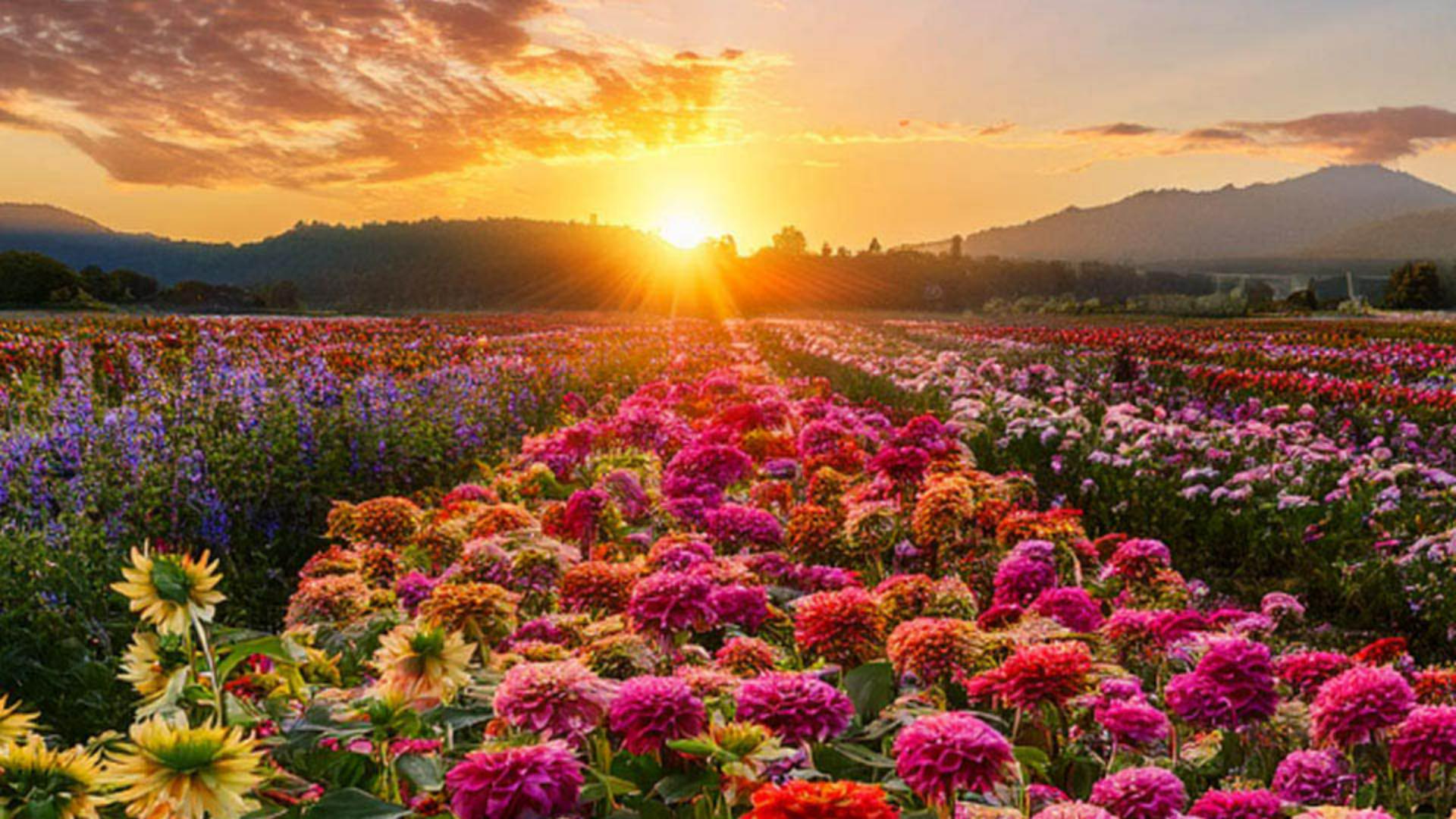
With Photoshop's Generate image feature, you can quickly ideate for your composites, transforming your ideas into a reality with just a few clicks.
My name is Jesús Ramirez.
In this video, I'll show you how to use the powerful Generate image feature in artboards to create multiple versions of your designs and display them all simultaneously.
For this project, I would like to create a graphic for social media showcasing the top three flowers for first time growers.
This is the file that we will start with.
It contains two layers, a white rectangle shape and a text layer.
We can use the Generate image feature to ideate background ideas.
To start, click on this icon from the Toolbar to open the Generate image window.
Then enter the prompt, Flower field with zinnias, dahlias, sunflowers, and a beautiful sunset.
Under Content type, choose Photo to generate a photorealistic image.
You can also choose a Reference image and Effects, but no need to do that in this first generation.
We will look at these options a little later on.
Then click Generate to create three images based on your prompt.
Currently, the generated image is above everything else, so we need to place this generative layer below all other layers.
You can drag the layer down from the Layers panel, but I prefer to use a keyboard shortcut.
Simply press Control Shift and the left bracket key on Windows, that's Command Shift and the left bracket key on the Mac, to move the selected layer to the bottom of the layer stack.
In North American keyboards, the bracket keys are to the right of the letter P.
Next, click on the Rectangle layer and bring the Opacity down to about 60%.
Now click on the generative layer, then you can click on the arrow keys in the Taskbar to cycle through the variations and choose the one you like best.
Let's ideate a bit more and develop a completely different idea.
There's no need to return to the Generate image window, we can continue generating images from the Properties panel.
All the options are available there.
We'll keep the same prompt, but we will change the settings.
For the second generation, click on this icon to bring up the Content type.
This time choose Art, under Effects, choose Techniques and click on Painting, then Generate.
You will now see three images that look like paintings.
You can also click on them from the Properties panel to cycle through them and choose the one you like best.
Let's try one more alternative.
Click on this icon again and remove the Art Content type in the Painting effect by clicking on them.
Now click on this icon to bring up the Reference image options.
From here, you can apply a Style Reference image to ensure that your generation is similar in style to your chosen image.
You can upload your own or choose one from the sample images.
In this case, scroll down and click on this image with a flat flower design.
Again, there's no need to change the prompt, simply generate again.
Photoshop will now give you three images in this style, and they all look great.
If you want to display all of these designs simultaneously to compare or present them to a client, you can use artboards, nested under the Move Tool, you will see the Artboard Tool.
Once enabled, you can click and drag a new artboard around your canvas.
An artboard is a separate workspace within your document, like a mini canvas, where you can organize different designs or layouts side by side.
Now you can hold Alt on Windows or option on the Mac and click on one of the + icons to create a duplicate artboard containing the same layers.
From here, click on the generative layer and choose a different version of the generated background.
Now click on the Artboard layer from the Layers panel.
When you see the + icons again, repeat this process.
Duplicate the artboard, then choose a different generated image.
Next, double-click on the Hand Tool to fit all the artboards on screen, and you can use the Zoom Tool to zoom out to get a better view.
Now that you know how to generate custom backgrounds for your designs, try generating your own for your projects.
Again, my name is Jesús Ramirez.
Thank you for watching.