But just in case, I'm Hallease, filmmaker and storyteller.
Welcome back.
Understanding transitions and storytelling purpose
In video editing, a transition is simply any time one shot moves to the next.
And you've probably seen over a dozen examples of transitions used in movies and TV shows, from cuts to fades to the notorious 80s Star Wipe.
Editors can use transitions to advance the story, set up the next scene, or set the mood for a scene.
For example, you might use a basic cut to quickly jump between two characters having a heated debate.
But if you want to communicate the passage of time, a crossfade might be more appropriate.
For more dramatic, fun videos, you might go crazy with the Irish transitions, wipes and slides.
Finding and applying video transitions
Adding a transition is very simple.
First, in the Effects panel, choose Video Transitions.
There are a lot of transition options available, and unless you know your creative vision calls for a specific transition, sometimes the easiest thing to do is just pick one that sounds interesting and test it out.
Let's see what a Push transition does to these clips.
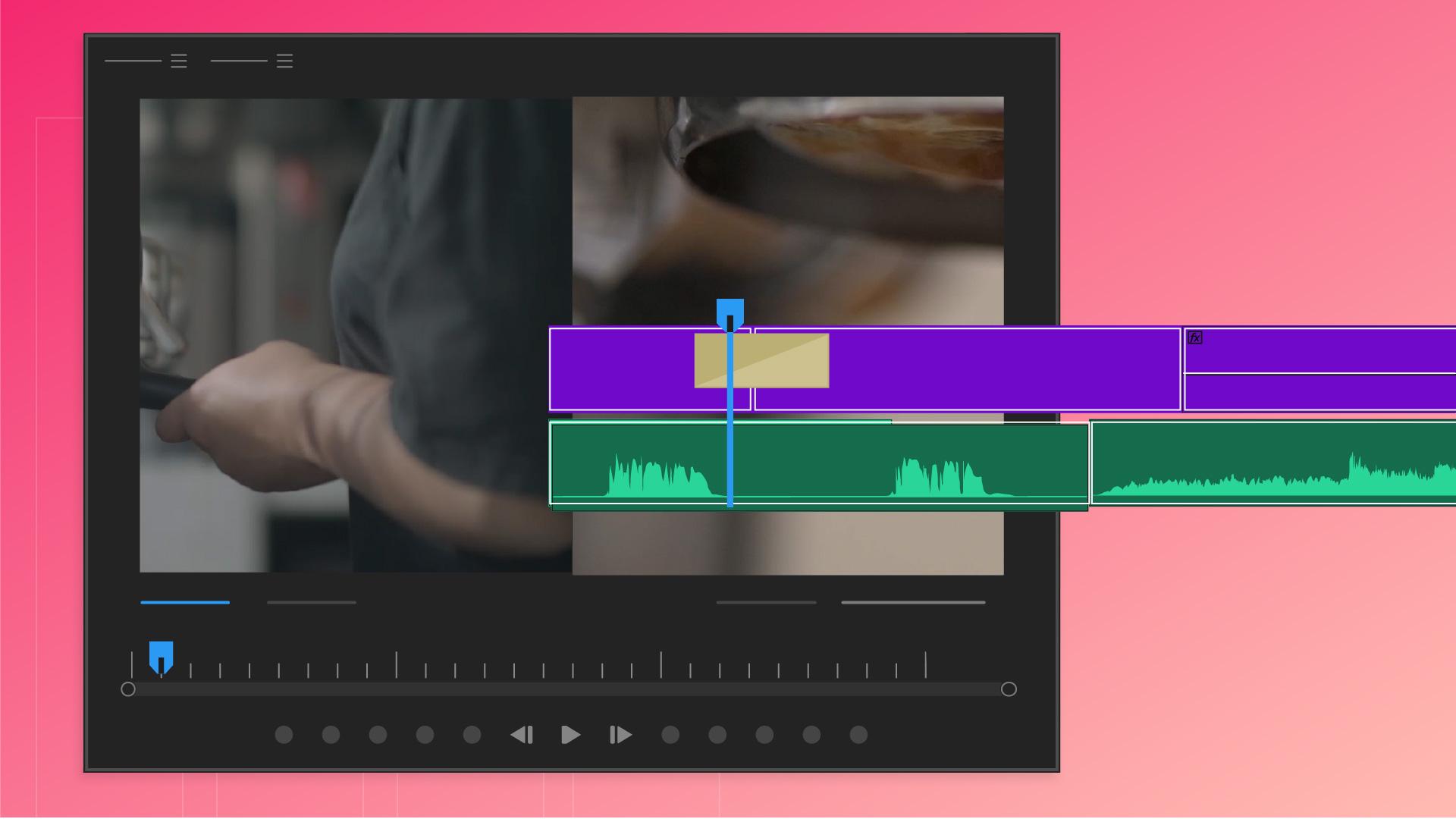
To add it, we just need to drag it onto the Timeline and drop it between the two clips we want to transition between.
Let's watch that back.
Let's try something else.
Replacing and previewing different transitions
We can replace this transition by selecting another in the Effects panel and dragging it on top of the existing transition.
Let's try a Cross Dissolve.
That's a much subtler effect, which works well with the story.
Transitions work best
Adjusting transition length and using handles
when the clips have extra footage at the beginning or the end, so that the clips can bleed into each other.
This extra footage is called a handle.
And you know if you have handles on your clip if you don't see that little white triangle in the top corner, I can adjust the length of my transitions by dragging the edge left or right.
But I can only make transitions longer if I have enough extra footage left over.
So let's wrap up.
Transitions are one way you can advance your story
Best practices and recap for transitions
or set the mood for a scene.
Drag transitions from the Video Transitions section of the Effects panel and drop them between two clips.
Keep an eye out for that little white triangle that indicates you're using all of the original footage.
When adding transitions, this extra footage allows for the two clips to merge together.
You can remove a transition by selecting it and pressing Delete.
And finally, you can adjust the length of a transition by dragging the end in either direction.
All right y'all, we're moving right along.
In the next video, we'll cover color adjustments.
I'll see you over there.
Note: Stock assets provided are for practice purposes only. See terms.
What you'll learn
Why use transitions
Transitions are one way to enhance the story you tell in your video. They can add drama or set the mood for a particular scene.
Add transition effects
Select a transition from the Effects panel and drag it onto the timeline between two clips.
Some transitions need extra footage
Some of the transitions work by blending two clips together in some way, which means they need extra frames to work. When adding transitions, look for the white triangle that indicates there’s no additional footage.
Refine transitions
Adjust the timing of a transition by dragging the end in either direction. Replace a transition by dropping the new transition on top of it. Delete transitions by selecting the transition and pressing delete.
You can control how Adobe websites use cookies and similar technologies by making choices below. But note that if you disable cookies and similar technologies entirely, Adobe websites may not function properly.
Cookies are small text files stored by your web browser when you use websites. There are also other technologies that can be used for similar purposes like HTML5 Local Storage and local shared objects, web beacons, and embedded scripts. These technologies help us do things like remembering you and your preferences when you return to our sites, measure how you use the website, conduct market research, and gather information about the ads you see and interact with.
You can make choices in the menu below about what cookies and other technologies you want us to use on Adobe sites when you visit them from this browser. You can always change those choices later by clicking on the Cookie Preferences link at the bottom of the page.
If enabled:
We can improve your experience by tailoring the site and the content to things we think might be of interest
We can better keep track of your preferences — like what language you prefer to use
We will better understand your likely interests so we can provide you more relevant Adobe ads and content on non-Adobe websites and in non-Adobe apps
It will help us improve the performance of our website and those of our partners who use the Adobe Experience Cloud
If disabled:
We won’t be able to remember you from session to session so the experience may not be tailored to your interests
You’ll still have access to the content of the site but certain features that depend on cookies may not function
You’ll still see ads, they just may not be as relevant to you
General information
You can control how Adobe websites use cookies and similar technologies by making choices below. But note that if you disable cookies and similar technologies entirely, Adobe websites may not function properly.
Cookies are small text files stored by your web browser when you use websites. There are also other technologies that can be used for similar purposes like HTML5 Local Storage, web beacons, and embedded scripts. These technologies help us do things like remembering you and your preferences when you return to our sites, measure how you use the website, conduct market research, and gather information about the ads you see and interact with.
You can make choices in the menu below about what cookies and other technologies you want us to use on Adobe sites when you visit them from this browser. You can always change those choices later by clicking on the Cookie Preferences link at the bottom of the page.
If enabled:
We can improve your experience by tailoring the site and the content to things we think might be of interest
We can better keep track of your preferences — like what language you prefer to use
We will better understand your likely interests so we can provide you more relevant Adobe ads and content on non-Adobe websites and in non-Adobe apps
It will help us improve the performance of our website and those of our partners who use the Adobe Experience Cloud
If disabled:
We won’t be able to remember you from session to session so the experience may not be tailored to your interests
We’ll still count your use of our site and services
You’ll still have access to the content of the site but certain features that depend on cookies may not function
You’ll still see ads, they just may not be as relevant to you
Operate the site and core servicesOperate site and measure engagement
Always active
These cookies are required, and they are used to enable the site and related services core functionality. Without them the site could not operate, so they cannot be disabled.
These cookies enable the site and related services’ core functionality and collect statistics about user engagement, such as counting active use to help us understand trends. These cookies cannot be disabled.
Measure performance
These cookies are used to analyze site usage to measure and improve performance. Without them Adobe cannot know what content is most valued and how often unique visitors return to the site, making it hard to improve information we offer to you.
These cookies are used to analyze site usage to measure and improve performance. Without them Adobe cannot know what content is most valued, making it hard to improve information we offer to you.
Extend functionality
These cookies are used to enhance the functionality of Adobe sites such as remembering your settings and preferences to deliver a personalized experience; for example, your username, your repeated visits, preferred language, your country, or any other saved preference.
Personalize advertising
These cookies are used to enable Adobe and our partners to serve ads more relevant to your interests. Without them you will still see ads, but they might not be as relevant to you.
Personalize advertising
These cookies are used to enable Adobe and our partners to serve ads more relevant to your interests. Without them you will still see ads, but they might not be as relevant to you.