I'm Hallease, filmmaker, storyteller, and you're you.
Let's start the fine-tuning process together.
While you're reviewing your video,
Removing clips and handling gaps in the Timeline
you may decide that a clip isn't quite right for your story.
Removing a clip at the end of your sequence is straightforward.
You just need to select the clip and press the Delete key.
But let's say we want to remove this latte_art.mp4 clip.
Watch what happens.
It's removed from the Timeline, but now there's a gap where the clip was.
Which is not what we want because then there would be a gap in our final video.
We could go through and shift all the clips forward, but there are much easier ways to go about this.
One way is to select the gap by clicking on it, just once, and then pressing the Delete key.
This will remove the space and bring all the clips together.
That's one way to go about it, essentially in two steps.
But you can also accomplish this with just one step.
First, let me undo everything we just did
Using ripple delete to remove clips efficiently
by hitting Command or Control Z on a PC to bring back our latte_art.mp4 clip.
Now I'll delete it again, but this time I'm going to hold Option on a Mac or Alt on a PC, and press Delete.
The clip is removed and all the clips that follow ripple forward in the Timeline at the same time.
We're working smarter, not harder, over here.
What if we just want to remove part of the clip?
Trimming clips at the beginning and end
I can cut or trim the unwanted parts.
First, let's zoom into the Timeline so we have a more detailed view.
To do this, I'll grab one of the handles at the end of the Scroll bar and drag it inward.
As you drag the Program monitor shows a preview of the particular frame you're setting as the new end of the clip.
If the clip I want to trim is at the end of my sequence, I just need to drag the end of the clip to the left and make it shorter.
But what about clips in the middle of your sequence?
If I shorten the clip in the middle, watch what happens.
Ripple trimming clips in the middle of a sequence
We've left a gap again, just as we did when we removed the clip by selecting and deleting it.
Now sometimes this will be exactly what you want.
Other times you'll want to close the gap automatically.
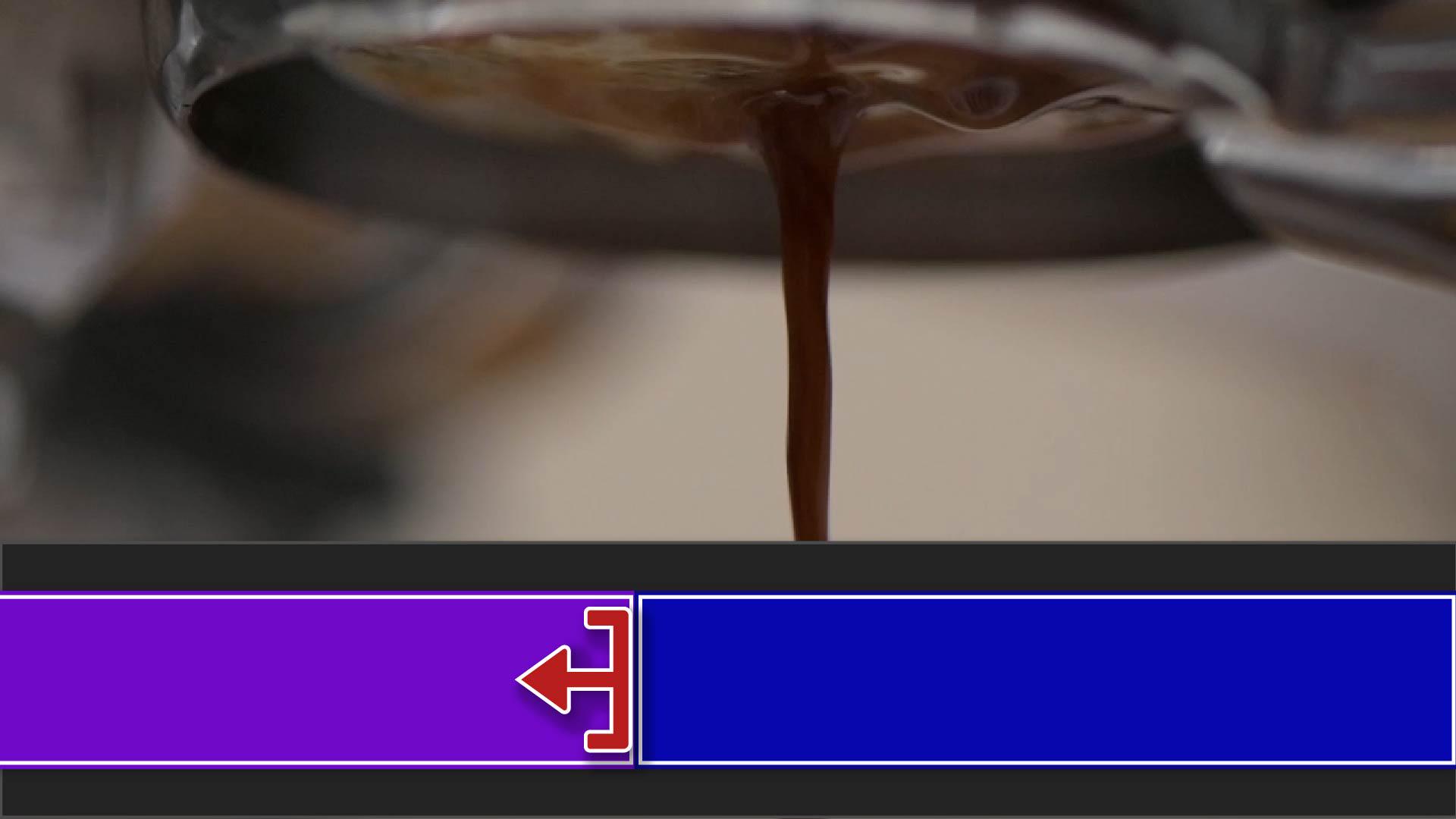
If you hold the Command key on Mac or Ctrl key on PC, the red arrow will turn yellow.
Now when I trim the clip, everything moves or ripples along the Timeline to close the gap.
In a previous video, we added this espresso dripping clip
Extending clips and understanding media limits
using in and out points.
Since I'm only using a portion of the original clip, I can always extend it out by hovering over the beginning or ending and dragging it outward until it's just right.
But if you see this small white triangle at either end of the clip segment, that signifies you're already using the first or last frame of the original material.
Let's recap.
You can remove a clip by pressing Delete.
If you want to automatically close a gap when you remove a clip from the middle of your sequence, hold the Alt or Option keys to ripple all the clips forward.
To trim unwanted frames from the beginning or the end of the clip, drag inward and hold Alt or Option to close any resulting gaps.
You can extend the length of a clip by dragging outward, unless you see a small white triangle indicating you've used all of the original footage.
In the next video, we're going to cover transitions.
I'll see you over there.
Note: Stock assets provided are for practice purposes only. See terms.
What you'll learn
Remove clips from the timeline
Remove clips by pressing delete. To avoid gaps when removing clips from the middle of your video, hold Alt on Windows or Option on Mac and press delete to ripple all the clips forward.
Trim clips
Drag the end of a clip forward to trim away unwanted frames to perfect the timing. Hold Alt on Windows or Option on Mac while dragging to avoid gaps in the clips.
Extend clips
You can drag the ends of clips outward to make them longer, unless the small white triangle is shown.
You can control how Adobe websites use cookies and similar technologies by making choices below. But note that if you disable cookies and similar technologies entirely, Adobe websites may not function properly.
Cookies are small text files stored by your web browser when you use websites. There are also other technologies that can be used for similar purposes like HTML5 Local Storage and local shared objects, web beacons, and embedded scripts. These technologies help us do things like remembering you and your preferences when you return to our sites, measure how you use the website, conduct market research, and gather information about the ads you see and interact with.
You can make choices in the menu below about what cookies and other technologies you want us to use on Adobe sites when you visit them from this browser. You can always change those choices later by clicking on the Cookie Preferences link at the bottom of the page.
If enabled:
We can improve your experience by tailoring the site and the content to things we think might be of interest
We can better keep track of your preferences — like what language you prefer to use
We will better understand your likely interests so we can provide you more relevant Adobe ads and content on non-Adobe websites and in non-Adobe apps
It will help us improve the performance of our website and those of our partners who use the Adobe Experience Cloud
If disabled:
We won’t be able to remember you from session to session so the experience may not be tailored to your interests
You’ll still have access to the content of the site but certain features that depend on cookies may not function
You’ll still see ads, they just may not be as relevant to you
General information
You can control how Adobe websites use cookies and similar technologies by making choices below. But note that if you disable cookies and similar technologies entirely, Adobe websites may not function properly.
Cookies are small text files stored by your web browser when you use websites. There are also other technologies that can be used for similar purposes like HTML5 Local Storage, web beacons, and embedded scripts. These technologies help us do things like remembering you and your preferences when you return to our sites, measure how you use the website, conduct market research, and gather information about the ads you see and interact with.
You can make choices in the menu below about what cookies and other technologies you want us to use on Adobe sites when you visit them from this browser. You can always change those choices later by clicking on the Cookie Preferences link at the bottom of the page.
If enabled:
We can improve your experience by tailoring the site and the content to things we think might be of interest
We can better keep track of your preferences — like what language you prefer to use
We will better understand your likely interests so we can provide you more relevant Adobe ads and content on non-Adobe websites and in non-Adobe apps
It will help us improve the performance of our website and those of our partners who use the Adobe Experience Cloud
If disabled:
We won’t be able to remember you from session to session so the experience may not be tailored to your interests
We’ll still count your use of our site and services
You’ll still have access to the content of the site but certain features that depend on cookies may not function
You’ll still see ads, they just may not be as relevant to you
Operate the site and core servicesOperate site and measure engagement
Always active
These cookies are required, and they are used to enable the site and related services core functionality. Without them the site could not operate, so they cannot be disabled.
These cookies enable the site and related services’ core functionality and collect statistics about user engagement, such as counting active use to help us understand trends. These cookies cannot be disabled.
Measure performance
These cookies are used to analyze site usage to measure and improve performance. Without them Adobe cannot know what content is most valued and how often unique visitors return to the site, making it hard to improve information we offer to you.
These cookies are used to analyze site usage to measure and improve performance. Without them Adobe cannot know what content is most valued, making it hard to improve information we offer to you.
Extend functionality
These cookies are used to enhance the functionality of Adobe sites such as remembering your settings and preferences to deliver a personalized experience; for example, your username, your repeated visits, preferred language, your country, or any other saved preference.
Personalize advertising
These cookies are used to enable Adobe and our partners to serve ads more relevant to your interests. Without them you will still see ads, but they might not be as relevant to you.
Personalize advertising
These cookies are used to enable Adobe and our partners to serve ads more relevant to your interests. Without them you will still see ads, but they might not be as relevant to you.