Create YouTube Shorts with Premiere on mobile
Learn how to use YouTube Shorts templates in Premiere on mobile to assemble, customize, and share polished videos.
Published
What you’ll learn
Browse and preview templates
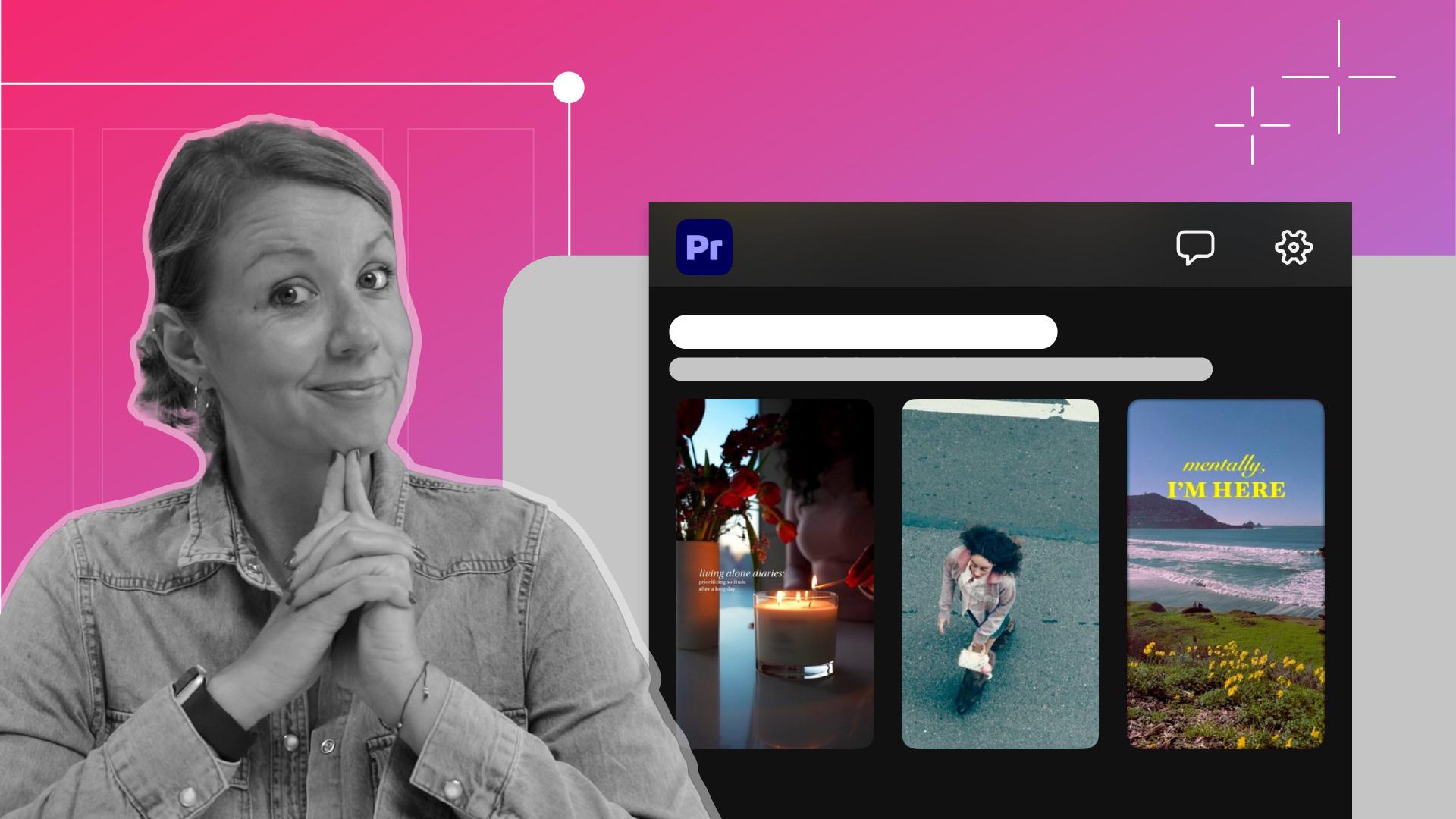
From the home screen, explore the Make It Yours for YouTube section to preview templates with sample visuals and music.
Add your media and adjust the timing
Select your photos or videos for each placeholder. Then, trim clips to highlight the most engaging moments.
Use the full editor
Move into the full editor to customize text and styles. Adjust the font and background to improve readability and impact.
Export directly to YouTube Shorts
Choose resolution, frame rate, and quality, then export your video. Share directly to YouTube Shorts and optionally allow others to reuse your template.
Instruction by
Videography by

