Introduction
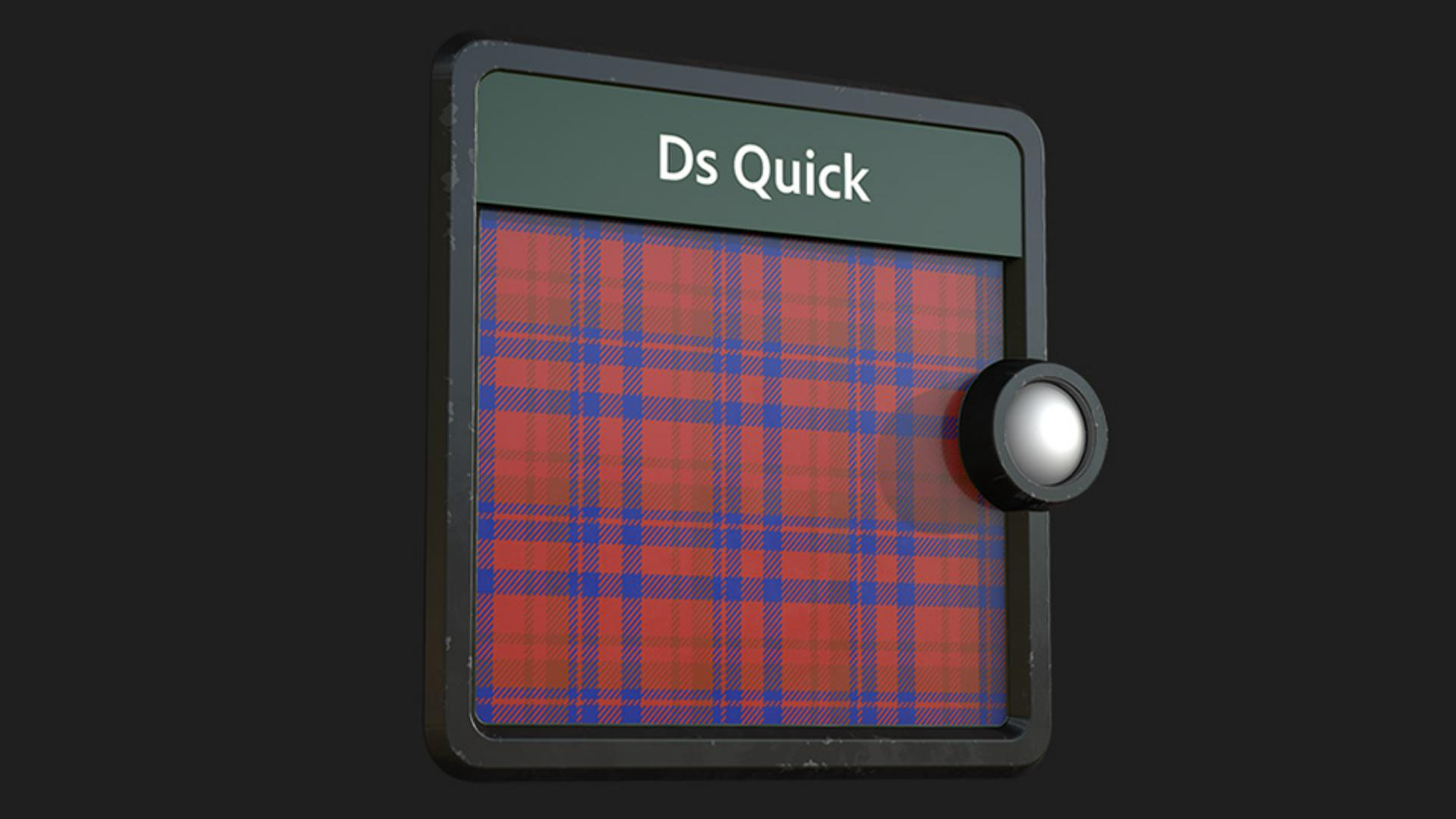
Hi, in this video we’re using Substance 3D Designer to create a plaid pattern generator.
Let’s first go over the key nodes and parameters we’ll use.
Understanding key nodes and parameters
The alpha merge node adds an alpha channel to an input that doesn’t already have one.
The quantize node reduces the precision of a gradient transition, introducing a stepped look.
Steps defines the number of distinct steps for the input range.
The tile generator node is a powerful node to make regular or random patterns.
It’s a simpler version of the tile sampler node, with less controls and inputs.
Size random X and Y sets the randomness for X and Y individually.
Luminance random adjusts how much the luminance differs for each individual shape.
Blending mode controls how the shapes will blend when they overlap The histogram select node is great to set a grayscale value middlepoint position and select a range around it.
Position sets the middle position where the range selection happens.
Let’s start with a tile generator node, switch pattern
Creating the base plaid pattern with tile generator
to square and reduce the X and Y amount to 5 and 1.
Now switch the size mode to normal size, reduce the size X to 0.3 and increase the size random X to 1 for nice variations.
Increase the scale to 3.5 for overlapping shapes and introduce some randomness with a position random X value of 0.7.
To get nice overlapping shapes with different grayscale values, we switch the blending mode to max and increase luminance random to 1.
Next add a quantize grayscale node with 3 steps for a pattern with 3 colors
Separating pattern regions and applying colors
and forward it into an auto levels node for the full 0 to 1 range.
Then we add a histogram select node and increase the contrast to 1 to select just the gray areas. duplicate it and tweak the position to 0 to select just the black areas.
To prepare color blending, you add a uniform color node and forward it to a blend node followed by another blend node.
Duplicate the uniform color node 2 times and connect it to the foreground of the blend nodes.
Then connect 1 histogram select output to the opacity input of the first blend node and the other one to the second blend node.
Let’s now choose 3 colors which match nicely together.
Adding variations with mirroring, rotation, and diagonal lines
Use a mirror color node to get a mirrored version of the pattern.
Now add a switch color node and connect the mirror color node to input 2.
We join it to a transformation 2D node, rotate it 90 degrees and forward it to a blend node.
Take a tile generator node, adjust the X and Y amount to 25 and 1, switch the pattern to square and increase the interstice X to 0.5 for thin vertical lines.
Then connect it to a safe transform grayscale node and rotate it 45 degrees for diagonal lines.
Add an alpha merge node, connect the switch color output to the RGB input and the diagonal lines to the alpha input to prepare it for color blending based on the alpha channel.
Now we join it to the foreground of the blend node to get some nice blended patterns with diagonal lines in the areas where different colors overlap.
To get the final arrayed pattern, you connect the blend node
Finalizing the generator and exposing parameters
to a tile generator color node, hold Shift and LMB to connect it to the pattern input and reduce the X and Y amount to 5.
Choose image input as pattern and switch the image input filtering to nearest to get rid of any seams.
Finally we use an output node, rename it to plaid pattern generator and copy the name to the identifier.
Now we can expose the key parameters that we want to control in Sampler.
Let’s expose the different output colors, the switch color node and the X amount of the tile generator for the pattern and lines.
Feel free to expose other parameters too.
I always make sure to name my exposed parameters properly.
This makes it much easier to work with later on.
To get a thumbnail for your generator in Sampler, save the 2D view image of the final blend node in this graph and load it through the browse button in the icon section.
Finally doubleclick into the graph, switch the graph type to texture generator and publish the SBSAR.
With this setup we can now jump into Sampler and build a nice plaid fabric material.
If you want to learn more, you can download and open the graph shown in the video.
There’s even another method for pattern creation covered in the file.
Thanks for watching and we would love to hear your thoughts, ideas and suggestions for future quicktips, so let us know them in the comments.
See you in the next quicktip episode.