Introduction
[Kelsey Brannan]: Premiere mobile includes a free library of transitions and effects, including light leaks, zooms, shakes, and more to help you stylize your edits.
My name is Kelsey Brannan, and you may know me as Premiere Gal on YouTube.
In today's video, I'm going to show you how to quickly insert transitions between clips and how to apply effects to individual clips to spice up your edits.
Add transitions between clips
Here inside my Timeline, I have a bunch of clips showing how I made these brownie pinecones.
And this was edited together quickly using one of the YouTube Short templates.
But this template didn't come with any transitions or effects, so let's add some in to spice it up.
You can see here in the Timeline that between each of the clips is a transition point.
If you want to add a transition at that point, just tap that icon between the clips, and then you can choose a transition from this new panel that pops up from the bottom.
You can scroll down to preview them all.
Let's try the Push Up and that'll preview it for a moment.
If you want to apply the same transition to all of the cut points, you can click this icon here, and it will apply that transition to all of the cut points.
If I close this down, you'll see that there's a push-up at every transition. [music] But you may not want that.
In this case, I want to apply unique transitions at just a few different cut points.
So I'm going to press this Undo icon.
And that will remove that transition at all the cut points but will keep it at that original one that we selected. [music] Now let's go further down and apply another transition.
I thought it would be cool to add a twirl transition between this shot and the shot of the chocolate completely melted, and the brownie getting dipped in the chocolate.
So let's tap this cut point and let's scroll down to Twist Left.
And there we go, that's the result.
You can also adjust the Duration of the transition by sliding the slider to the left to make it quicker, or slower by dragging it to the right.
Let's see how that looks. [music] I think it looks good.
When applying transitions, you don't want to apply a transition at every single cut point because that can be visually disorienting.
It's important to apply transitions where it visually makes sense.
Apply video effects to individual clips
In addition to adding transitions, you can also apply effects at the clip level.
So if I scroll all the way here to the front here, you can see that this video is more festive.
For this opening shot, I thought it would be cool to add some warm glows and maybe a little bit of bokeh layers.
So let's tap on this clip, and down at the bottom, let's swipe until we see Effects.
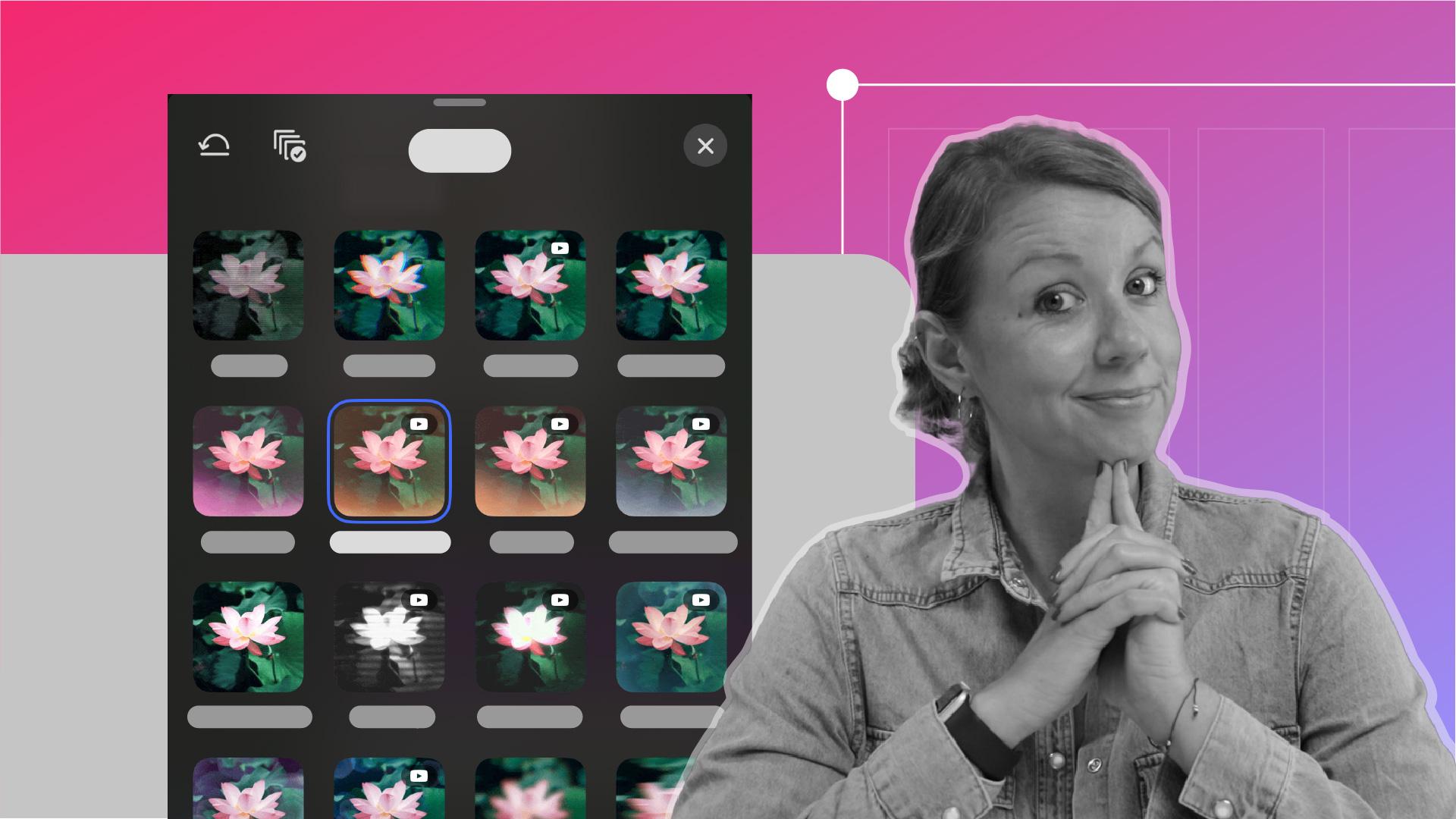
Tap on Effects, and from the new panel, you can simply swipe up to browse all the different effects that come built-in.
And immediately the Warm Flare caught my eye.
So let's go ahead and tap that, and you can see a preview.
You can also adjust the Intensity of it using the slider.
And here's how it looks. [music]
Pair effects and transitions
So we have this nice Warm Flare here, but it kind of abruptly cuts to that next shot.
So let's select the transition cut point between these two clips, and let's apply a Light Leak transition, so you can see a Light Leak on the far right here.
Let's tap that.
And now let's see how it looks. [music] It looks great.
And now you can see we have a more fluid transition from this first clip to the next using that Light Leak transition.
Another way to add more dynamism through effects is to add a subtle grow effect or zoom in.
So on this clip here, it's pretty static.
You just see the almonds being toasted.
But what if we want to add a subtle zoom in on this clip?
Just tap this and then scroll to Effects.
And then tap the Grow effect. [music] And then you can see that it adds a subtle animation on this clip.
So after the transition, [music] it's almost like the camera is moving in subtly over the course of this short clip.
That's just a quick way to add movement to your clips without you having to film that movement.
So you can use the Grow effect, and if you wanted to zoom out, you could use the Shrink effect instead.
Another fun way to mix up your edit is by creating a picture-in-picture effect.
Experiment with creative video layouts
Let's go to this clip here, and what I want to do is duplicate it.
Down here at the bottom, I can scroll down here to this icon Duplicate.
And here from this Duplicate with it selected, scroll over and tap Move up.
And then we can select this and move it over to be directly on top of the original clip.
And with the top clip selected, let's use our two p-sign fingers to pinch inwards to scale it down so you can make it any size you want, and then just reposition it in frame.
And now with the bottom clip selected, we can go over to Effects, and let's scroll down to the bottom, and here you can see Chroma Blur. [music] And let's reduce the Intensity slightly.
So you can see as I scrub through all the shots are full screen, but then when we get to this clip it stands out because it's a picture-in-picture.
And so now, [music] we have a little bit more dynamism because we have more effects going on.
So now let's swipe back to the beginning and let's play the final video. [music] And that's it.
With a few taps, you can apply effects and transitions in Premiere on mobile to instantly elevate the look and feel of your edits.
I hope you found this useful.
Thanks for watching and I'll see you next time.
Bye.