.
  • File size larger than 100 MB
  • Unable to process the request
  • We are unable to process this file type. Please try again.
  • Only one file can be uploaded at a time.
  • Image is smaller than the minimum dimensions (512 x 512 pixels). Please resize and try again.
  • promoid=QTV3NS2W&mv=other

Refine and edit photos with the AI Prompt to Edit feature.

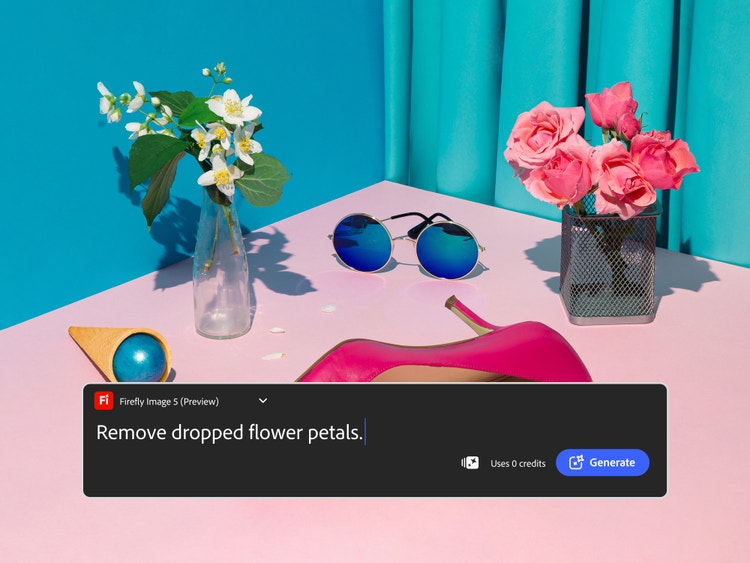
A pink tabletop with flowers in vases and the text prompt "remove dropped flower petals" shows how to use the AI photo editor to remove distractions.

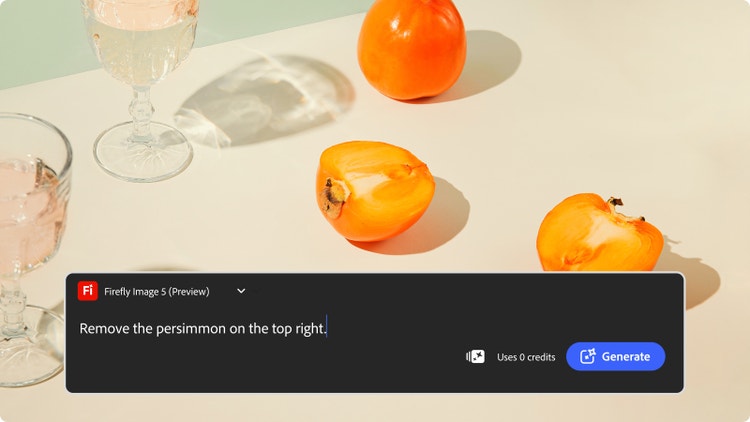
Remove unwanted elements.

Use the artificial intelligence photo editor to remove distracting background elements like street signs, lamp posts and even people in just a few clicks. Describe what you want to see – or what you don’t – and watch as your photo transforms in seconds.
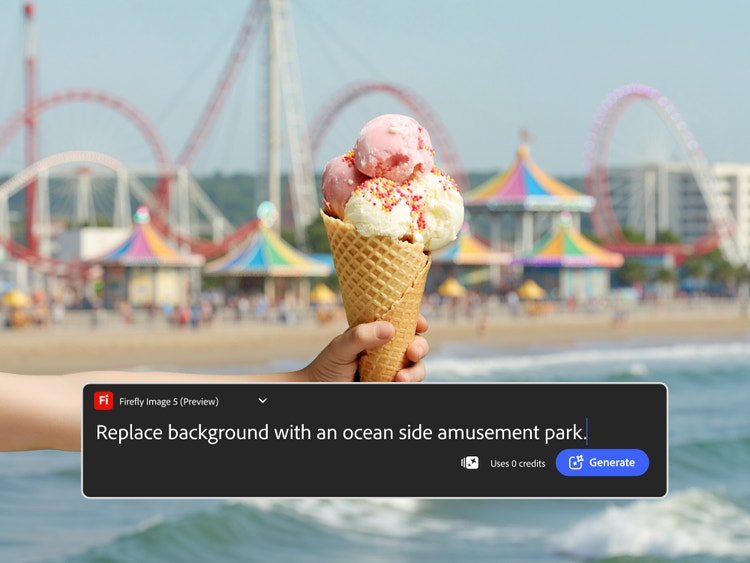
A hand holding a waffle cone with scoops of ice cream and the AI photo editor text prompt used to replace the background with an oceanside amusement park.

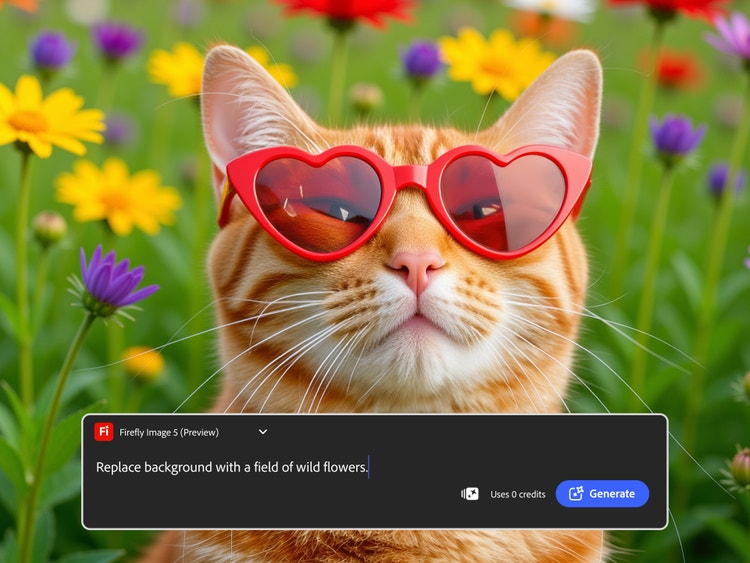
Replace backgrounds.

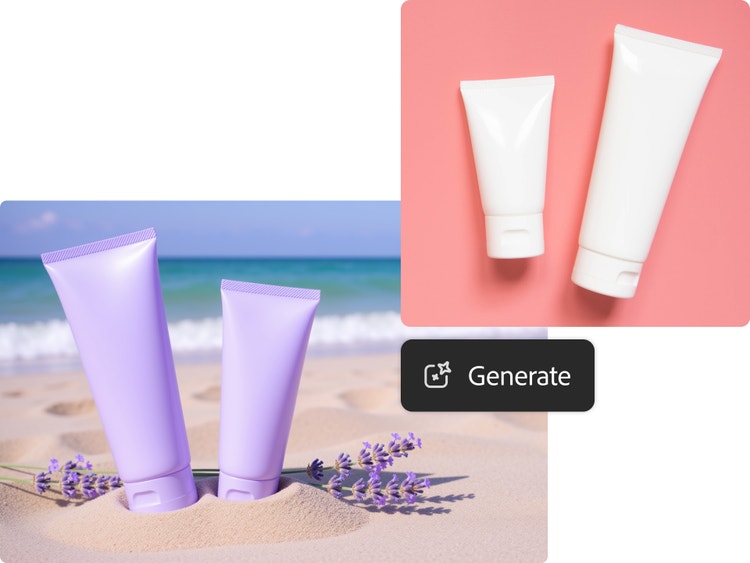
Switch things up with a completely new look. Change backgrounds to alter your photo setting or completely remove it altogether. Whether you want to transport yourself to another place or go for a clean, colour-block look, it’s completely up to you.

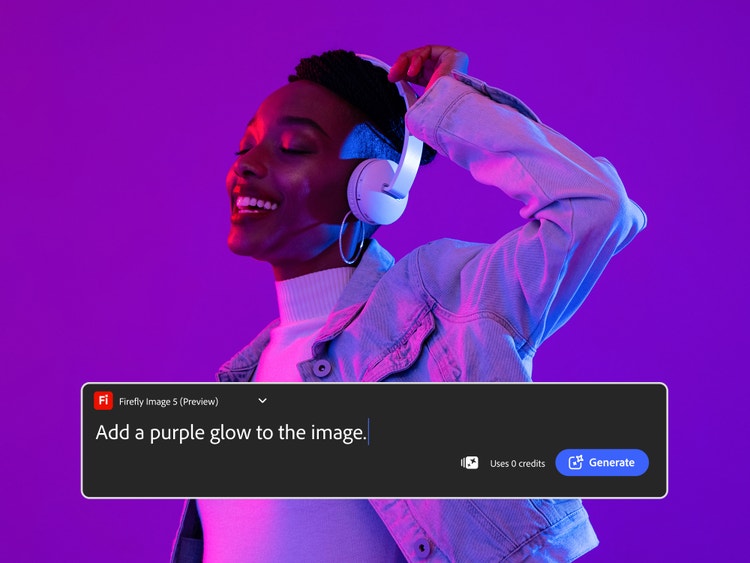
A smiling person with headphones wearing a denim jacket dancing to music with the Firefly AI photo editor text prompt used to add a purple glow to the image.

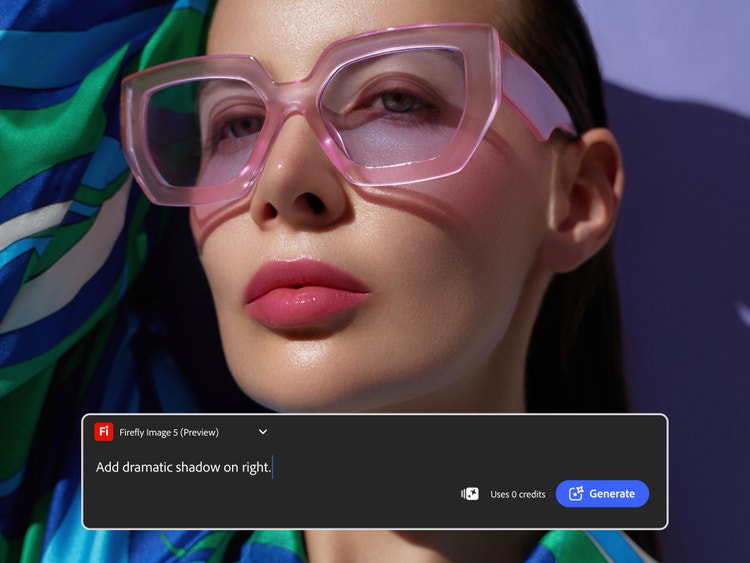
Completely reimagine the mood.

Use the free AI photo editor to change lighting, colour and mood to reimagine your photos and assets. Ask the editor to change the lighting to warm sunset tones or add some atmosphere with colour changes.

You may also like

What is Generative AI

How does Generative AI Work

Revolutionising Creation: AI Art Use Cases

How to use AI image generated backgrounds