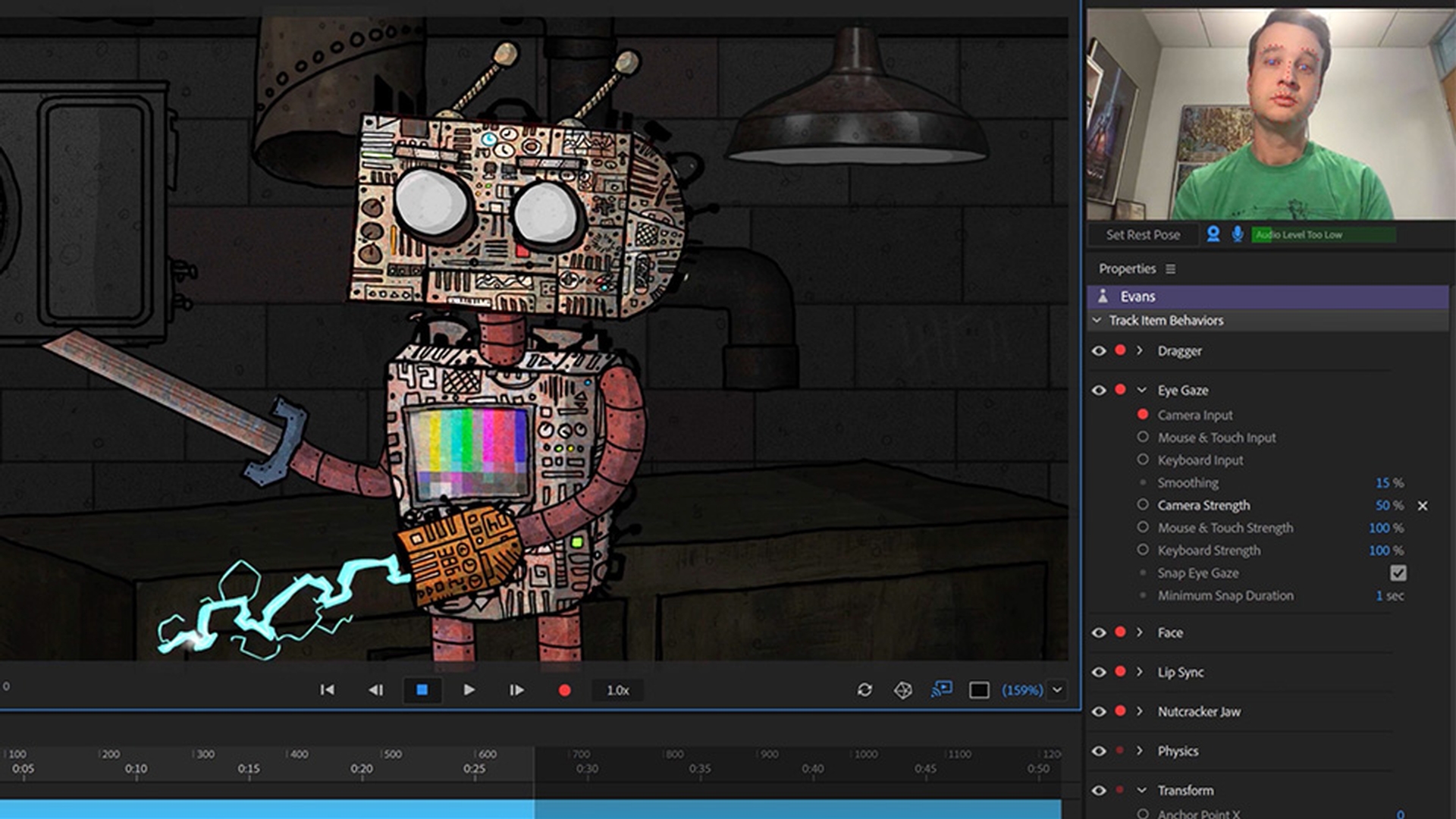
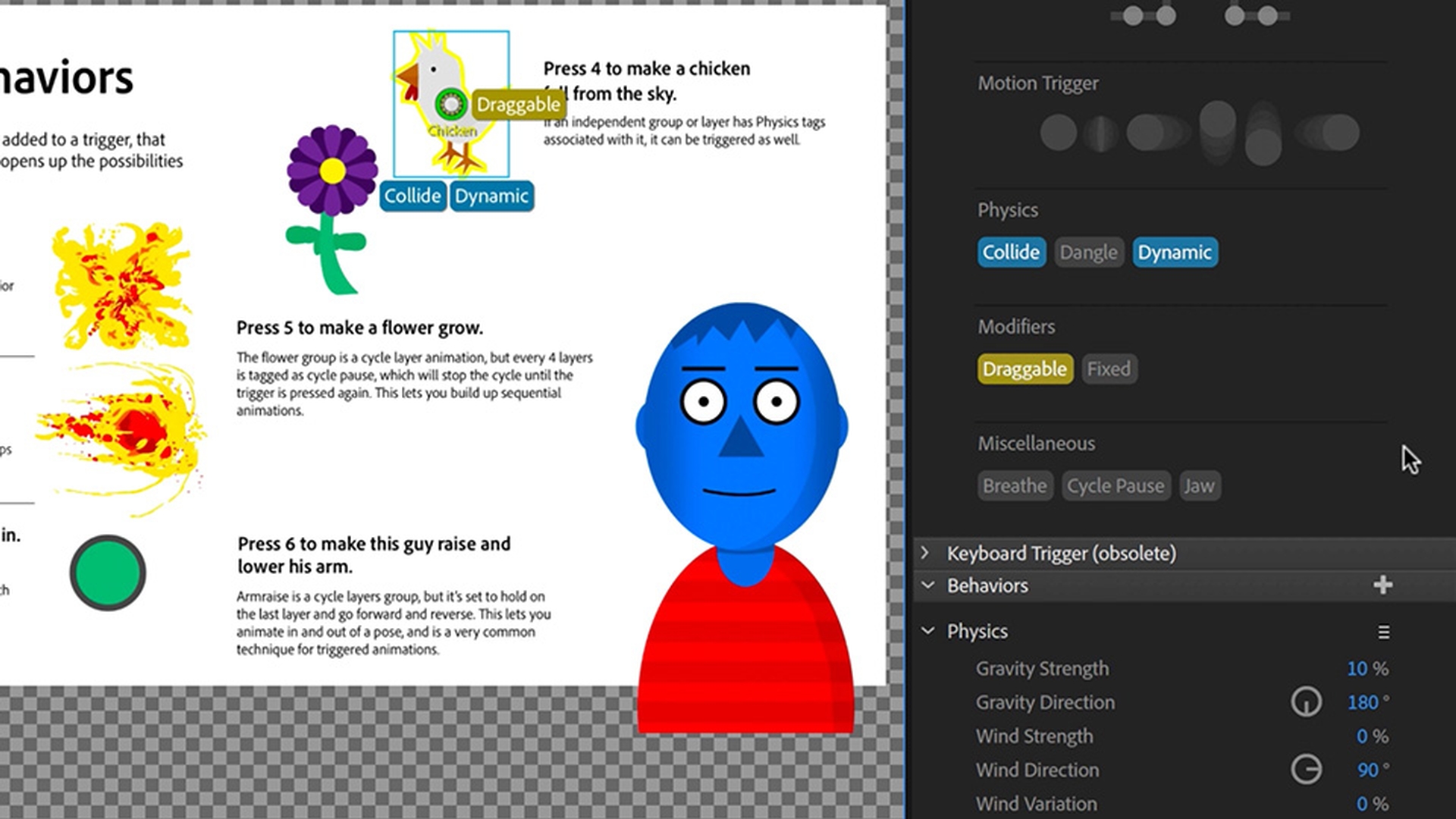
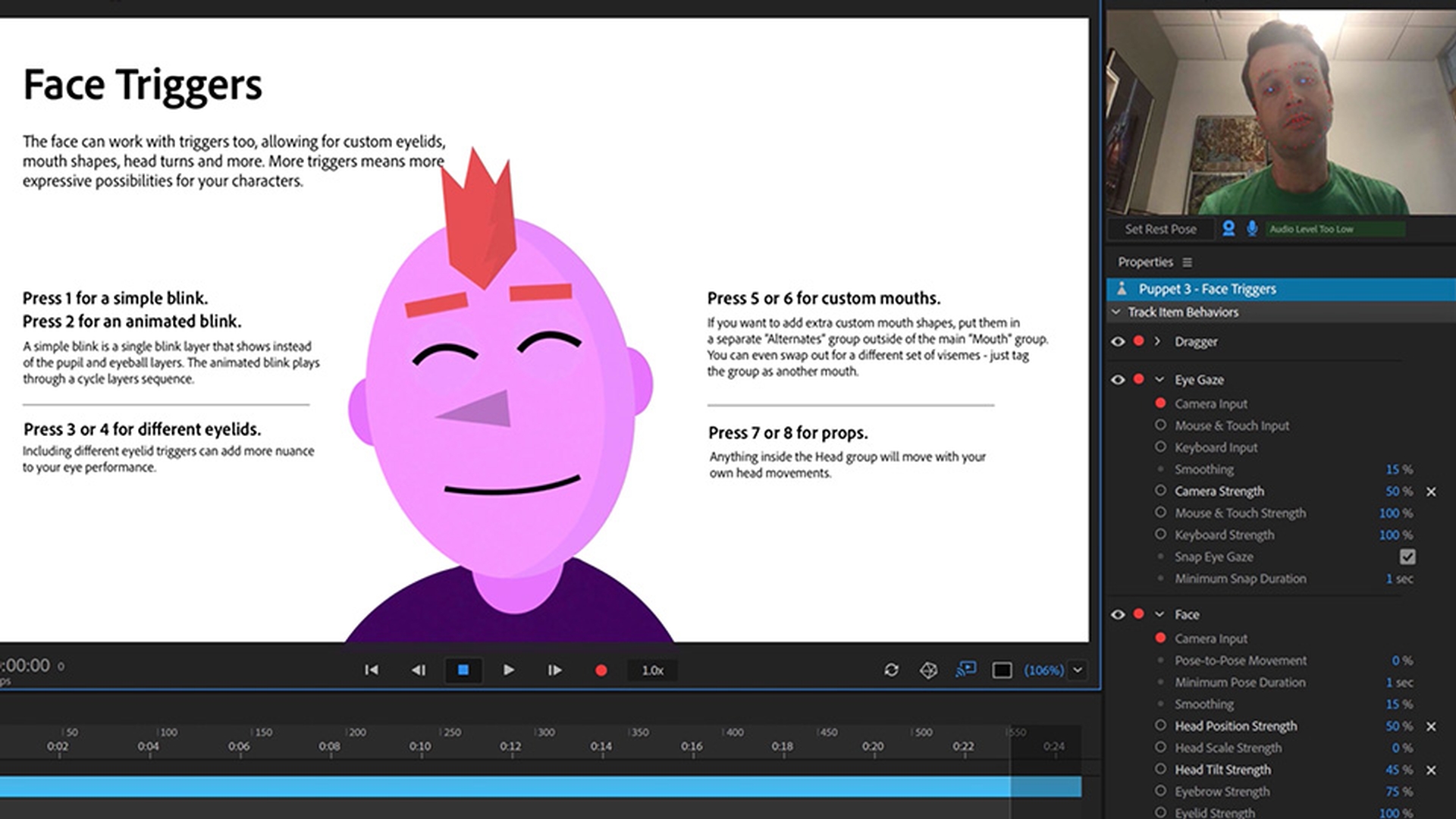
A trigger in Adobe Character Animator CC is simply a way to show or hide a group or layer.
If I want this robot to have a heart animation appear on his screen, clink his claws together or even open up his entire face to reveal a hidden computer screen this is all done through triggers.
Open the example TriggerBeginnerLesson.chproj file and in the Project panel, double click Scene 1 - Basic Triggers.
This should open the scene in Record mode.
Let's experiment with these simple triggers first and then we'll show how they were made.
Press the 1 key on your keyboard and a yellow light appears in the top circle.
Let go and it disappears again.
Press the 2 key and a blue circle appears below.
But when you let go of the key the blue circle remains.
Tapping the key again turns it back off.
In the third example pressing the 3 key makes three separate circles appear.
And finally, in the fourth example pressing 4, 5 or 6 changes the hand to a different position.
Let's see how these were setup.
In the Project panel double click Puppet 1 - Basic Triggers.
This will open the artwork up in Rig mode.
In the lower left you should see the Triggers panel with the triggers that make the scene work already listed.
If you see the History panel instead just click the Triggers header to switch over to it.
To build the triggers from scratch ourselves let's remove the existing ones by selecting them all with Command A on Mac or Control A on Windows and pressing Delete.
In the Puppet panel if I toggle the visibility of the yellowlight layer by clicking the left eyeball icon I can see a yellow circle appear.
If we wanted this to be invisible by default and only show up when we press a trigger, we can just drag the layer into the Triggers panel which creates a new trigger associated with that layer.
If we click the keyboard column in the Triggers panel, type a 1 and press Return now pressing the 1 key on the keyboard will activate that trigger.
We can try this out by returning to Record mode by clicking it in the top Workspace bar.
And as expected it works.
When we press 1 the yellow circle appears.
And when we let go it disappears.
Let's click on Rig in the top Workspace bar to return to our trigger setup.
Now we'll do the same thing with the bluelight layer.
Drag the layer into the blank space of the Triggers panel and another trigger is made.
Then click the keyboard column and type in a 2.
Finally let's check Latch in the Trigger properties that show below.
Note that latch keys show with a filled background in the keyboard column to help differentiate them.
Return to Record mode.
Tapping the 2 key here will keep the trigger on not make it go away like the first trigger did.
This is called Latching.
And you can think of it like flicking a light switch on or off.
Making a trigger latched or unlatched is really a personal preference.
So, see what works best for your own puppet's and performance style.
Returning to Rig mode now we have three separate layers - greenlight, orangelight and redlight that we want to have appear in a single trigger.
To do this drag the greenlight layer into the blank space of the Triggers panel to create another new trigger.
While it's selected press Return to rename it.
I'm going to call it 3 Lights and press Return.
Then I'll type in a 3 in the keyboard column and check Latch below.
Now try dragging the orangelight layer in the Puppet panel on top of the 3 Lights trigger in the Triggers panel and you'll see it get added into the Layers list below.
So, a trigger can have as many layers as you want associated with it.
Let's add the last layer by dragging the redlight layer on top of the 3 Lights trigger and verify that it's been added to the list below.
Now if we return to Record mode and try pressing the 3 key we can see that all three circle layers are showing up at the same time.
Return to Rig mode, twirl open the Arm group and then twirl open the Hands group inside.
Sometimes when you trigger one thing you want to replace other things and have them disappear so only one piece of artwork shows up at a time.
Hands are a common example of this.
If you trigger a finger pointing you only want to see that not the other three positions.
In Character Animator CC this is called a Swap Set To create a new Swap Set begin to drag the entire Hands group over the Triggers panel.
As you do this you'll notice a drop zone appear in the bottom asking if you want to make this into a single Trigger or a Swap Set.
This shows up anytime you drag a group into the Triggers panel.
If we made this a trigger it would simply show and hide the whole group just like the circles previously.
Instead we'll drag over Create Swap Set.
Now we have a group in our Triggers panel that includes its layers as separate triggers.
In a Swap Set which ever trigger has the filled in finger icon will be the default - the first thing you'll see when the scene loads.
You can easily change this by clicking another finger within the Swap Set, but we'll stick to keeping it on the default trigger for now.
Next, we can enter keys for each other trigger.
I'm going to use 4 for Point, 5 for Peace and 6 for Palmswap.
Note that we didn't add a key to the default.
And that's because it will automatically get triggered when another trigger ends.
Back in Record mode we can see that pressing 4, 5 or 6 changes the hand position by swapping one piece of artwork at a time.
Here are a few final helpful hints.
First there are actually four ways to create triggers - dragging and dropping into the Triggers panel, clicking the plus icon to make a blank trigger and then dragging artwork into it, clicking the Triggers column next to a group or layer or right clicking any group or layer to get several trigger creation options.
Second you can easily consolidate triggers by dragging them on top of each other.
So, if I wanted the blue circle trigger to also trigger the yellow circle I could simply drag the yellow trigger on top of the blue one and the layer contents are combined below.
You can also drag triggers around to reorganize them or take them in or out of Swap Sets.
Finally clicking a layer in the Triggers panel will highlight it in the Puppet panel.
And clicking the finger icon in the Puppet panel will highlight the trigger it's associated with.
If a group or layer is connected to more than one trigger it will get a small arrow next to the trigger icon and clicking it will allow you to select one of its multiple triggers.
Those are the fundamentals of using triggers in Character Animator CC.
And any puppet you download you can take a look at how they set up their Triggers panel.
Triggers help add emotion, expressiveness and an element of surprise to your characters.
So, try experimenting with them and watch your creations come to life in new ways.