Introduction
[Angelo Montilla]: Have you ever shared or received PDF documents and wondered if people could consume them in an alternate way?
With Generate podcast in Adobe Acrobat, you can turn text-heavy PDF documents into accessible audio summaries that fit more naturally into a busy day.
Hi everyone!
My name is Angelo Montilla, and in this tutorial, you'll learn how to bring multiple documents into a PDF Space and use Generate podcast to create an audio file based on the imported documents.
Let's dive in and learn more about Generate podcast in Adobe Acrobat.
Add your documents
From the Acrobat home screen, under Suggested tools, I'll click on All tools, and under AI Assistant, I'll click Select files under Generate podcast.
Next, I'll drag the documents that will be turned into a podcast.
In this case, I'm adding an internal team newsletter along with a product press release, so the podcast can pull context from both documents.
I'll click Next, and this will automatically create a new PDF Space for me, providing me with a quick summary with citations of the two documents that were imported.
Acrobat reviews my files and finds key themes and insights for the podcast.
On the left side of the screen under the Podcasts area,
Tailor your podcast to your listening needs
you can also choose from one of two style formats: Highlights or Deep dive.
The Highlights option is shorter and offers a focused summary of the documents, while Deep dive gives you a more detailed exploration.
In this example, I want a quick overview of the details, so I'll choose Highlights.
This will open a separate panel with a podcast transcript, a back-and-forth conversation between two hosts.
I can click Play and let's have a listen.
[Liam]: Today, we're diving into something pretty interesting for Montra, a fintech company that's tackling a common headache for many teams - making sense of over...
Use interactive playback controls
[Angelo M.]: I can pause the podcast and if I click Play again, it'll pick up the conversation from where it left off.
[Liam]: ...whelming financial data.
Hi Chloe, have you ever felt swamped by all the transaction details your team has to sift through?
[Chloe]: Oh, absolutely, Liam.
It's like trying to find a needle...
[Angelo M.]: This really makes it easy for you to stay on track with the details of the documents.
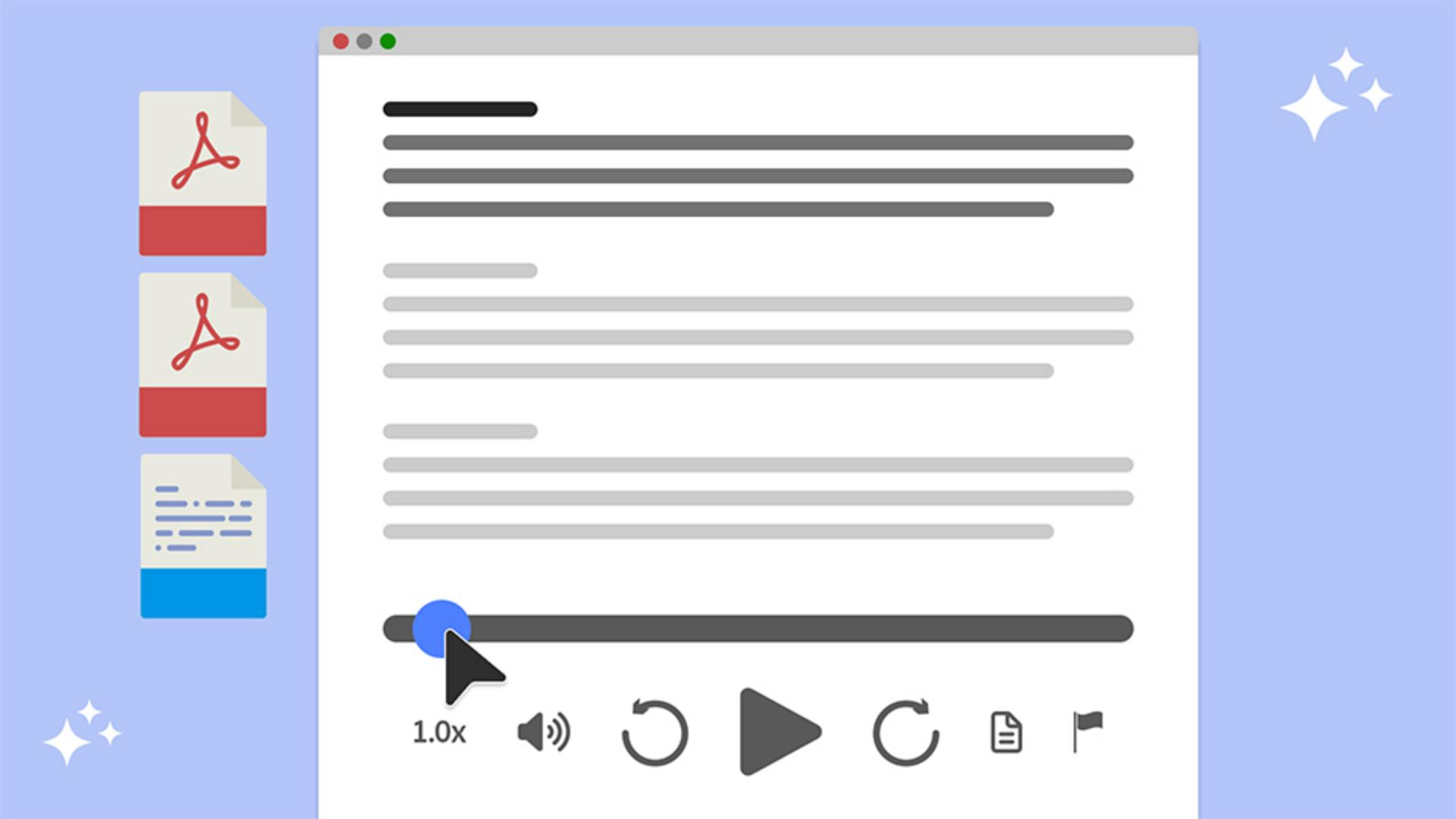
There are several other handy playback controls, including the Playback speed, as well as Rewind and Skip forward options available.
I can also hide the transcript by clicking on the Transcript icon.
I can click the icon again to display the transcript.
Podcasts can also be generated from single PDF documents.
For example, if I go back to the Acrobat home page, I can click and open the Monthly Newsletter separately.
I can click Generate podcast from the left side menu, and then choose the style format that I'd like.
In this case, I'll go with Deep dive podcast, and click Generate.
And that'll take just a few moments to process.
Once finished generating, the Podcast Control Bar will appear at the bottom of the screen, and much like I did in the first example, I can click the Transcript icon to bring up the transcript, and let's play it to have a listen.
[Liam]: Welcome to this episode.
Today, we're diving into Montra's April progress report.
Montra is a fintech company focused on building a flexible, insight-driven finan...
[Angelo M.]: I can even open the same PDF document in Acrobat on my mobile device to access the podcast.
Let me show you how that works.
Listen on desktop or mobile
With the PDF open, tap on the Podcast icon located in the upper right-hand corner of the mobile screen.
This will automatically launch the podcast and play it in Acrobat.
Let's have a listen.
[Liam]: Welcome to this episode.
Today, we're diving into Montra's April progress report.
Montra is a fintech company focused on building a...
[Angelo M.]: I can pause the player and play it again, and it'll pick up from where it left off.
[Liam]: ...flexible, insight-driven financial platform tailored for modern teams managing business finances.
[Angelo M.]: I'll pause the podcast and you can see that I also have the same playback controls as the desktop experience.
I could set the Playback speed on the far right, and I also have Rewind as well as Skip-ahead options available.
And that's all you need to start turning your PDF documents into engaging podcasts in Adobe Acrobat.
Try using these techniques with your own documents to save time and make information in text-heavy PDFs easier to absorb.
My name is Angelo Montilla.
Thanks for watching, and I'll see you in the next video.
