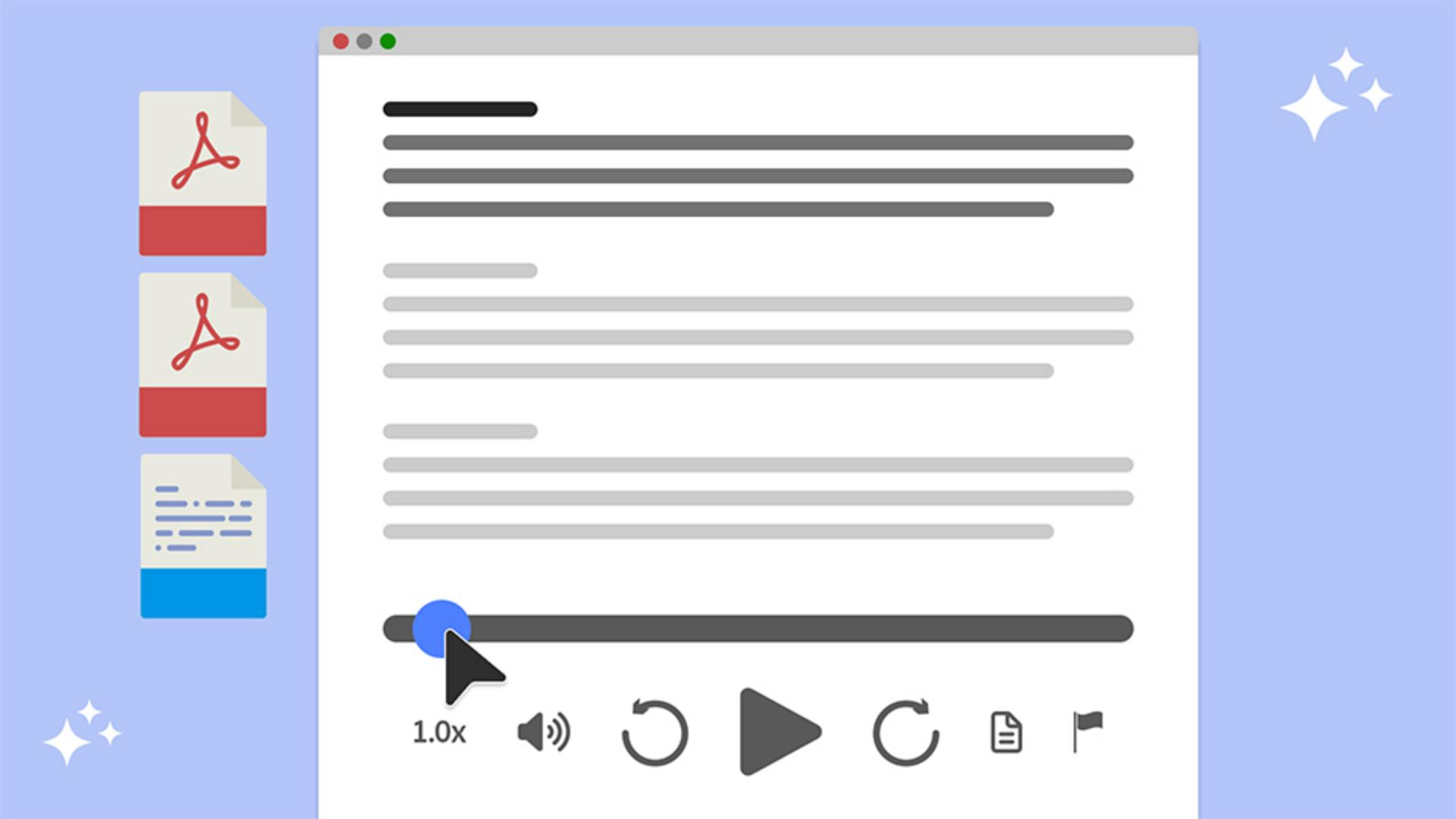
Use interactive playback controls
[Angelo M.]: I can pause the podcast and if I click Play again, it'll pick up the conversation from where it left off.
[Liam]: ...whelming financial data.
Hi Chloe, have you ever felt swamped by all the transaction details your team has to sift through?
[Chloe]: Oh, absolutely, Liam.
It's like trying to find a needle...
[Angelo M.]: This really makes it easy for you to stay on track with the details of the documents.
There are several other handy playback controls, including the Playback speed, as well as Rewind and Skip forward options available.
I can also hide the transcript by clicking on the Transcript icon.
I can click the icon again to display the transcript.
Podcasts can also be generated from single PDF documents.
For example, if I go back to the Acrobat home page, I can click and open the Monthly Newsletter separately.
I can click Generate podcast from the left side menu, and then choose the style format that I'd like.
In this case, I'll go with Deep dive podcast, and click Generate.
And that'll take just a few moments to process.
Once finished generating, the Podcast Control Bar will appear at the bottom of the screen, and much like I did in the first example, I can click the Transcript icon to bring up the transcript, and let's play it to have a listen.
[Liam]: Welcome to this episode.
Today, we're diving into Montra's April progress report.
Montra is a fintech company focused on building a flexible, insight-driven finan...
[Angelo M.]: I can even open the same PDF document in Acrobat on my mobile device to access the podcast.
Let me show you how that works.