Animate a puppet with your webcam gestures
Adobe Character Animator gives life to characters you create in Adobe Illustrator or Photoshop when you act out their movements in front of a webcam. Learn how to use behaviors such as Motion Trigger, Cycle Layers, and Head Turner to animate a hummingbird.
Published
Introduction
>> Behaviors are special rules that add extended functionality to puppets in Adobe Character Animator.
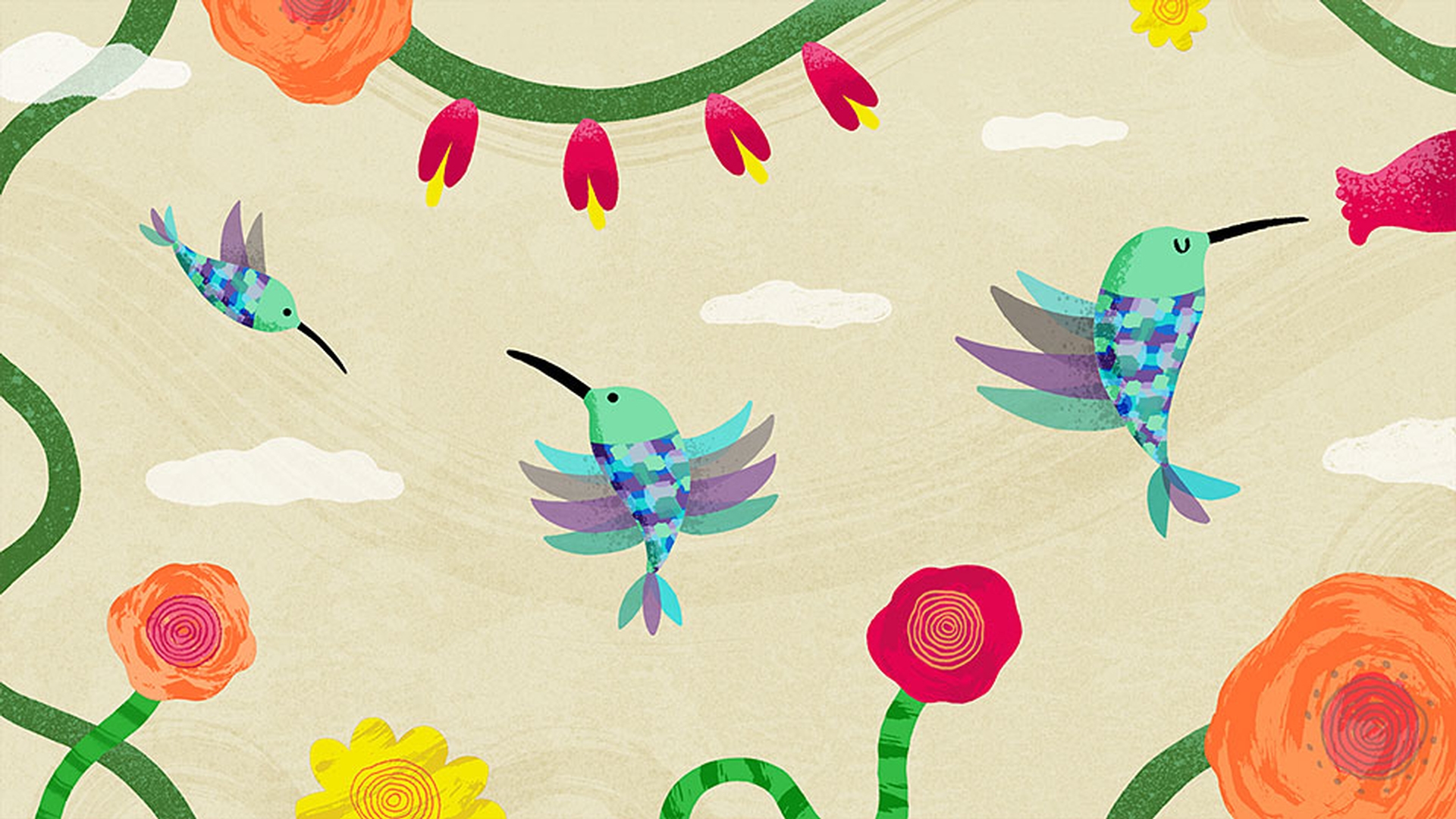
Using behaviors, I can animate a hummingbird that flaps its wings, turns its head when I turn mine, and change to a side view when I move left or right.
Here's the original artwork file in Photoshop.
To animate this in Character Animator, we'll need to take a few steps to organize and tag the different parts we want to interact with.
Start by creating some new groups in Photoshop.
Preparing and importing artwork for character animation
Call the first one "Hummingbird."
This is the primary group to move around.
Make another group inside this primary group and call it "Head."
Inside the Head group is what we want to control with our head.
Drag all existing artwork inside this Head group.
Launch Character Animator and go to File, Import.
Select the Hummingbird and the Background PSD, which on import appear as puppets in the Project panel.
Double clicking the Hummingbird shows it in the puppet panel.
This is where the bulk of animation preparation or rigging is done.
To start playing with this puppet now, click Add to New Scene in the lower left corner of the Project panel.
We can immediately see that as I move my head, the bird puppet is moving on the stage as well.
The wings aren't moving yet and we're not changing any head or body positions.
But the basic structure seems to be working.
We can also add the background by dragging it into the Scene then pressing Cmd + Down Arrow on Mac or Ctrl + Down Arrow on Windows to move it behind the Hummingbird.
Double click the Hummingbird puppet again to return to the Puppet panel.
This bird was organized into three groups, Left, Right, and Default views, which are all now inside the Head group.
Using motion trigger to switch character views
With the parent Head group selected, go to the Properties on the right, click the plus icon next to Behaviors and choose Motion Trigger.
The Motion Trigger behavior now appears at the bottom of the Properties and this group receives a behavior icon in the Puppet panel.
First, hold down Shift while selecting both the Hummingbird and Head groups, and check the Warp independently box in the Properties on the right.
This just tells Character Animator that we want these elements to be able to move on their own.
Second, select the top Hummingbird group, look at the Tags area of the Properties panel and select the Draggable tag.
This tells Character Animator that we want to move the Hummingbird in the Scene by dragging it with the mouse or fingers on a touch enabled device.
Finally, select the first view group and find the Tag section for Motion Trigger.
Because this is the left view, select the Moving Left icon to tag it.
Do the same for the other view, that is selecting the right group and tagging it as Moving Right, and then selecting the front view and tagging it as At Rest or default pose.
Now, when we return to the Scene, we can drag the Hummingbird around with the mouse and the views are changing as expected when we drag the hummingbird to the left or right.
If we look at the Properties panel on the right, we can adjust the Motion Trigger parameters.
A higher Speed Threshold means the bird would have to move faster to trigger the views, while a higher Minimum Duration means the views will show up for at least that many frames.
Back to the Puppet panel, find the wing group for each pose.
Animating wings with the cycle layers behavior
Each group has three wing states, up, middle, and down.
Holding Cmd on Mac or Ctrl on Windows, select all three then go back to Behaviors and this time, add Cycle Layers.
This behavior will move through the contents of the group with frame by frame animation.
[Cycle: Continuously] We have several options to tweak here but the most important ones [Cycle: Continuously] are to have the wings start immediately, flutter continuously, [Cycle: Continuously] and go forward and reverse on an endless loop.
[Forward and Reverse] Return to the Scene.
[Forward and Reverse] Now the wings are animating as expected in each view.
Inside the default At Rest pose, the bird's Head group contains seven different head positions.
To switch between these states by turning our own head, select the parent Head group and add the Head Turner behavior to it.
Turning the head with the head turner behavior
After doing this, notice the seven possible views listed below.
If we named one of the groups or layers in the Photoshop file the same as one of these names, it will show up as a "1" here, meaning Character Animator has found a match.
A "0" means there's not a match yet, which seems to be the case for the Upward and Downward views.
We can easily fix that by selecting the group we want and tagging it in the View section.
Once that's done, we should see all the Head Turner views properly accounted for.
Go back to the Scene.
Now notice how the bird's head turns along with our own.
Now that all the behaviors are working properly,
Recording the performance and exporting the animation
we can click Record and capture our performance.
To share this animation as a video, go to File, Export, Add to Adobe Media Encoder Queue.
This opens up Adobe Media Encoder, ready to output an MP4 file matching the Scene size and frame rate.
Press the green Play button to start the render process.
Once complete, we can find the finished file in the destination listed above ready to share.
Motion Trigger, Cycle Layers, Head Turner and other behaviors help bring your characters to life in new and exciting ways.

