Animate a puppet with Adobe Character Animator
Turn a static character you created in Adobe Photoshop into a movable, talking puppet using Adobe Character Animator.
Published
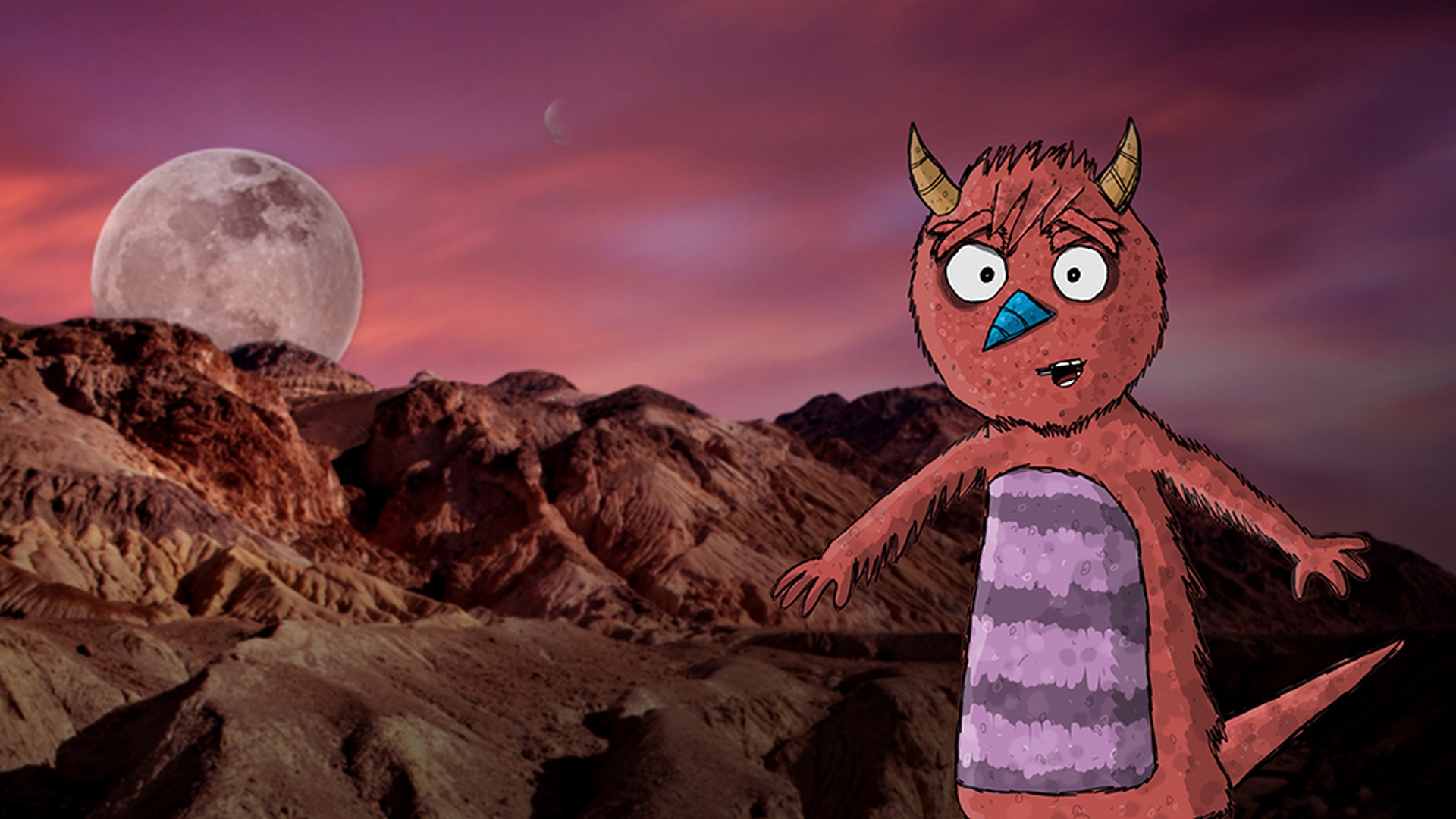
How do you take a static character you've made and turn it into a movable, talking puppet?
I have this illustration of a monster character I drew in Photoshop.
So, the first thing I need to do is separate the head from the body because I want the head to look realistic.
Pivoting at the neck, and having the ability to be controlled separately.
So, here's my general group structure.
I'll call the parent group '+Front' because this is the front view.
And then I'll put two sub groups inside there: Head and Body.
I'm going to go through all my layers and drag them into the correct group.
If you have artwork that spans between the head and the body, now is a good time to split them up into two separate layers.
So that's done, but before we jump into Character Animator we need to add two invisible data points, or handles as we like to call them.
Handles give character animators some extra information about how certain parts of our characters should move.
First, I want the head to pivot right at the neck.
So inside the 'Head' group I'm going to make a new layer.
Select the 'pin' tool.
Make sure it's set to 'Shape'.
And add a single handle.
I'll rename it 'Origin', meaning this is where this particular part begins.
Second, I want the body to bend from the torso.
So I'm going to make another new layer inside the 'Body' group.
Add another handle right at the waist line, and call it 'fixed'.
Imagine we're pinning the character down here.
Even if the rest of the body moves and bends this part is going to stay still.
Let's bring this monster into Character Animator and see how it looks.
I'll fire it up from After Effects by going to 'File', 'Open Adobe Character Animator'.
Then I'll click on Command+I on MAC or CTRL+I on Windows to import a new puppet and bring it in.
I'll then click 'Add to New Scene', down here in the lower left corner.
Finally, I'll double-click my face on the webcam to reset all the tracking dots and there we go.
So now we have the basic foundation for a character.
As I move my head around the monster will bend, warp and move as best it can to match my movements.
Notice the head is pivoting at the 'origin' handle I made.
And the torso is stationary since that's where I made my 'fixed' handle.
If I wanted to give movement to the arms I could go back into Photoshop, create some handles on the hands, and rename them to 'draggable;.
But, I could also do this within Character Animator by selecting my puppet, selecting the 'Body' group, choosing the 'Dragger Tool', and adding handles to the hands here.
Now if I drag around the arms with my mouse or my fingers on a touch base device I can move them.
Now that I've got the basics of body movement down, let's work on bringing the face to life.
I'm going to start with the eyes.
The first thing I'll do is isolate the eyebrows and name them 'left eyebrow' and 'right eyebrow'.
We name them relative to the puppet's view.
So 'right' means the puppet's right side not the right side of my screen.
We want the eyebrows to be able to move independently from the rest of the head.
So every time you raise your eyebrow it doesn't also pull and raise your whole head along with it.
To do this, I'll add a plus in front of each layer name.
Signalling that this is what we call a sub puppet.
Next, let's make a 'right eye' and 'left eye' group inside the 'Head' group.
And drag any corresponding eye layers in there.
I want to end up with three layers.
Eyeball, pupil and blink.
So, let's name these accordingly and make sure they're in the correct groups.
'Left Eyeball' with 'Left Pupil' and 'Left Blink'.
'Right Eyeball' with 'Right Pupil' and 'Right Blink'.
I'll add a plus in front of the 'Pupil' layers because I want the eyes to move independently from the rest of the head.
When I check out the monster now in Character Animator its eyes should follow my own eyes.
When I raise or lower my eyebrows, or close my eyes, it'll do the same.
As long as you follow this general eye structure, your puppet should follow your performance in the webcam.
If your movements feel too extreme or too subtle, try twirling down the face properties on the right.
Experiment with these until you get the right level of expressiveness.
Back to Photoshop, it's time to add a mouth and let the monster speak.
The mouth can take a decent amount of time to get right because you can have up to 13 different mouth shapes within this group.
Since we're just getting started, I'm going to borrow and drag the mouth layers over from another character I've created.
You can do the same.
You can download a mouth and other puppet elements such as eyes for free as a Creative Cloud member.
Check out the link on this page.
When you drag a library asset in, just hold down Option on MAC or ALT on Windows so you'll get the full group and layer structure.
If you don't like this hand drawn style, try redrawing and replacing each layer with your own style.
Jumping into Character Animator I can now see the monster's mouth change depending on what sound my microphone is picking up.
With all these elements combined, I've now got a pretty compelling character.
When I'm ready, I can record my full performance by pressing the red 'record' button down here.
When I'm happy with a take, I can go to 'File', 'Export', 'Scene', which will export all the visual and audio data I need in the form of a PNG sequence and WAV file.
I want to add some finishing touches, so I'll fire up After Effects and go to 'File', 'Scripts', 'New Comp from Character Animator Recording.jsx'.
I'll just select one of the images and the Script will do the rest.
Giving me a new comp with the correct syncing and frame rate.
Now I've got all the power of After Effects to put together a polished, professional looking scene.
So, congratulations.
You've covered all the basics of making a puppet.
Download the latest version of After Effects, and apply these same steps to any piece of artwork to help bring it to life.
There are plenty of extra, more advance things we can add to your character later, but this is a great foundation to get started.
Good luck, and thanks for watching.

