Collaborate and gather feedback with Firefly Boards
Share boards with collaborators and gather focused, in-context feedback to align visual direction as a team.
Published
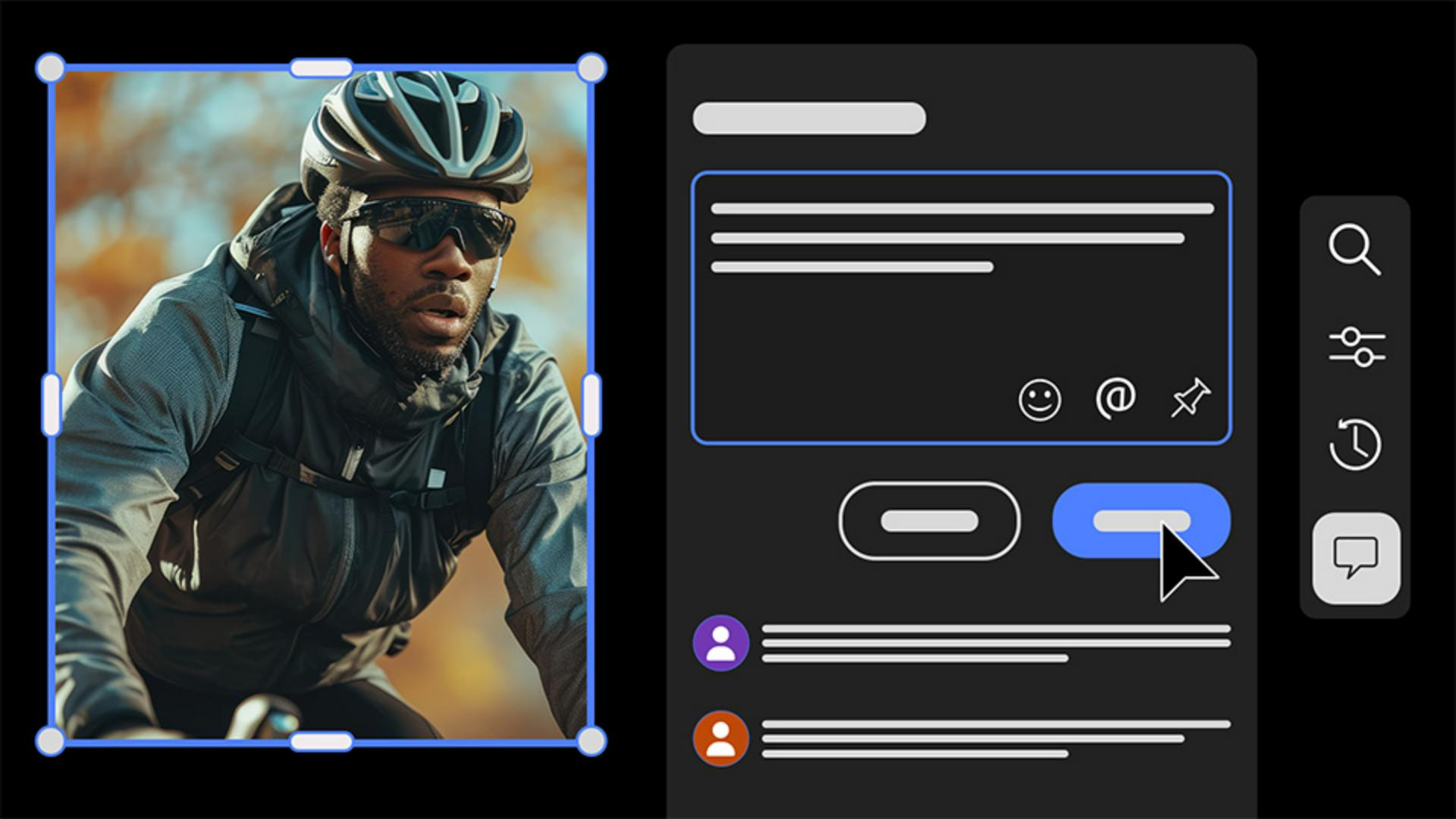
Intro and meet author Angelo Montilla
[Angelo Montilla]: Sharing and collaborating on projects in Firefly Boards makes it easier to align ideas, gather feedback directly on the canvas, and shape visual direction together.
Hi everyone!
My name is Angelo Montilla, and in this tutorial, I'll show you how to share a board, invite collaborators to a project, and work together to contribute ideas throughout the creative process.
Let's dive into this tutorial and explore how collaboration works in Firefly Boards.
I've already created a board that brings together visual exploration and theming options for Cadence, a fitness mobile app for cyclists.
It includes interface components, color themes, and layout ideas that I can share for review before moving into the final design stage.
Now, let's assume that I'm the product designer and creative lead on this project, and I'd like to share this board with the product manager, who can collaborate and provide more feedback.
Share a board and set permissions
To share a board, I'll click the Share button in the upper right-hand corner of the screen.
Here, I can add one or more emails to share the board.
In this example, I'll add the email of the product manager.
I'll also include a personal message seeking feedback on theming, art direction, and the app screens.
Before sending the invite, I'll ensure that the viewing permissions are set to Can edit, giving the product manager full control of the board.
If I wanted to share this board with limited access, I could choose Can comment instead.
I can now click Invite to edit and invite the product manager to the board.
I also have the option of copying the link to the board, and here I can also manage who has access to the board - Only invited people can access or Anyone with the link.
Next, let's switch over to the product manager's perspective.
The recipient can click the link in the email invite to start collaborating on the Cadence Cycling App board.
At present, the recipient must have an Adobe ID to access and collaborate on the project.
With the board open, the product manager can see that the owner of the board is online.
She can now review and add comments.
On the right side in the floating menu, click on the Comments icon.
Add comments and pinned feedback
This will bring up the Comments window.
In this example, the product manager adds a comment about how dynamic the imagery feels, and that the purple theme feels most cohesive for the branding.
The collaborator can then click Submit to post the comment to the board.
Collaborators can add pinned comments to a board by clicking the Pin icon in the Comments box.
You'll notice a colored pin in the cursor; in this case, it is yellow, which can be placed on or near content on the board.
In this example, I'll place the pin under the Color Theme Direction 3 set.
Next, the collaborator can add the comment related to the pin and click Submit to post it to the board.
Collaborators can also tag other users by typing the @ symbol and choosing the user from the list.
In this example, the product manager tags me, adds the comment, and then clicks Submit to post it to the board.
You can see here that I'm now tagged in this comment.
Review and resolve collaboration notes
Switching back to my perspective, I can see that Mary, the product manager, is currently working on the board, and if I click the Comments icon, I can see that she's left some feedback for me to review.
The comments will appear from newest to oldest, and if I hover over a pinned comment, it'll be highlighted on the board, making it easier to find.
Alternatively, if I click one of the pins on the board, it'll be highlighted in the Comments window.
I'll click on the Resolve icon next to the comment, and in doing so, you'll see that the pin disappears from the board.
That's because the comment's been moved to Resolved.
I can also resolve the comment where I was tagged in.
To access the resolved comments, I can click on the Filter icon in the bottom left-hand corner of the Comments window, and then choose Resolved to view all the resolved comments.
I can click Clear to clear all the filters, and as a final step, I can respond to the product manager by adding my own comment, acknowledging all her feedback, and then I can click Submit to post my response to the product manager.
You now know how to collaborate in Firefly Boards by sharing a board, inviting collaborators, and adding comments directly on the canvas.
Try using this approach in your own projects to streamline collaboration and strengthen your creative workflow.
My name is Angelo Montilla, and I'll see you in the next video.
What you’ll learn
Share a board with collaborators
Invite teammates to review or edit a board, set permissions, and manage access as your project evolves.
Add comments and pinned feedback
Leave general or pinned comments directly on the canvas to clarify visual direction and design decisions.
Review and resolve feedback together
Track comments, respond to teammates, and resolve feedback to keep collaboration focused and moving forward.
Instruction by
Design by

