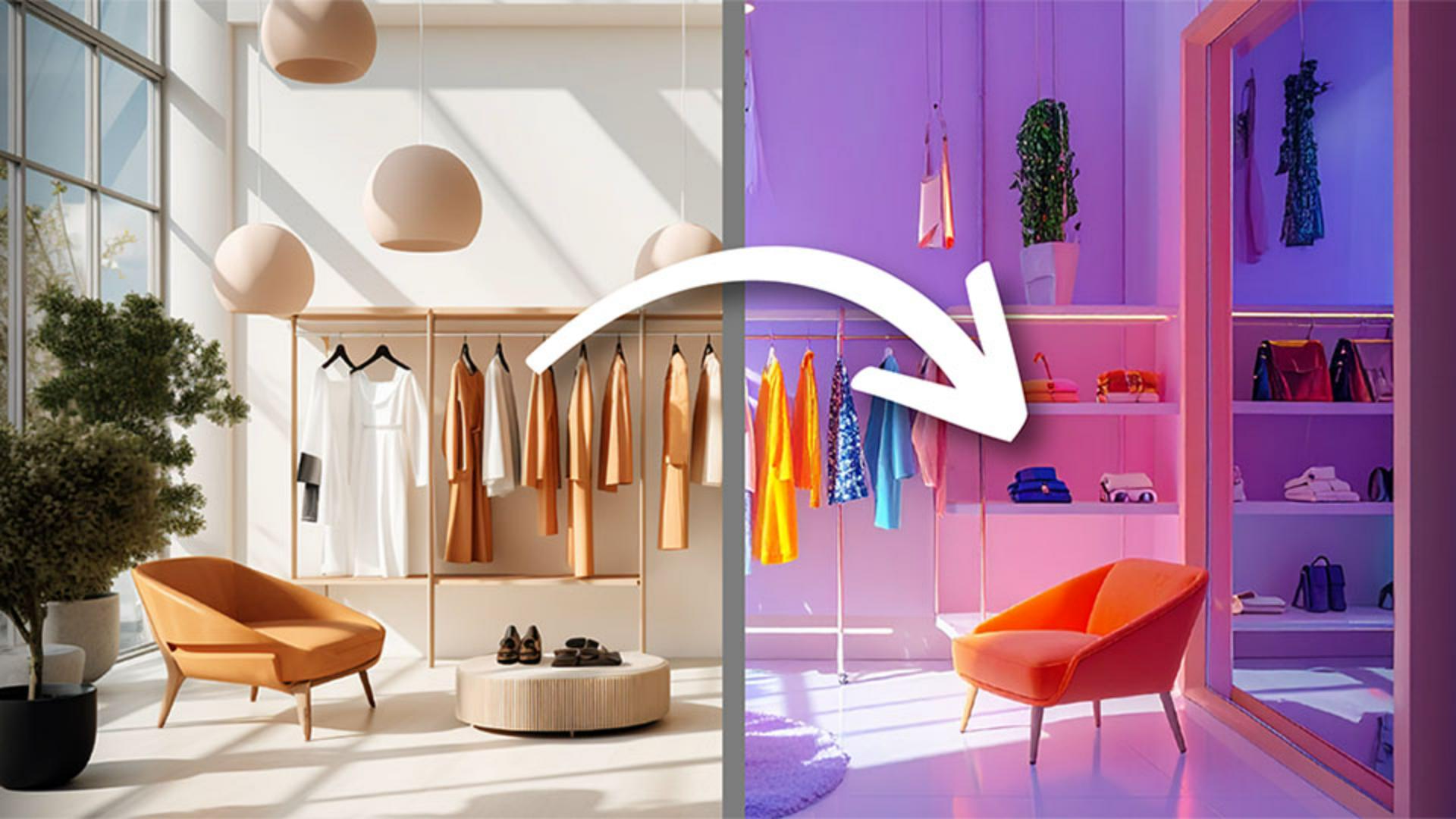
Generate new contexts and virtual try-ons
Let's start with this simple soda can, but I want something bigger and bolder for the background.
So, we'll Edit, pick the platform of our choice, and I'll drop in a prompt straight from my creative brief.
And boom, we have the coolest shot of this can in a totally different environment ready for social media.
Lastly, let's have some fun with wardrobe.
Here's an image from a photoshoot I took, but we wanted something a little bit funnier, maybe a different jacket.
So, I'm bringing in the original art and this new image of a puffer jacket.
It's best to have something that's clean, front-facing, and has a white background.
I'm going to hit Presets again, and you're going to go to Virtual try-on; you'll click Subject, click on the original, you'll go to Clothing, and click on the new image that you want the image to be wearing.
Hit Generate, and you won't believe your eyes, but you'll actually get an incredible image of the original person wearing the new clothing.
It even took the post-it notes and placed them exactly in the same position.
What an incredible thing to have and what an awesome tool to be using.
Using Firefly Boards this way makes it so much easier to explore ideas, test variations, and adapt visuals without slowing down your workflow.
Now it's your turn.
Bring in an Adobe Stock image or something of your own and explore multiple creative directions in Firefly Boards and export a set of visuals that are ready for real-world use.